

Create and manage a bucket exposure for BigQuery
Create a bucket exposure for BigQuery subscribers, then find, edit or delete it. Covers the dialog fields, the listing ID and who may create one.
Share a bucket through Bucket Exposure from the bucket detail in Storage, then change or remove the exposure under Data Catalog. The dialog described here is the BigQuery one. On a Snowflake project it asks for other fields: see Snowflake grant mode and Snowflake share mode.
Bucket Exposure is in beta and has to be enabled for your project: see the note at the top of the Bucket Exposure overview.
Create an exposure
Section titled “Create an exposure”Goal: make one bucket available to subscribers in BigQuery Analytics Hub.
-
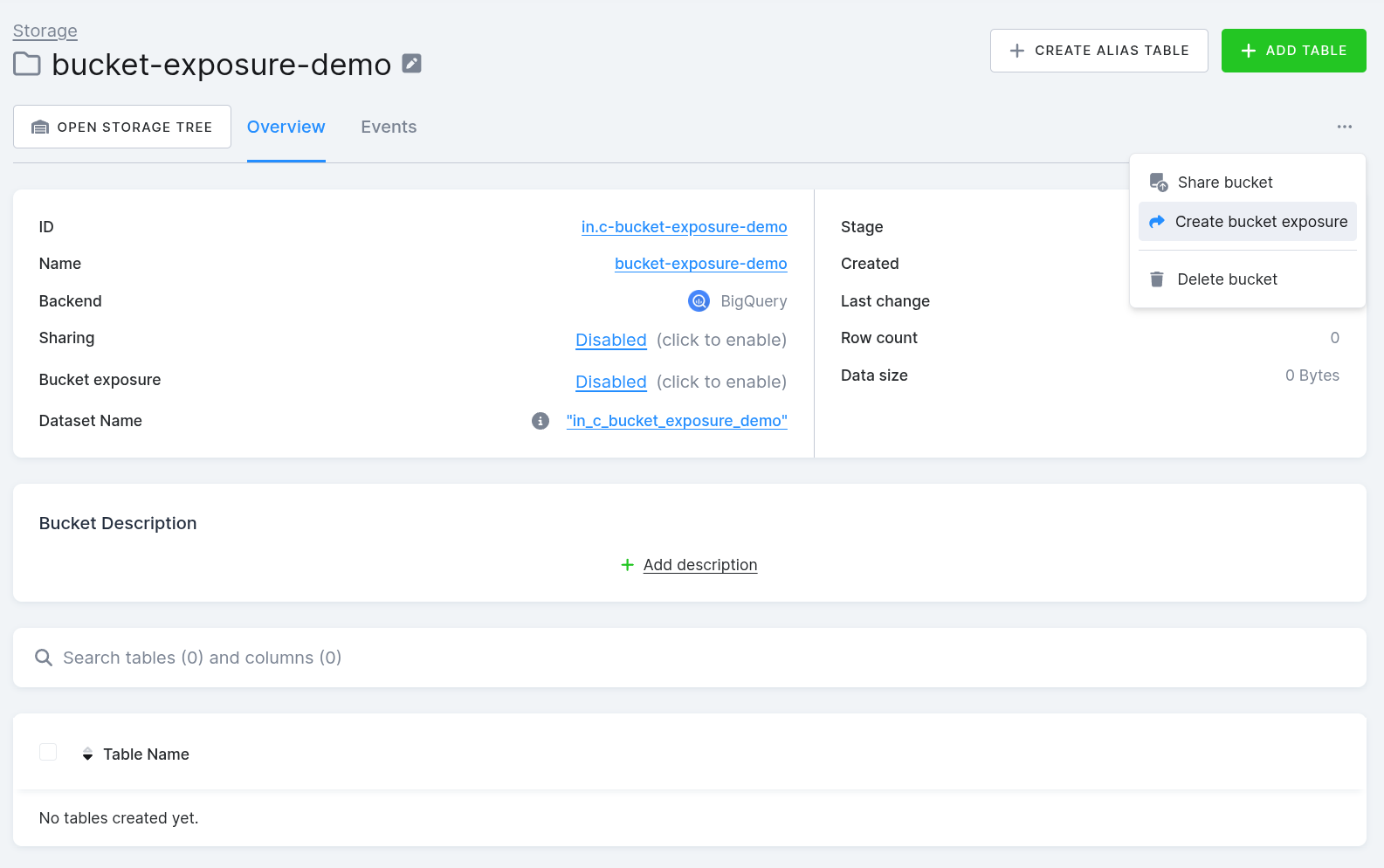
Open the bucket you want to share in Storage. On the bucket detail page, either click the Disabled (click to enable) link next to Bucket exposure, or open the ⋯ menu in the top right and choose Create bucket exposure.
-
A dialog opens. Fill in:
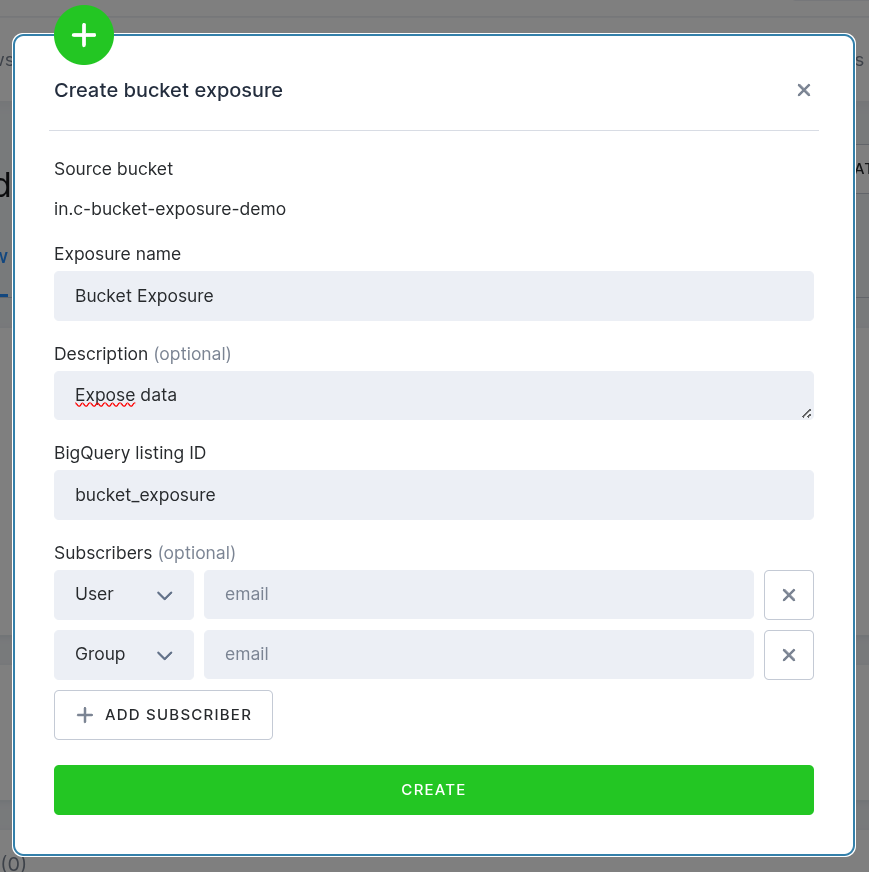
- Exposure name — what your consumers will see when they look up the dataset in BigQuery. Use a friendly name like Sales Dataset Q1 or Customer Segments — Production.
- Description (optional) — a short explanation of what the data is. Your consumers will see this too.
- BigQuery listing ID — a technical identifier (lowercase letters, digits and
underscores). This cannot be changed later, so pick something stable. If you’re not
sure, it’s safe to derive it from the exposure name, e.g.
sales_dataset_q1. - Subscribers (optional) — the people or groups who should have access. For each
entry, pick whether it is a User (a single Google account, e.g.
john.doe@example.com) or a Group (a Google Group, e.g.analytics-team@example.com). You can add subscribers later from the exposure detail.
-
Click Create.
Result: The exposure is created in the background — you will see a job in Keboola tracking its progress. Once the job finishes, the bucket is live in BigQuery Analytics Hub and your subscribers can start using it.
Find an exposure
Section titled “Find an exposure”Goal: see every exposure of the project and open the detail of one.
-
Go to Data Catalog → Bucket exposures. All your exposures live there.
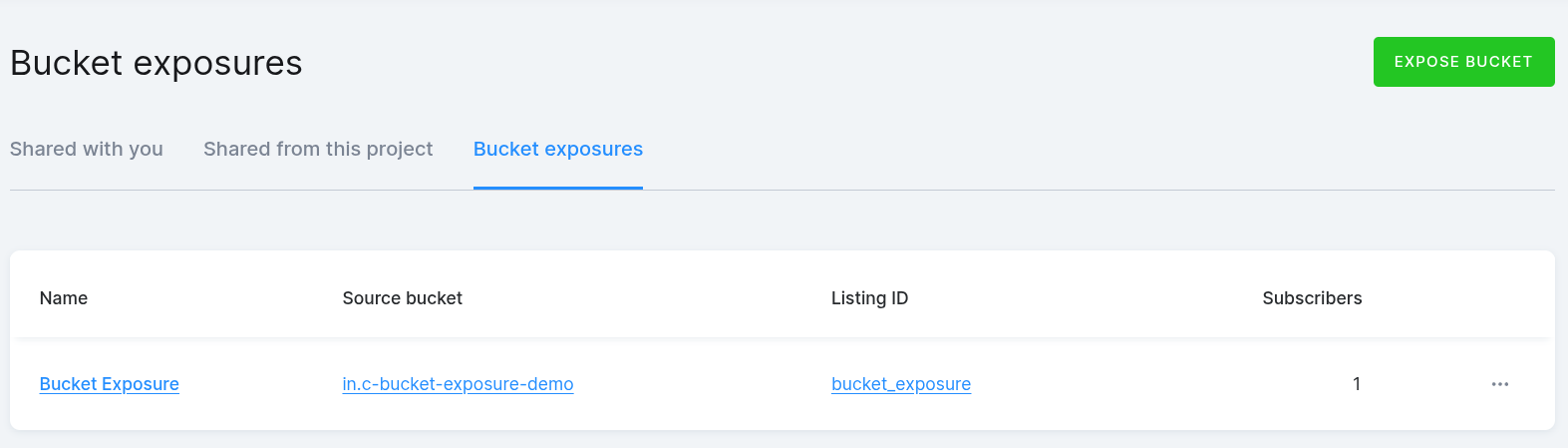
Each row shows the friendly name, the source bucket, the BigQuery listing ID, and the number of subscribers.
-
Click a row to see details.
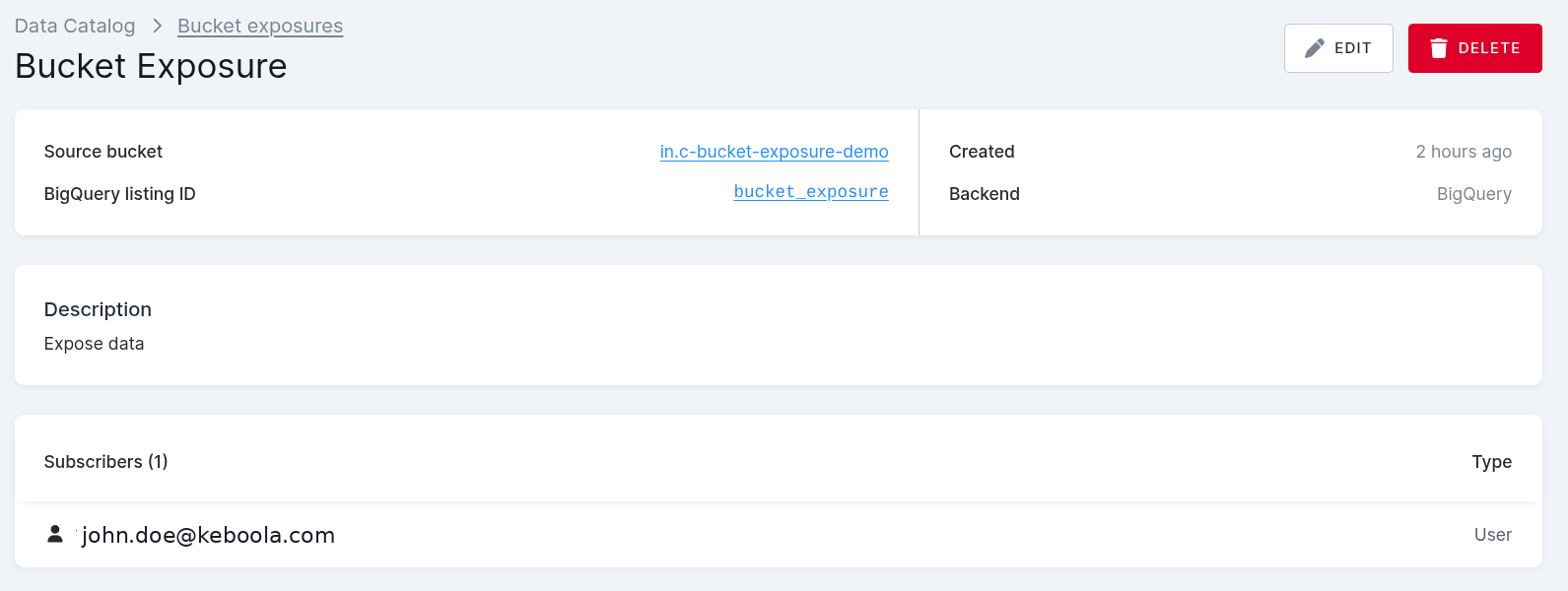
Result: The detail page lists everyone who has access and gives you Edit and Delete buttons.
Edit an exposure
Section titled “Edit an exposure”Goal: change the exposure name, description, or the list of subscribers.
-
Click Edit on the detail page.
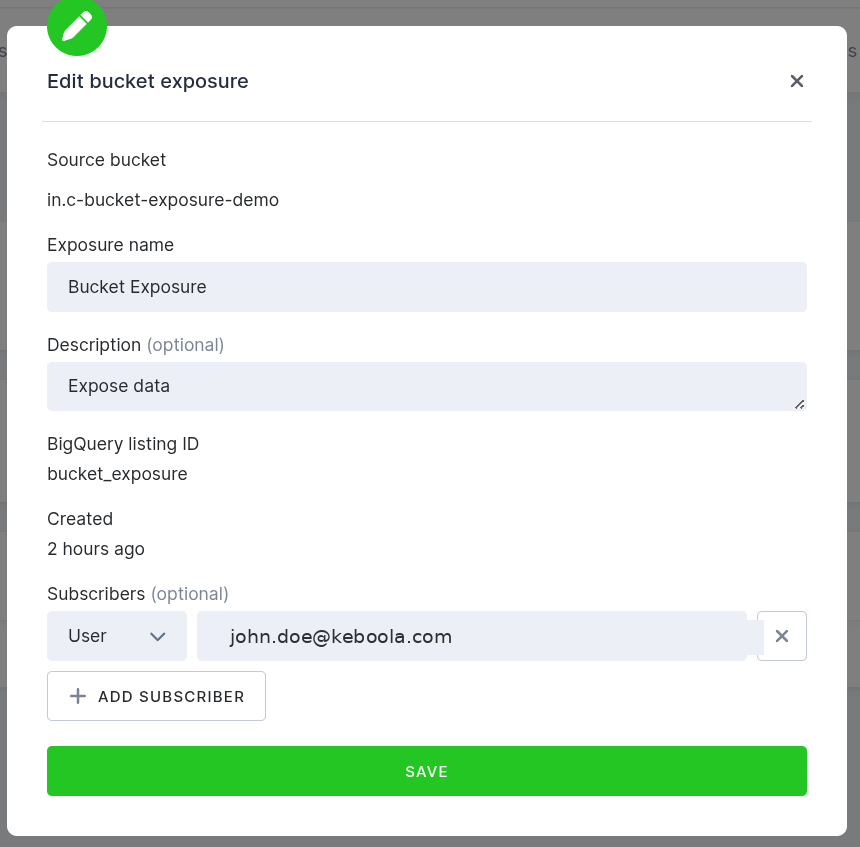
-
Change the exposure name, description, or the list of subscribers, and click Save. The BigQuery listing ID is shown but cannot be edited — changing it would break the connection for everyone already subscribed.
Result: Adding or removing a subscriber takes effect immediately — new people gain access right away, removed people lose access right away.
Delete an exposure
Section titled “Delete an exposure”Goal: remove the exposure entirely.
- Click Delete on the detail page.
Result: All current subscribers immediately lose access to the data in BigQuery.
If you delete the bucket itself in Storage, the exposure is cleaned up automatically — you don’t need to remove it manually first.
Next: Snowflake grant mode →
Was this page helpful?
Thank you for helping improve Keboola's documentation!