

Bucket Exposure
Bucket Exposure lets you share data from a Keboola bucket with people outside your Keboola project — directly inside their own Google BigQuery environment. No exports, no data copies, no manual handoffs.
You pick a bucket, give it a friendly name, and list who should have access. Those people or teams see the data appear in their BigQuery, and they can query it just like any other dataset. The data is always live: as soon as it changes in Keboola, the new version is visible to them.
When to Use Bucket Exposure
Section titled “When to Use Bucket Exposure”Bucket Exposure is the right choice when:
- You want to share prepared, governed data with a partner, a client, or another team in your organization — and they work in BigQuery, not in Keboola.
- You want a single source of truth: instead of emailing CSVs or running nightly exports, your consumers always see the latest version of the data.
- You want control and visibility: you decide who has access, you can revoke it at any time from Keboola, and every change is auditable.
Typical scenarios:
- The Marketing team maintains a curated customer segmentation in Keboola. The BI team consumes it directly in their BigQuery workspace, in real time.
- A data provider sells a cleaned, enriched dataset to paying customers. Each customer gets access to the same dataset in their own GCP project — no replication, no staging buckets.
- A finance team needs to give their external auditors a read-only view of specific reconciliation data, with the ability to revoke access at the end of the audit.
How It Differs From Other Sharing Features
Section titled “How It Differs From Other Sharing Features”| Feature | What it does | Who can access |
|---|---|---|
| Data Catalog | Share a bucket with another Keboola project in the same organization. | Keboola users only. |
| External Datasets | Register a BigQuery dataset you already own as a bucket inside Keboola. | Keboola users only. |
| Bucket Exposure | Share a Keboola-owned bucket out into BigQuery for people who don’t use Keboola. | Anyone with a Google account or Google Group. |
Bucket Exposure and Data Catalog sharing are independent — you can do both on the same bucket if you want.
Creating an Exposure
Section titled “Creating an Exposure”Open the bucket you want to share in Storage. On the bucket detail page, either click the Disabled (click to enable) link next to Bucket exposure, or open the ⋯ menu in the top right and choose Create bucket exposure.
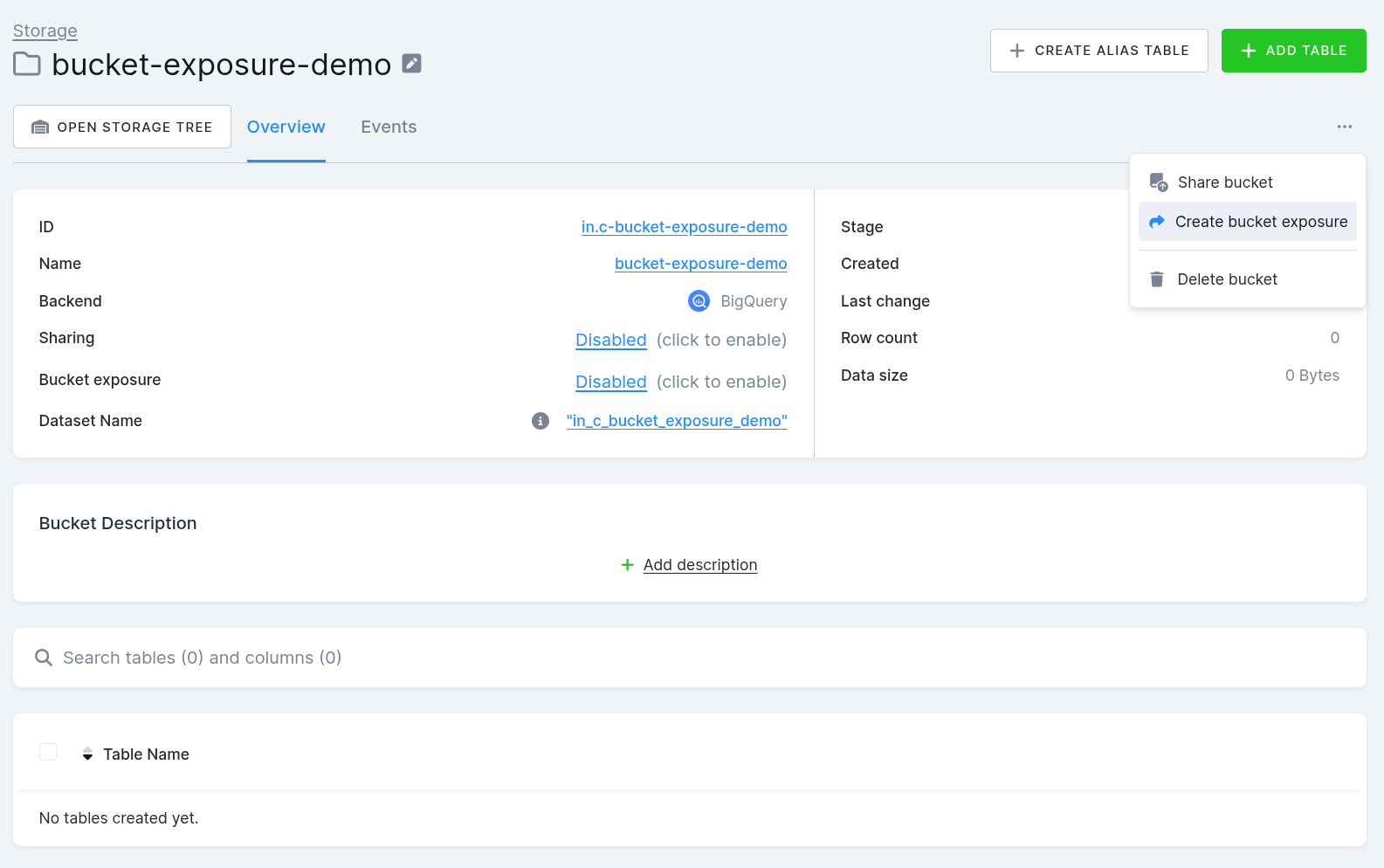
A dialog opens. Fill in:
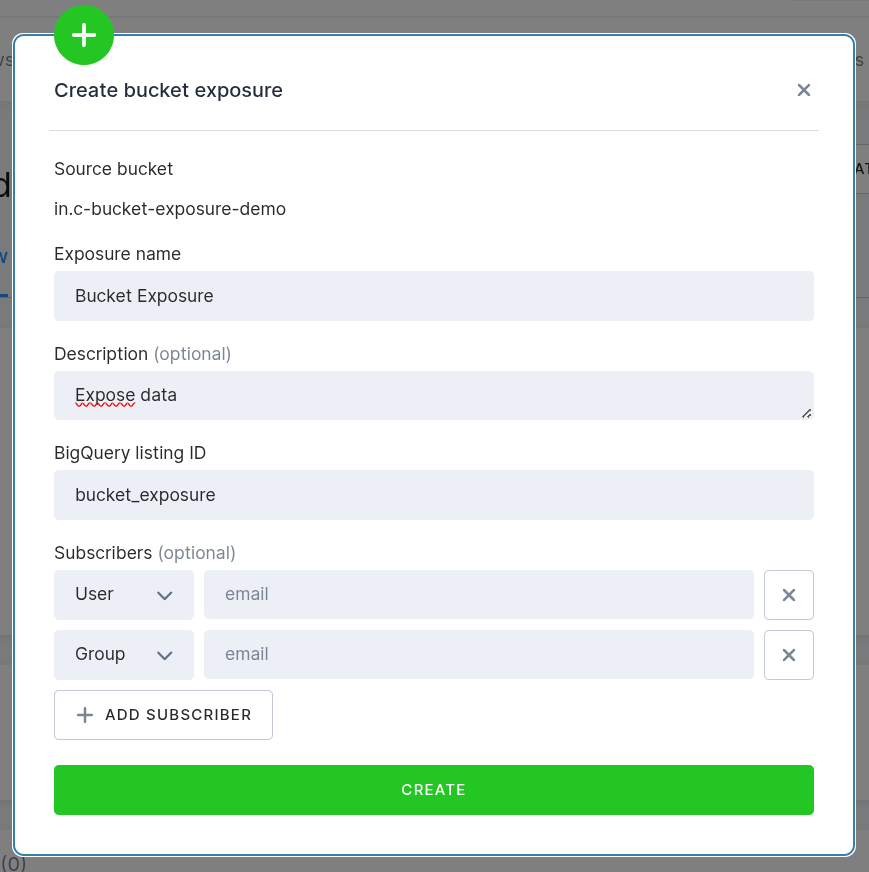
- Exposure name — what your consumers will see when they look up the dataset in BigQuery. Use a friendly name like Sales Dataset Q1 or Customer Segments — Production.
- Description (optional) — a short explanation of what the data is. Your consumers will see this too.
- BigQuery listing ID — a technical identifier (lowercase letters, digits and
underscores). This cannot be changed later, so pick something stable. If you’re not
sure, it’s safe to derive it from the exposure name, e.g.
sales_dataset_q1. - Subscribers (optional) — the people or groups who should have access. For each
entry, pick whether it is a User (a single Google account, e.g.
john.doe@example.com) or a Group (a Google Group, e.g.analytics-team@example.com). You can add subscribers later from the exposure detail.
Click Create. The exposure is created in the background — you will see a job in Keboola tracking its progress. Once the job finishes, the bucket is live in BigQuery Analytics Hub and your subscribers can start using it.
Managing Your Exposures
Section titled “Managing Your Exposures”All your exposures live under Data Catalog → Bucket exposures.
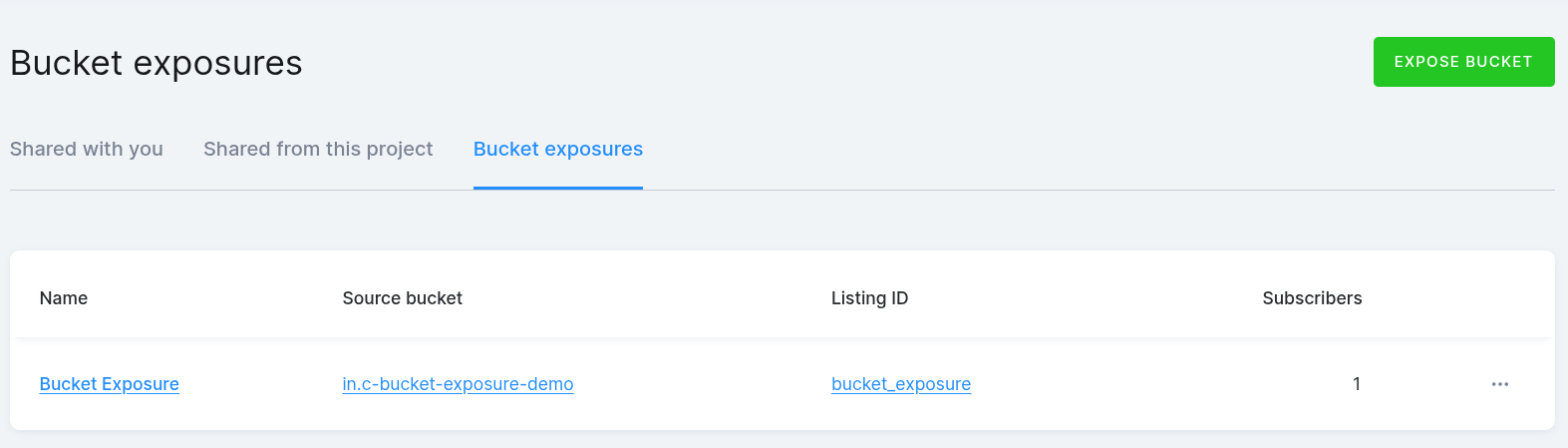
Each row shows the friendly name, the source bucket, the BigQuery listing ID, and the number of subscribers. Click a row to see details.
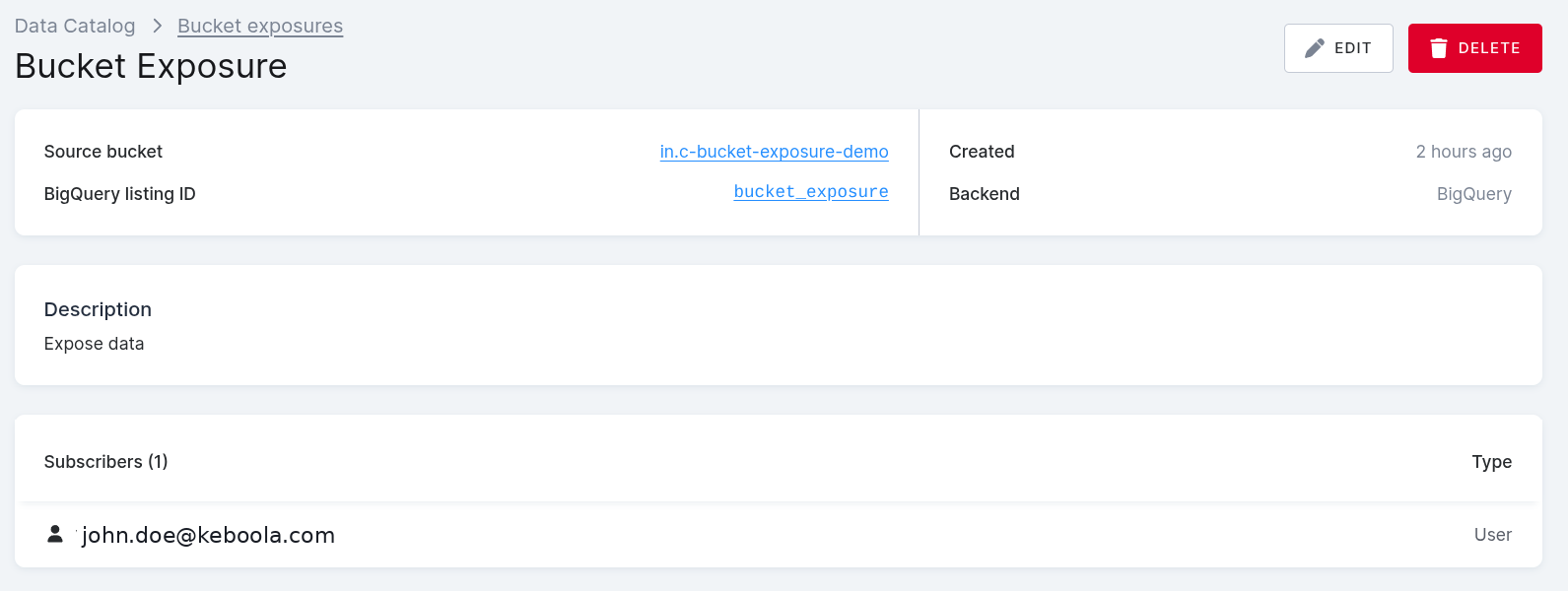
The detail page lists everyone who has access and gives you Edit and Delete buttons.
Editing an Exposure
Section titled “Editing an Exposure”Click Edit on the detail page to change the exposure name, description, or the list of subscribers. Adding or removing a subscriber takes effect immediately — new people gain access right away, removed people lose access right away.
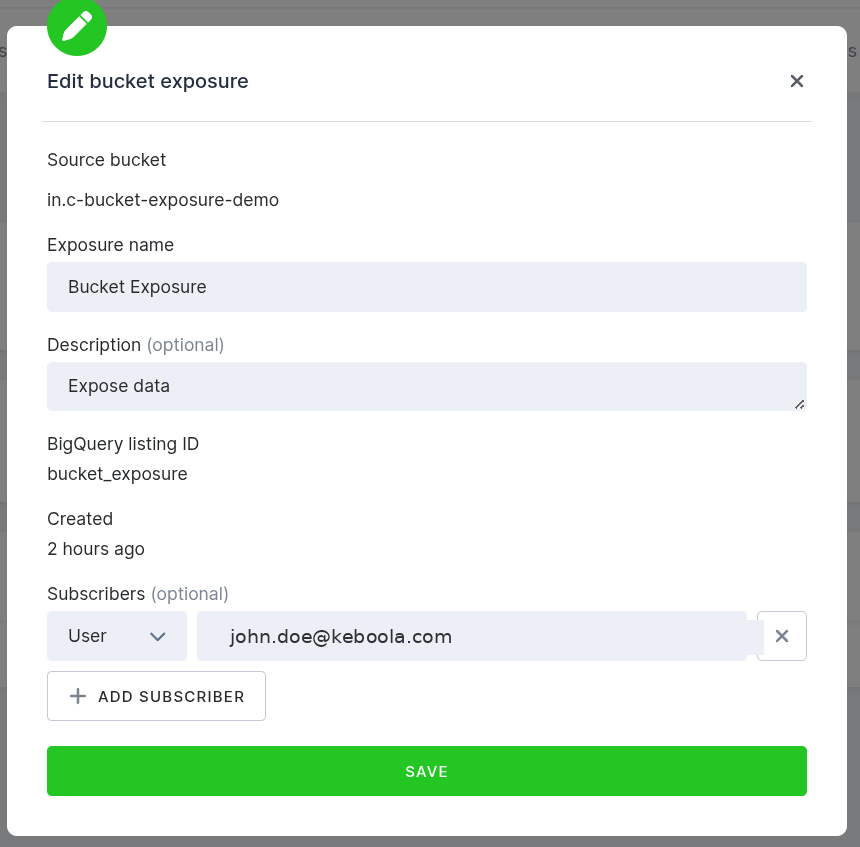
The BigQuery listing ID is shown but cannot be edited — changing it would break the connection for everyone already subscribed.
Deleting an Exposure
Section titled “Deleting an Exposure”Click Delete on the detail page to remove the exposure entirely. All current subscribers immediately lose access to the data in BigQuery.
If you delete the bucket itself in Storage, the exposure is cleaned up automatically — you don’t need to remove it manually first.
What Your Subscribers See
Section titled “What Your Subscribers See”Your subscribers do not need a Keboola account. Everything happens for them inside the Google Cloud Console:
- They open BigQuery → Analytics Hub in the GCP Console.
- They go to Search listings and find your exposure by name.
- They click Subscribe, pick a destination project, and choose a name for the linked dataset.
- A linked dataset appears in their BigQuery project. From their point of view, it behaves like any normal BigQuery dataset — they can query it, join it with their own tables, use it in dashboards, etc. — except they cannot modify it.
The data they see is always live. Whenever the data in your Keboola bucket changes (a new load, a transformation, a deletion), their queries reflect it on the next run. There is no copy of the data on their side — it stays in your project.
Things to Keep in Mind
Section titled “Things to Keep in Mind”- One exposure per bucket. Each bucket can have at most one exposure. If you need to share different slices of data with different audiences, create separate buckets.
- Read-only. Subscribers can query but never write. They cannot change, delete, or re-share the data.
- Regular buckets only. You can expose buckets that Keboola owns. You cannot expose linked buckets (already shared from another Keboola project) or external datasets (registered from BigQuery).
- BigQuery only (for now). Snowflake support is on the roadmap and will use the same UI — your existing workflow won’t change.
- Manage subscribers from Keboola. If you or someone else edits the listing’s permissions directly in the GCP Console, those changes will be overwritten the next time the exposure is updated from Keboola. Keboola is the single source of truth.
- Costs. There is no extra storage cost — the data is not copied. Your subscribers pay for the queries they run in their own GCP project; you continue to pay for the storage in yours.
Q: Is the data copied to my subscriber’s project? No. Analytics Hub uses zero-copy sharing. Your subscribers see a live link to the original data — there is no duplication and no extra storage to pay for.
Q: Is the shared data always up to date? Yes. Subscribers always see the latest version. There is no refresh, no sync, no delay.
Q: Can I share the same bucket with different groups at different access levels? Not directly. Each exposure has a single subscriber list and everyone on it gets the same read-only access. If you need different access tiers, split the data into separate buckets, each with its own exposure.
Q: What happens if I delete the bucket? The exposure is removed automatically and your subscribers lose access. No leftover state in BigQuery.
Q: Can I take away access from a single subscriber? Yes. Open the exposure detail, click Edit, remove the subscriber from the list, and save. The change is immediate.
Q: Will this work for Snowflake projects? Not yet. Initial release is BigQuery only. Snowflake support is planned with the same UI, so the way you work will not change when it ships.
Q: What do my subscribers need on their side? A Google account or a Google Group that you’ve added as a subscriber, and access to any GCP project where they can create a linked dataset. They do not need any Keboola license or special Analytics Hub permissions — Keboola grants them everything they need to view the listing and subscribe to it.
Was this page helpful?
Thank you for helping improve Keboola's documentation!