

Streamlit apps
Build and manage Streamlit apps in Keboola — a Python-only framework for quick data tools.
Streamlit is a Python-only framework for building data tools quickly. It remains supported for existing apps and simple internal tools.
Ready to move an app to the current stack? See Migrate a Streamlit app to Python/JS.
In this section
Section titled “In this section”- Design guidelayout and styling patterns for Streamlit apps.
- Lock the Streamlit versionpin your app to a specific Streamlit version.
- Migrate to Python/JSmove an existing Streamlit app to the current stack with Kai.
Build a Streamlit app
Section titled “Build a Streamlit app”Before you start
You need
- A Keboola project to build the app in.
- Basic Python programming knowledge.
- Familiarity with data manipulation (pandas, numpy).
- An understanding of data visualization concepts.
Create your first Streamlit app
Section titled “Create your first Streamlit app”-
In your Keboola project, open Apps from the left navigation and click Create app. Under Other ways to start, click Create a Streamlit app, the small link below the list. It opens the Create Streamlit app dialog. If you can’t find the button or the link, Create an app manually describes the other layouts; then come back here for step 2.
-
Replace the prefilled New App with a name; a description and a folder are optional. Click Create app. The app opens on its own page, marked Not Deployed.
-
On the Overview tab, the App access card shows the address the app gets once it’s deployed. The URL prefix comes from the name. To change it, edit App URL (up to 50 characters) and click Save; the new address takes effect with the next deploy.

-
In the Code Source card, choose a deployment method, Git Repository or Code, and set it up as Deployment methods describes.
-
Click Deploy in the app’s header, then Deploy in the wizard; Create an app manually explains the wizard’s fields and how to open the app once it runs. A new app asks visitors for a password, which the App access card shows after the first deploy. Authentication covers the other options.
Deployment methods
Section titled “Deployment methods”There are two ways to deploy a Streamlit app: Code and Git repository. They exclude each other: saving Git settings removes the app’s code, packages and Freeze Version setting, and saving code or packages removes the Git settings.
For simple use cases where your Streamlit code fits on one page, keep the code in the app itself. In the Code Source card, select Code, click Add Code, paste the code into the editor, click Save and close the editor. Once the app has code, the card shows a preview; expand the card if it’s collapsed, then click the preview to edit the code. This deployment type is ideal for simple apps or for testing.

For example, paste Streamlit’s “Uber pickups in NYC” tutorial app:
import streamlit as stimport pandas as pdimport numpy as np
st.title('Uber pickups in NYC')
DATE_COLUMN = 'date/time'DATA_URL = ('https://s3-us-west-2.amazonaws.com/'            'streamlit-demo-data/uber-raw-data-sep14.csv.gz')
@st.cache_datadef load_data(nrows):    data = pd.read_csv(DATA_URL, nrows=nrows)    lowercase = lambda x: str(x).lower()    data.rename(lowercase, axis='columns', inplace=True)    data[DATE_COLUMN] = pd.to_datetime(data[DATE_COLUMN])    return data
data = load_data(10000)
st.subheader('Number of pickups by hour')hist_values = np.histogram(data[DATE_COLUMN].dt.hour, bins=24, range=(0, 24))[0]st.bar_chart(hist_values)
st.subheader('Map of all pickups')st.map(data)
You can also override Streamlit defaults like file upload size or browser settings without committing a .streamlit/config.toml file - see Streamlit configuration below.
To use additional Python packages that are not already included in the base image, add them in the Packages card below Code Source: type a package name and pick the Add package entry for it. Each change is saved right away. The card is there only while Code is selected. To add the packages from a requirements.txt file, click Upload File; see Lock package versions.

Git repository
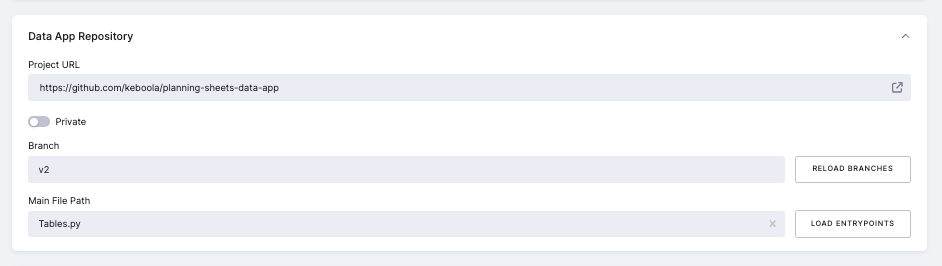
Section titled “Git repository”If you have a complex application, push your app sources into GitHub and link the repository: in the Code Source card, select Git Repository. Enter the Project URL, click Load branches and choose the branch, then select your main entrypoint file in Main File Path (default streamlit_app.py) and click Save.
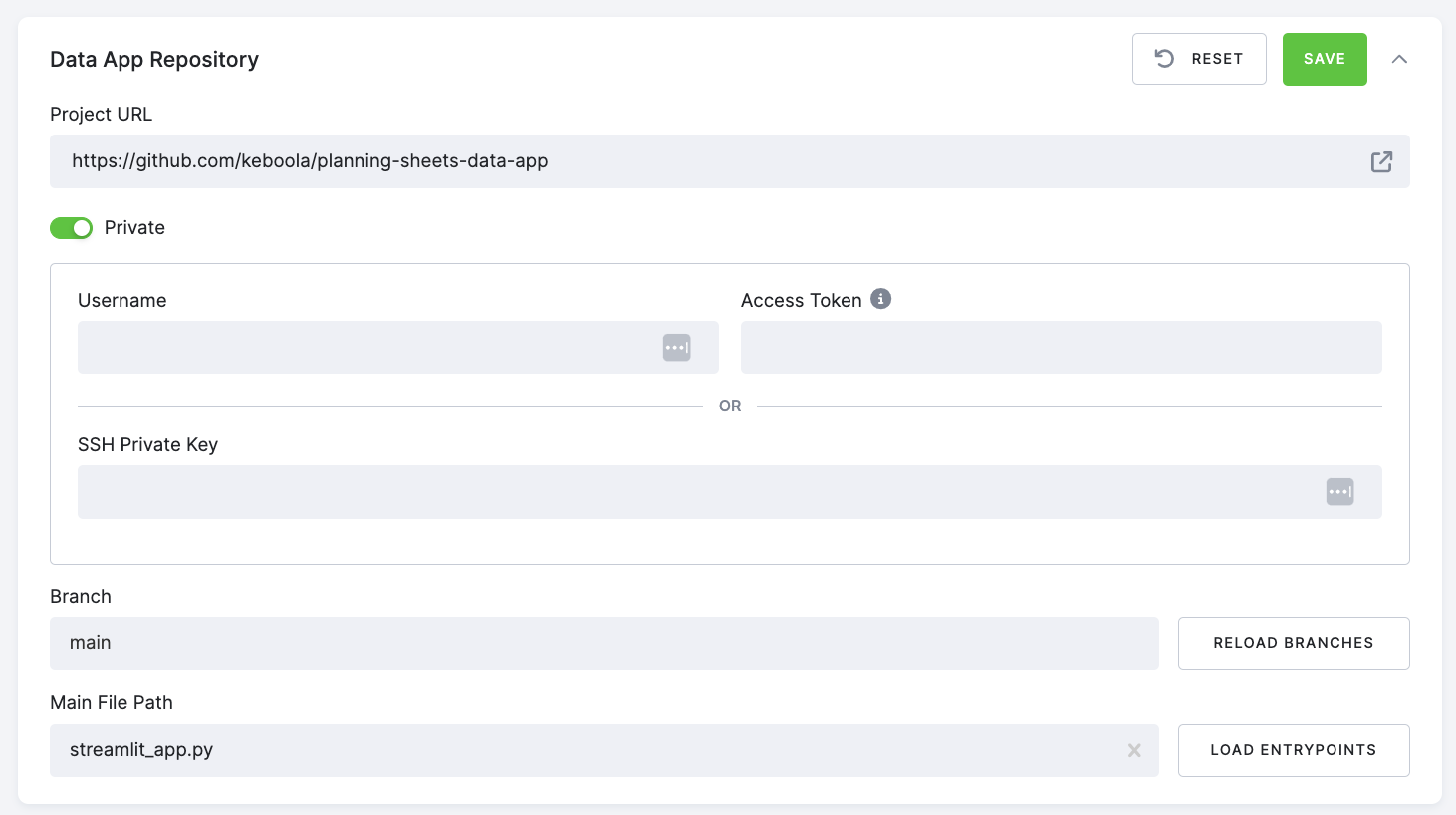
If you are using a private repository, you have two options to authenticate:
- With your GitHub username and personal access token
- With an SSH private key
Follow these steps to authenticate using your GitHub username and personal access token:
- Generate a personal access token on GitHub by going to your GitHub account settings, selecting Developer settings > Personal access tokens, and clicking Generate new token. A classic token needs the
reposcope; the How to set up GitHub authentication note, which appears once you turn on Private, walks you through it. - In Keboola, select Git Repository in the app’s Code Source card, enter the Project URL, turn on Private, and enter your GitHub username and the personal access token you generated in step 1 in Username and Access Token.
- Click Load branches, choose the branch and the main file, and click Save.
To authenticate using your SSH private key, follow the instructions in the GitHub manual. Add the public key to GitHub, either to your account or as a deploy key of the repository. The form has no passphrase field, so create the key without a passphrase. Then, in the Code Source card, enter the Project URL, turn on Private, paste the private key into SSH Private Key, click Load branches, choose the branch and the main file, and click Save. If you also fill in Username and Access Token, the SSH key wins and they are ignored.
Secrets
Section titled “Secrets”To provide your app with environment variables or sensitive information like credentials, API keys, etc., use the Secrets section. These secrets will be injected into the secrets.toml file upon deployment of the app.
When you upload secrets.toml using the direct secrets upload UI, Keboola imports secrets as flat, top-level keys. Sections (TOML groups) are not preserved as nested structures. This means keys in the file become st.secrets["your_key"] after upload - you cannot access them as st.secrets["group"]["key"]. If your app expects nested secrets, use repo-based secrets.
Read more about the Streamlit secrets.
Direct secrets upload
Section titled “Direct secrets upload”You can upload a secrets.toml file directly through the UI when developing an app from code. The upload process:
- Overwrites existing secrets with matching names.
- Preserves existing secrets that don’t match the uploaded ones.
- Creates new secrets if they don’t exist.
- Does not delete any existing secrets.
Example secrets.toml structure:
aws_key = "YOUR_AWS_KEY"aws_secret = "YOUR_AWS_SECRET"openai = "YOUR_OPENAI_KEY"Best practices
Section titled “Best practices”- Always use descriptive secret names to improve clarity.
- Back up your secrets configuration regularly.
- Review existing secrets before uploading new ones to avoid unintentional overwrites.
- If you need nested/groups, use repo-based secrets. Direct upload does not support nested access.
Access Storage from app
Section titled “Access Storage from app”Your app reads and writes Keboola Storage the same way any app does — via Input Mapping, the Storage API at runtime, or real-time Storage Access. Keboola injects KBC_URL and KBC_TOKEN (the Storage token) into the app automatically. For the patterns and code, see Data access and Environment variables in the reference.
The keboola-streamlit package wraps these for Streamlit with helpers like keboola.read_table and keboola.write_table — see the Streamlit design guide.
Runtime and language support
Section titled “Runtime and language support”Current backend versions are available in multiple Python variants:
| Python Version | Notes |
|---|---|
| 3.10 | Default. Most widely compatible with third-party packages. Recommended if you are unsure. |
| 3.11 | Faster execution in many workloads (10–60% speedup over 3.10). Good balance of compatibility and performance. |
| 3.13 | Latest stable Python release. Best performance and newest language features, but some packages may not yet support it. |
Backend versions
Section titled “Backend versions”When deploying an app, you can select a backend version from a dropdown in the deployment wizard. Each backend version defines the runtime environment, including the Python version, Streamlit version, and a set of pre-installed packages.
Each backend version is displayed in the following format:
<backend_version> - Python <python_version> + Streamlit <streamlit_version>For example: Python 3.13 + Streamlit 1.51 prefixed by the image release number.
- Backend version: The release version of the base Docker image that powers your app.
- Python version (
3.13): The version of the Python interpreter. - Streamlit version (
1.51): The version of the Streamlit framework used to run your app.
Pre-installed packages
Section titled “Pre-installed packages”All backend versions ship with the same set of pre-installed packages regardless of the Python variant. These are available immediately without adding them to the Packages card or requirements.txt:
streamlitpandasnumpymatplotlibplotlyscikit-learnseaborngraphvizdeepmergepython-dotenvkeboola.componentstreamlit-aggridstreamlit-keboola-apistreamlit_authenticator(pinned to 0.3.1)toml
To add packages beyond this list, specify them in the Packages card (for code deployment) or in a requirements.txt file (for Git repository deployment).
Theming
Section titled “Theming”To configure theming in your app, open the app’s Advanced Settings tab, pick a palette in the Theme card’s Color Palette list and click Save. You can select from predefined themes or create a custom theme. Predefined themes include Keboola, Light Red, Light Purple, Light Blue, Dark Green, Dark Amber, and Dark Orange. Each theme has a specified primary color, background color, secondary background color, text color, and font. A Streamlit app created in the UI starts with Keboola. Streamlit Default sets no theme, so the app uses Streamlit’s own, or the [theme] from your repository’s .streamlit/config.toml. Users choosing Custom can manually set these values.
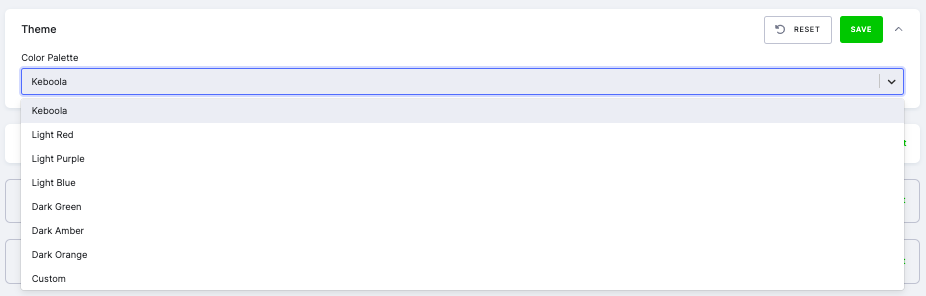
For Custom, users can select colors using the color pickers and choose the desired font from a list. For the exact color values of each predefined theme, see the predefined theme reference at the bottom of this page.
For Streamlit configuration beyond theming (e.g. upload size, server or browser settings), see Streamlit configuration below.
Streamlit configuration
Section titled “Streamlit configuration”Beyond the predefined themes above, you can inject any Streamlit configuration option into your app’s runtime config.toml directly from the app configuration in Keboola. This is useful when your app is deployed via the Code method (no Git repo, where you would otherwise commit a .streamlit/config.toml file) and you need to override Streamlit defaults such as upload size, server settings, or browser behavior.
Setting a custom config.toml
Section titled “Setting a custom config.toml”In your app configuration, switch to the raw JSON editor and add a config.toml string under parameters.dataApp.streamlit:
{ "parameters": { "dataApp": { "streamlit": { "config.toml": "[server]\nmaxUploadSize = 500\n" } } }}The app runtime extracts that string at startup and merges it into Streamlit’s runtime config in this order, with later values winning:
- Streamlit’s built-in defaults
- Keboola’s runtime defaults (sets
[server] address = "0.0.0.0"and[browser] gatherUsageStats = false) - Your repository’s
.streamlit/config.toml(if Git-deployed) - The
config.tomlstring injected via the app configuration above
Common use cases
Section titled “Common use cases”Increase st.file_uploader size limit. Streamlit defaults to 200 MB. To accept larger files:
[server]maxUploadSize = 500Disable usage stats:
[browser]gatherUsageStats = falseStreamlit theme options not exposed in the Theming form (e.g. base = "dark", additional font controls, newly-added Streamlit theme keys) - see Streamlit’s theme reference.
Note on theming: the Theming UI reads and rewrites the same
config.tomlfield. Non-theme sections you set here (e.g.[server],[browser]) are preserved when you save changes through the Theming UI. However, the Theming UI overwrites the[theme]section on save, so prefer the Theming UI when a value is available there - and use this raw JSON path for theme keys it doesn’t expose.
Base image
Section titled “Base image”When the app is deployed, the code you provide is injected into the Streamlit base Docker image. You select a backend version when deploying; each version defines the Python version, Streamlit version, and a set of pre-installed packages you can use without adding them to the Packages card.
For the list of backend versions, supported Python versions, and the full pre-installed package list, see Backend versions below.
AgGrid Enterprise license
Section titled “AgGrid Enterprise license”The AgGrid Enterprise License is available for Streamlit apps in Keboola, offering enhanced data manipulation capabilities, including:
- Inline dataset editing.
- Advanced features such as pivoting, filtering, and sorting.
- A professional interface, free from the “trial use only” watermark.
Ensure your app is configured to use the AgGrid component to take advantage of these enhanced features.
How to enable the license
Section titled “How to enable the license”The enterprise license is pre-configured for all Keboola stacks, so no additional setup is required for supported applications.
To access the license key in your Streamlit app, use the following code:
import streamlit as stfrom keboola_streamlit import KeboolaStreamlit
URL = st.secrets["kbc_url"]TOKEN = st.secrets["kbc_token"]
keboola = KeboolaStreamlit(URL, TOKEN)license_key = keboola.aggrid_license_key
You can use this license_key directly in AgGrid.
Reference implementation: Keboola Streamlit Integration
Predefined theme reference
Section titled “Predefined theme reference”Color values for each predefined theme. All use the Sans Serif font. Choose Custom to set your own.
| Theme | Primary | Background | Secondary background | Text |
|---|---|---|---|---|
| Keboola | #1F8FFF | #FFFFFF | #E6F2FF | #222529 |
| Light Red | #FF5D5D | #FFFFFF | #FFE6E6 | #222529 |
| Light Purple | #9A6DD7 | #FFFFFF | #F2E6FF | #222529 |
| Light Blue | #0000B2 | #FFFFFF | #E6E6FF | #222529 |
| Dark Green | #4CAF50 | #222529 | #3D4F41 | #FFFFFF |
| Dark Amber | #FFC107 | #222529 | #4A3A24 | #FFFFFF |
| Dark Orange | #FFA500 | #222529 | #4A3324 | #FFFFFF |
That completes the Apps section. Back to the Apps overview.