

Salesforce
This data source connector allows you to import data from Salesforce via the Bulk API. Data can be fetched in two ways: by running a specified SOQL query, or by selecting a Salesforce object and getting all data from that object.
Configuration
Section titled “Configuration”Create a new configuration of the Salesforce V2 connector.
Authorization
Section titled “Authorization”The connector supports three authentication methods. Select the appropriate Login Method based on your Salesforce setup and security requirements.
Security Token with Username and Password
Section titled “Security Token with Username and Password”This is the default and simplest authentication method. You need to provide your Salesforce Login Name, Password, and Security Token. If you do not have your Security Token, you will need to reset it by following the steps in the Salesforce Documentation (opens in a new tab).
Note that the security token is different for sandbox and production environments. When exporting data from a sandbox,
don’t forget to add .sandboxname at the end of your username.
External Client App with Username and Password
Section titled “External Client App with Username and Password”This method uses a Salesforce External Client App for authentication (the current-generation replacement for Connected Apps, introduced in Salesforce Spring ‘26). In addition to your Login Name and Password, you need to provide the Consumer Key and Consumer Secret from your External Client App.
To set up an External Client App in Salesforce:
- In Salesforce Setup, use Quick Find to navigate to App Manager.
- Click New External Client App.
- Fill in the External Client App Name, API Name, and Contact Email.
- Set the Distribution State to Local (for use within your current org only).
- Click Save.
- Scroll down to the API (Enable OAuth Settings) section and check Enable OAuth Settings.
- Enter a Callback URL (e.g.,
https://localhost— a placeholder is required even if not used). - Select the following OAuth Scopes and move them to Selected OAuth Scopes:
- Manage user data via APIs (api)
- Access unique user identifiers (openid)
- Perform requests at any time (refresh_token, offline_access)
- Click Save.
- Go to the Policies tab of your External Client App, click Edit, and set IP Relaxation to Relax IP restrictions.
- To retrieve the Consumer Key and Secret, go to the Settings tab, click OAuth Settings, then click Consumer Key and Secret (you may be prompted for identity verification).
External Client App OAuth 2.0 Client Credentials
Section titled “External Client App OAuth 2.0 Client Credentials”This method enables server-to-server authentication without user credentials. It requires a Consumer Key,
Consumer Secret, and your Salesforce Domain (e.g., https://your-org.my.salesforce.com).
To create an External Client App with Client Credentials Flow:
- Follow steps 1–9 in the External Client App with Username and Password section above to create the app and configure OAuth settings.
- Under Flow Enablement, additionally check Enable Client Credentials Flow.
- Click Save.
- Go to the Policies tab, click Edit.
- Set Permitted Users to Admin approved users are pre-authorized.
- In the Run As (Username) field, enter the Salesforce username whose permissions the integration will use.
- Click Save.
- Retrieve the Consumer Key and Secret from the Settings tab → OAuth Settings → Consumer Key and Secret.
- Provide your Salesforce domain in the Keboola configuration (e.g.,
https://your-org.my.salesforce.com).
This method is ideal for automated integrations where no user interaction is required.
Additional Settings
Section titled “Additional Settings”You can also configure:
- SandboxEnable this option to download records from a sandbox instead of the production environment (available for Security Token and External Client App methods).
- API VersionSelect the Salesforce API version to use for data extraction.
- Proxy SettingsConfigure an HTTPS proxy server if required by your network setup.
After configuring the authorization, you can set up individual queries or objects in the row based configuration.
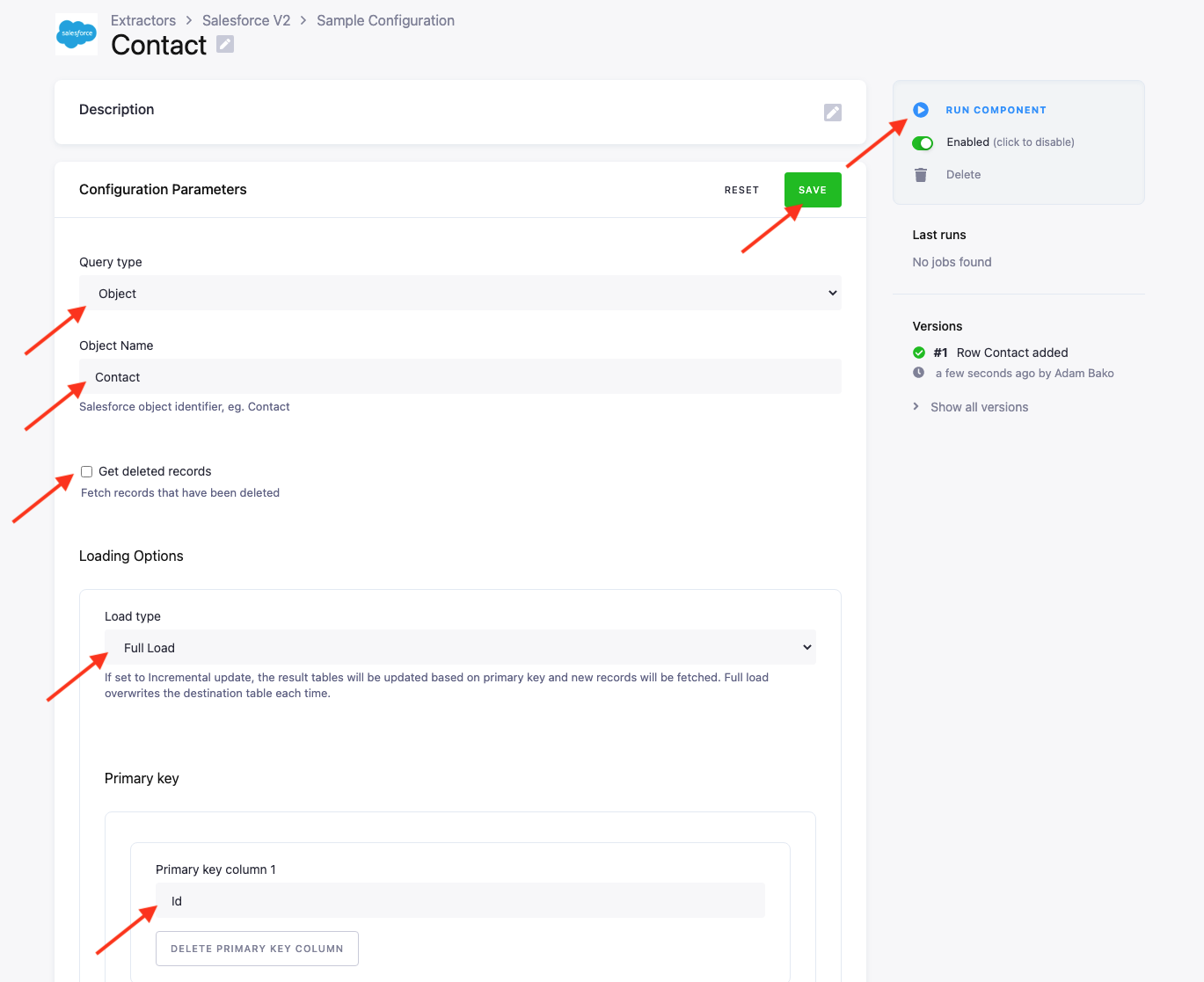
In the row configuration select either Query or Object and use the corresponding text input to input a single query or
object. Then select if you wish to fetch deleted records by checking the checkbox. Finally, set the loading type to either Full or
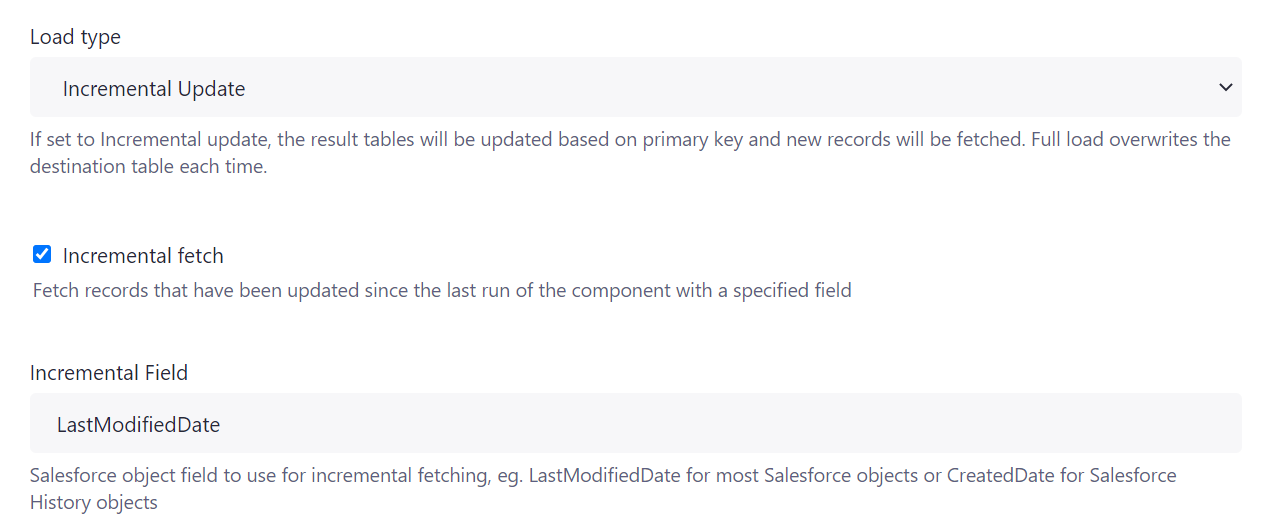
Incremental based on your use case. In the incremental update, you can also set the incremental fetching option.
Incremental fetching allows you to select a field in Salesforce for example LastModifiedDate and fetch records that have been
modified since the last run of the component. LastModifiedDate is the default field, but you can also specify any field in Salesforce
containing a timestamp.
Load Type
Section titled “Load Type”Select one of the following two load types:
Incremental Update— updates the result tables based on the primary key set in the configuration.Full Load— overwrites the destination table each time.
Incremental Fetching
Section titled “Incremental Fetching”The option available in Incremental Update mode allows you to fetch records that have been modified since the
last run of the component. You need to specify a date field in Salesforce that will be used for this (by default LastModifiedDate).
The LastModifiedDate matches most of the Salesforce objects but there are some objects such as *History that do not contain this field
and only the CreatedDate field may be used. This also varies per custom Salesforce setup.
Primary Key
Section titled “Primary Key”A primary key can be defined to enable deduplication and “upserts” while importing to Storage. It defaults to Id, which
will be valid in the vast majority of cases. However, if your custom implementation does not define this column or you would
like to have your destination table without any, you can modify it.
Limitations
Section titled “Limitations”Due to the data source connector utilizing the Salesforce Bulk API, it will not be possible to run all types of queries.
The Bulk API does not support queries with any of the following:
- GROUP BY, OFFSET, or TYPEOF clauses
- Aggregate functions such as COUNT()
- Date functions in GROUP BY clauses (date functions in WHERE clauses are supported)
- Compound address fields or compound geolocations fields
Was this page helpful?
Thank you for helping improve Keboola's documentation!