

Merge Requests
Review, approve, and merge development branch changes into production using merge requests.
A merge request is the controlled way to bring the configuration changes you made in a development branch back into production. Instead of merging directly, you submit your branch for review: reviewers can inspect a diff of every changed configuration, approve or reject the changes, and only then are they merged into production.
Merge requests give you the review, approval, and audit workflow that teams expect from modern Git-based development — while keeping everything inside your Keboola project.
The Merge Request Lifecycle
Section titled “The Merge Request Lifecycle”Every merge request moves through a set of states, shown as filters at the top of the Merge Requests list:
- In Reviewsubmitted and waiting for the required number of approvals.
- Ready to Mergeapproved and ready to be merged into production (either manually or automatically).
- Mergedthe changes have been applied to production.
- Rejecteda reviewer requested changes; go back to the branch, adjust, and resubmit.
- Closedthe request was cancelled without merging.
You can reach the list at any time from the branch switcher (Merge Requests) or from the project menu.
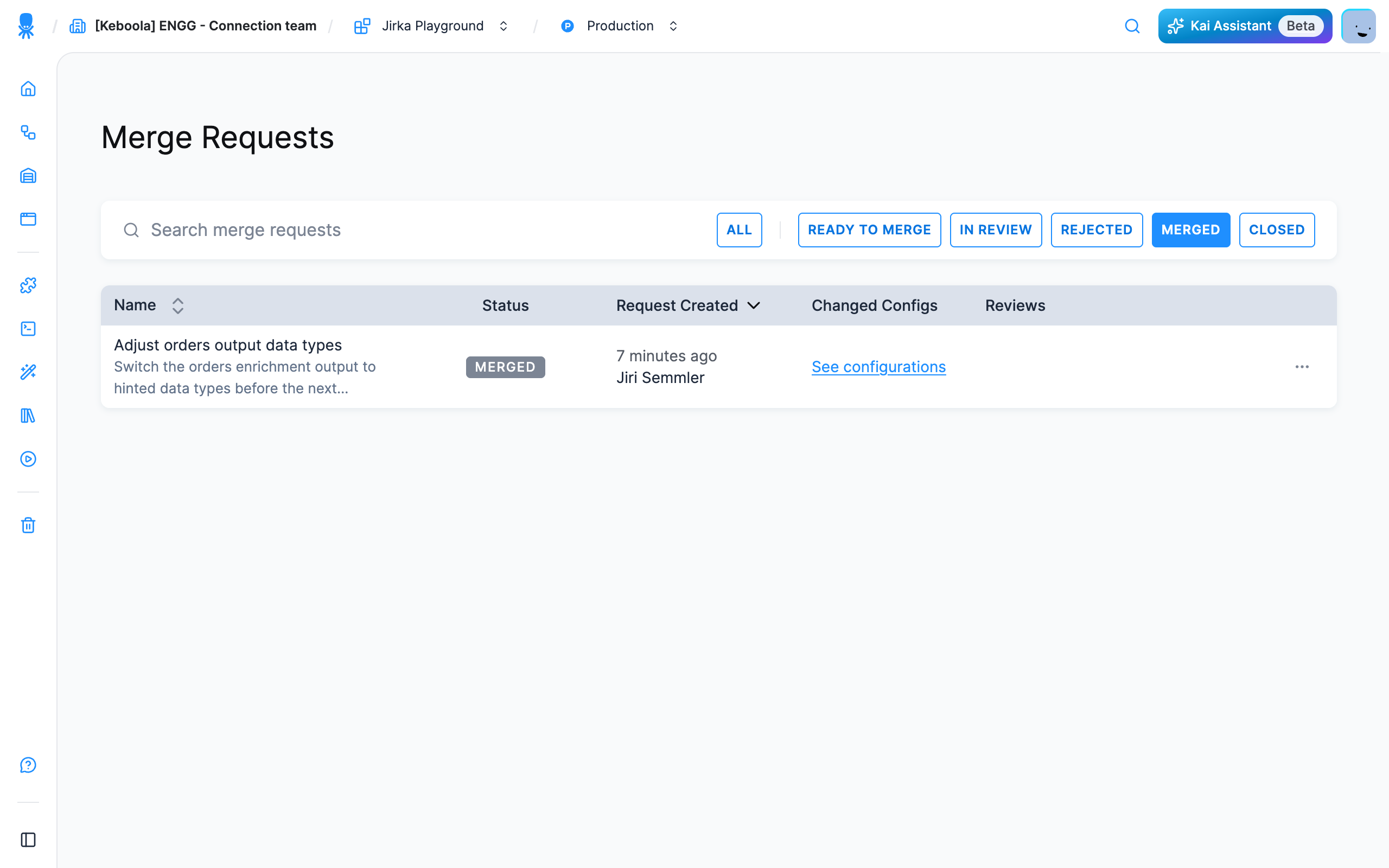
Each row shows the request name and description, its status, who created it and when, a link to the changed configurations, and the reviews collected so far.
Reviewing Your Branch Changes
Section titled “Reviewing Your Branch Changes”Before you submit anything, switch into your development branch and open Changes from the branch switcher. Pull from Prod in the same menu lets you first bring the latest production state into your branch.
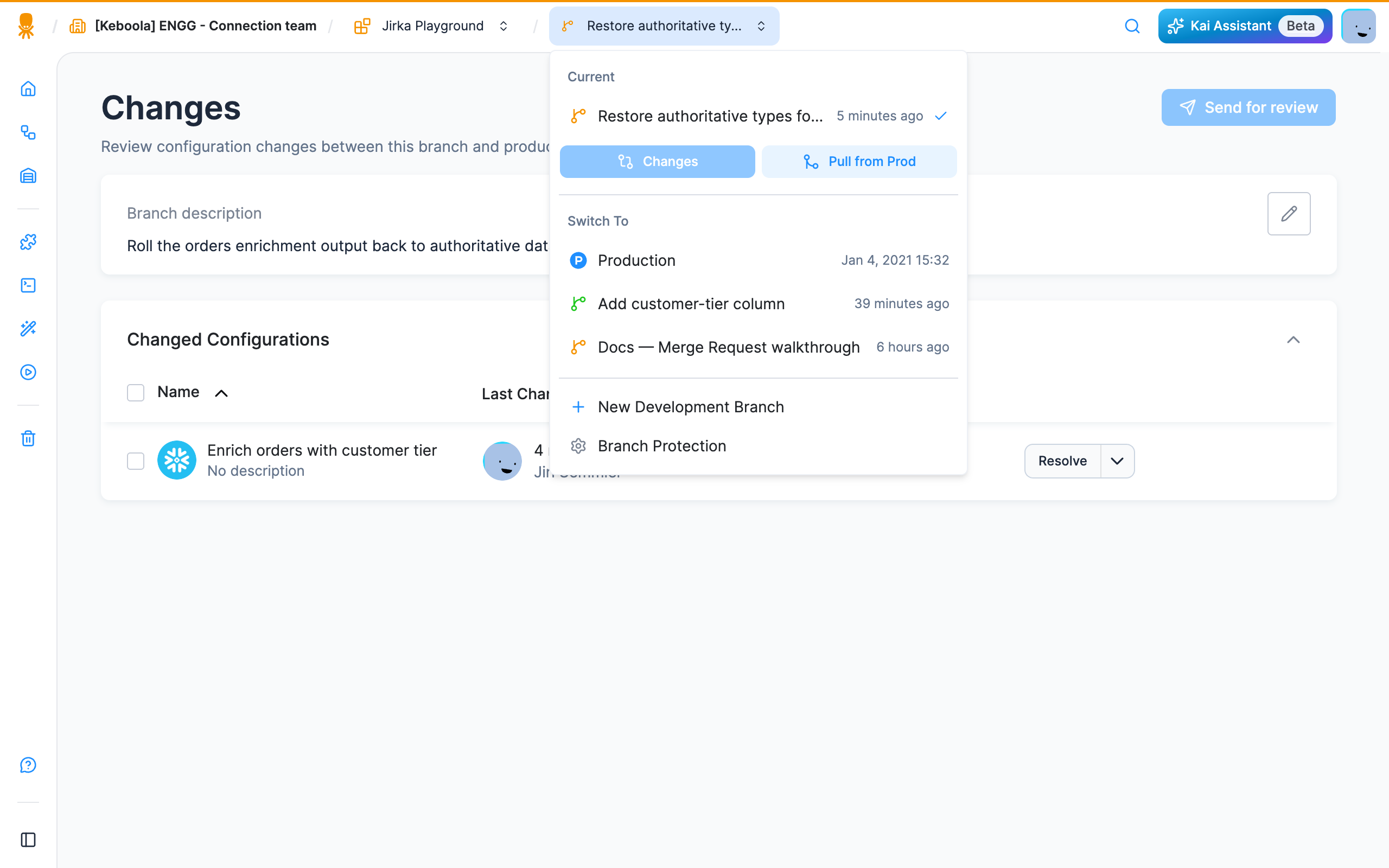
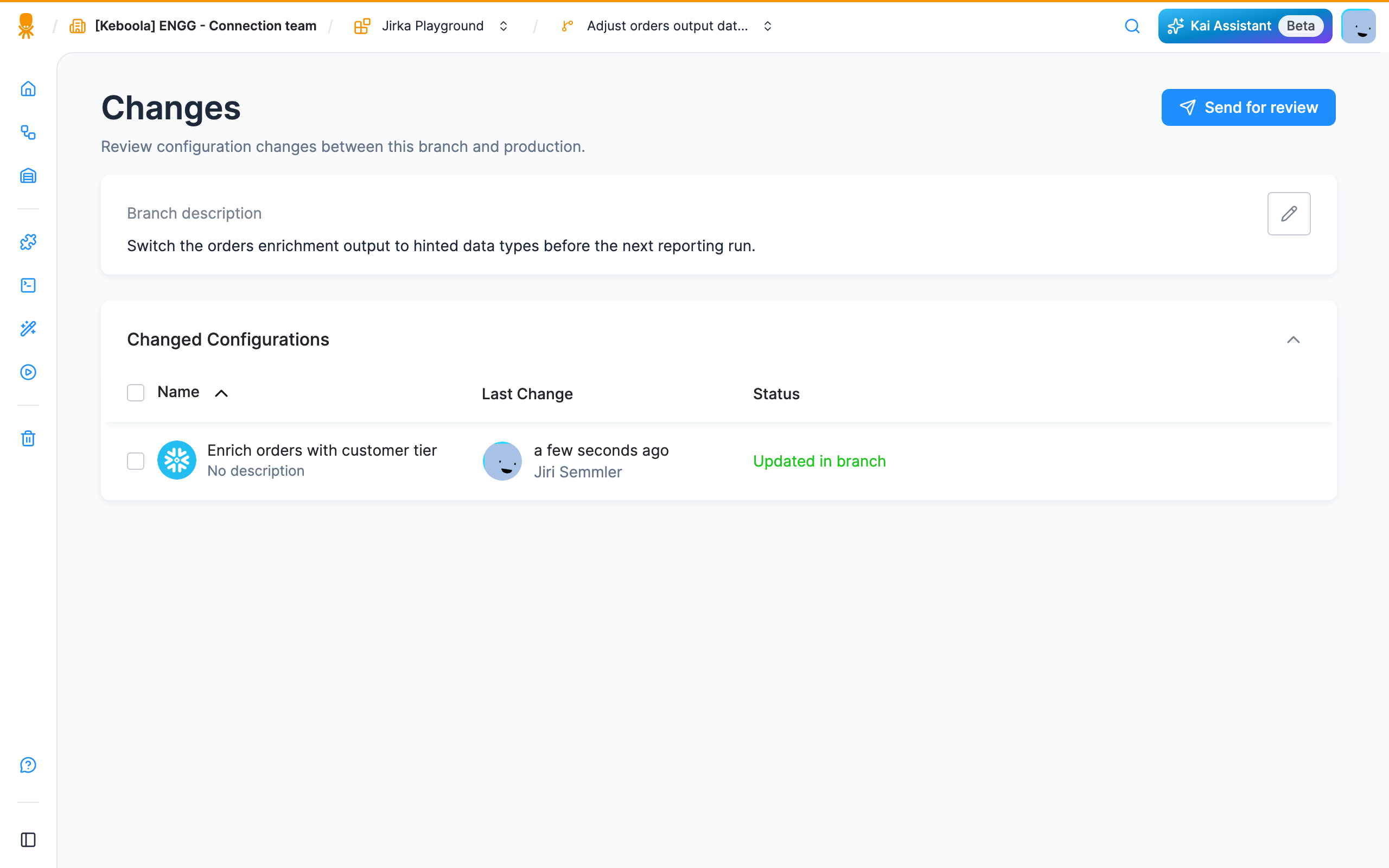
The Changes view compares your branch against production and lists every configuration that differs, together with its status (for example, Updated in branch).
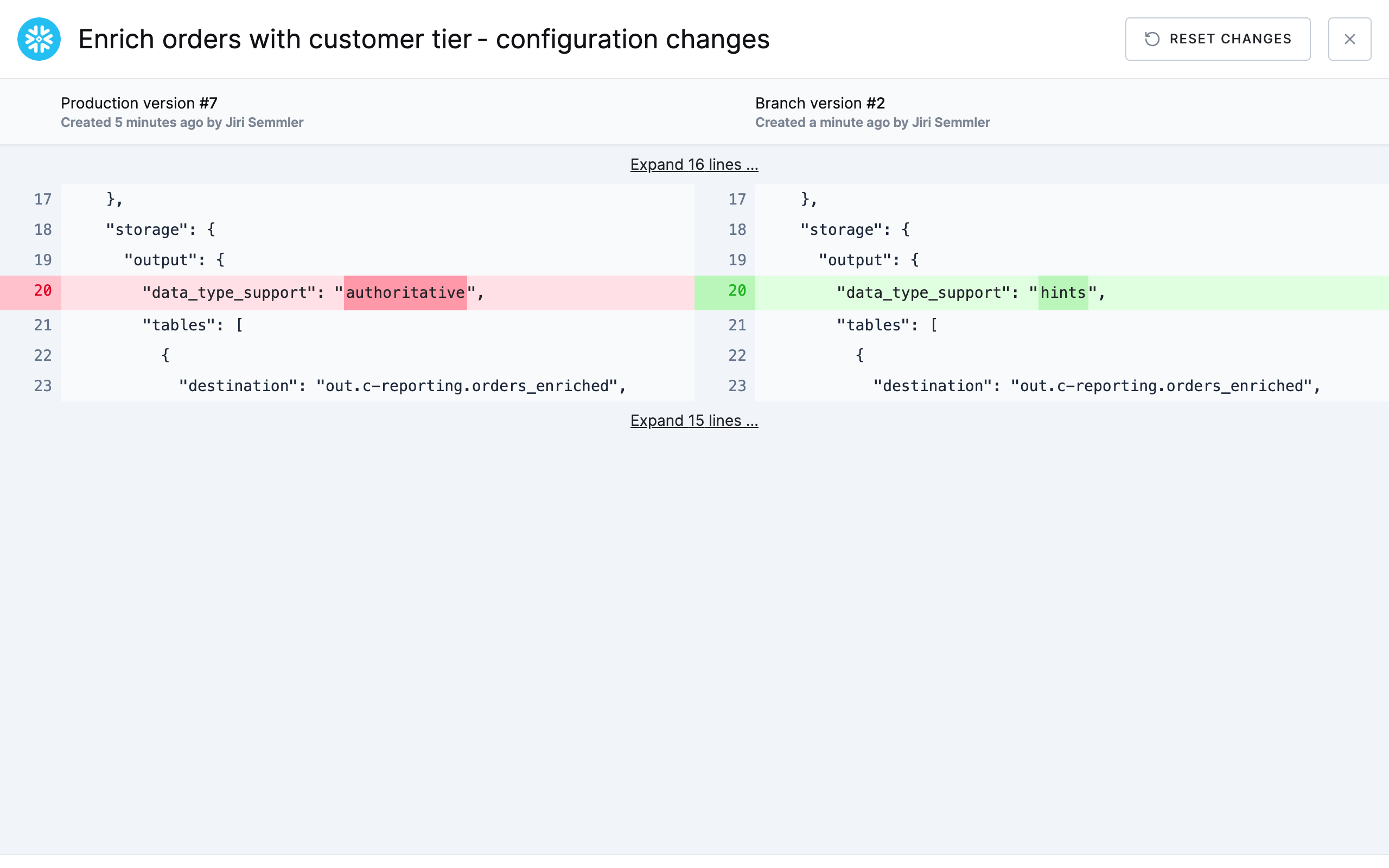
Expand any configuration to see a side-by-side diff of the underlying configuration between the production version and your branch version. Additions are highlighted in green and removals in red, so you can confirm exactly what will be merged.
Creating a Merge Request
Section titled “Creating a Merge Request”When you are happy with the changes, click Send for review in the Changes view. Fill in:
- Name — a short, descriptive title for the request (required).
- Internal ID (optional) — a reference to an external tracker (Jira, Asana, Trello, Notion, …).
- Branch Description (optional) — supports Markdown; pre-filled from the branch notes.
- Optional Reviewers — invite specific colleagues to review. If your project requires approvals, the required reviewers are enforced here; if none are required, you can still invite reviewers or leave it empty for auto-approval.
- Merge behavior — tick Merge automatically after review to have the branch merged as soon as it is approved (see Auto-merge).
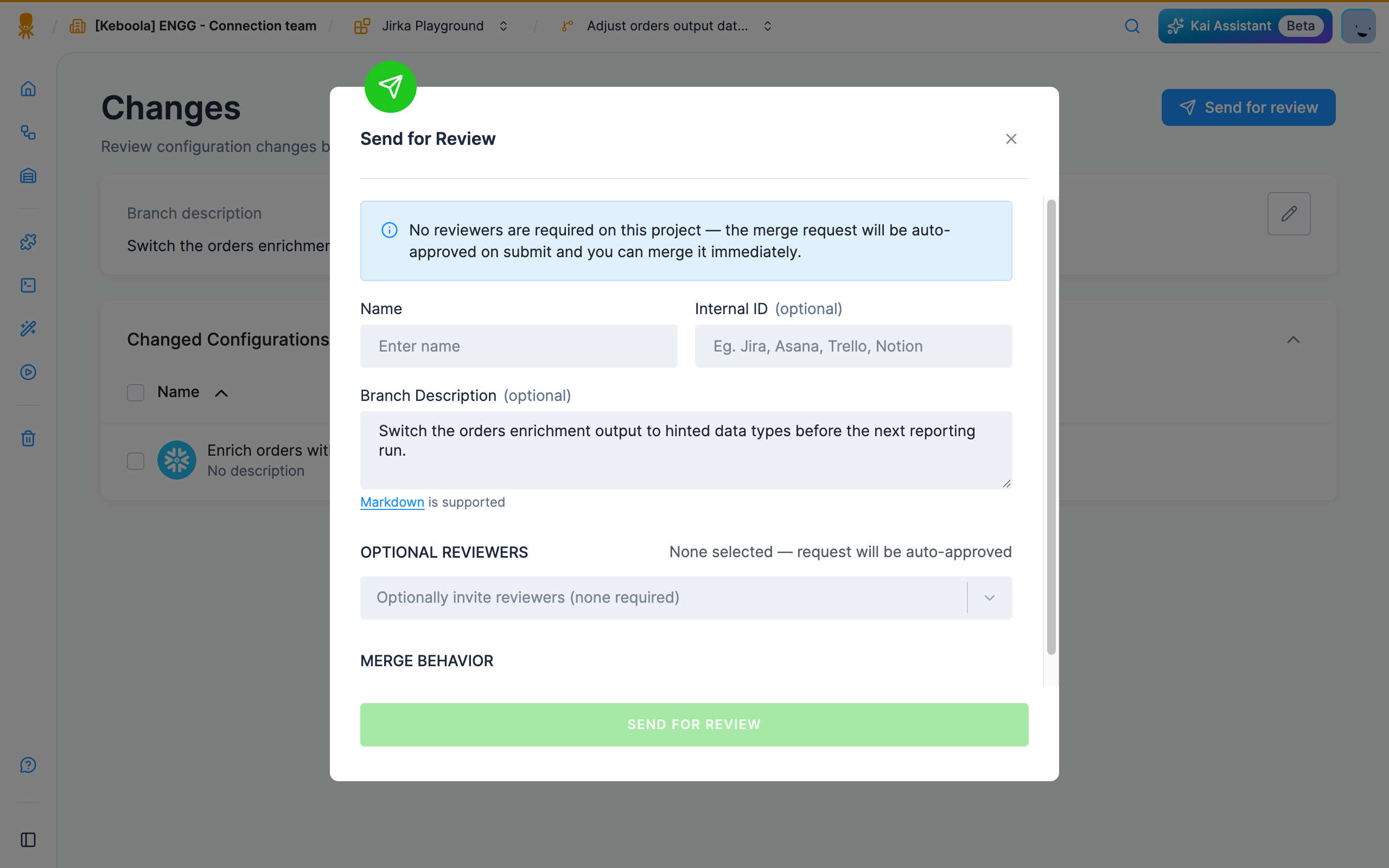
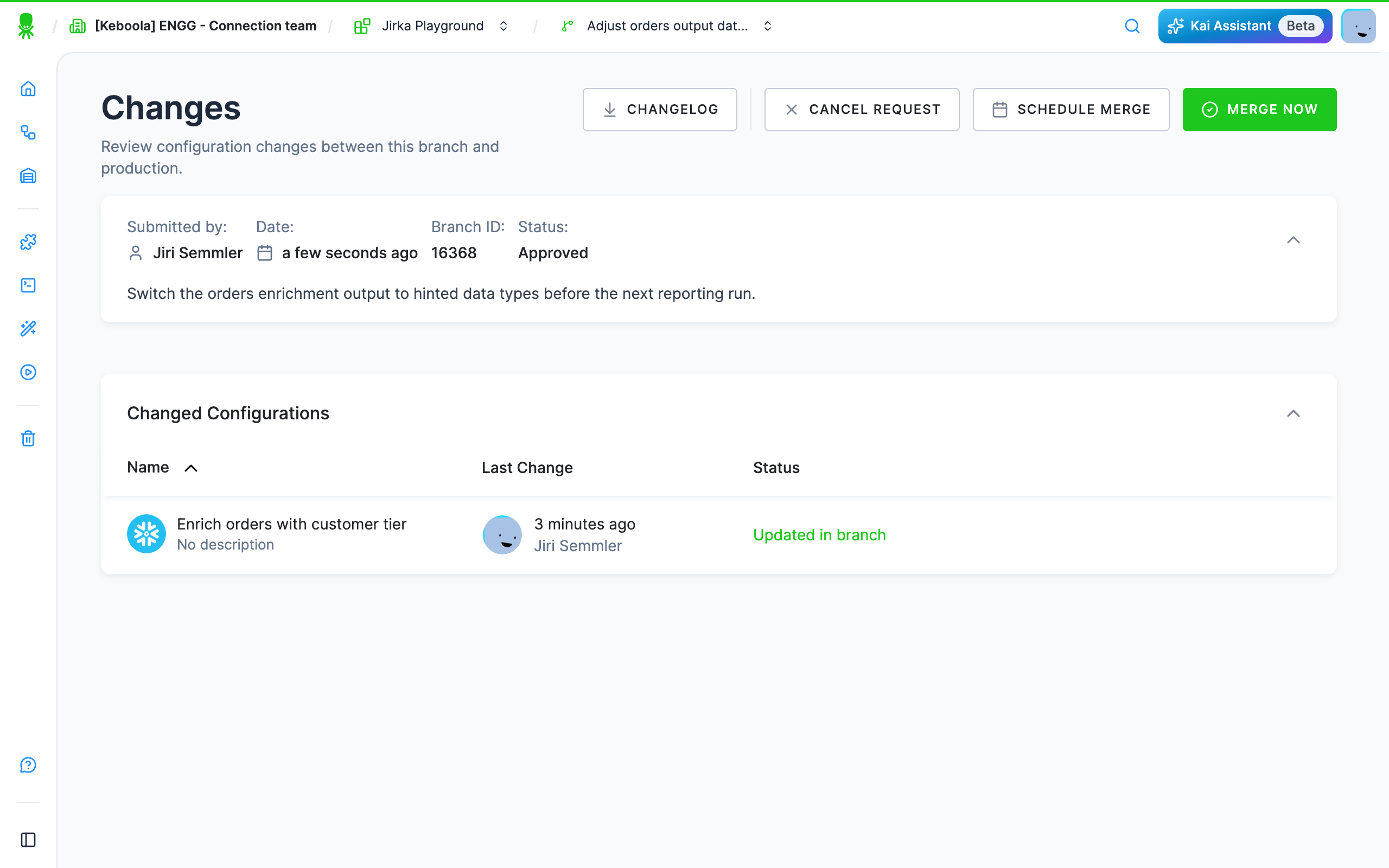
Submitting creates the merge request. If no reviewers are required on the project, the request is auto-approved immediately and is ready to merge.
Reviewing and Approving
Section titled “Reviewing and Approving”When a project requires approvals, a submitted request enters the In Review state and the invited reviewers are notified. Reviewers open the request, inspect the configuration diff, and then either:
- Approve — once the required number of approvals is reached, the request becomes Ready to Merge.
- Reject — the request is sent back so the author can make further changes in the branch and resubmit.
Approvals and rejections are recorded on the merge request, giving you a complete audit trail of who signed off on which changes.
Merging to Production
Section titled “Merging to Production”Open an approved merge request to merge it. From the request detail you can:
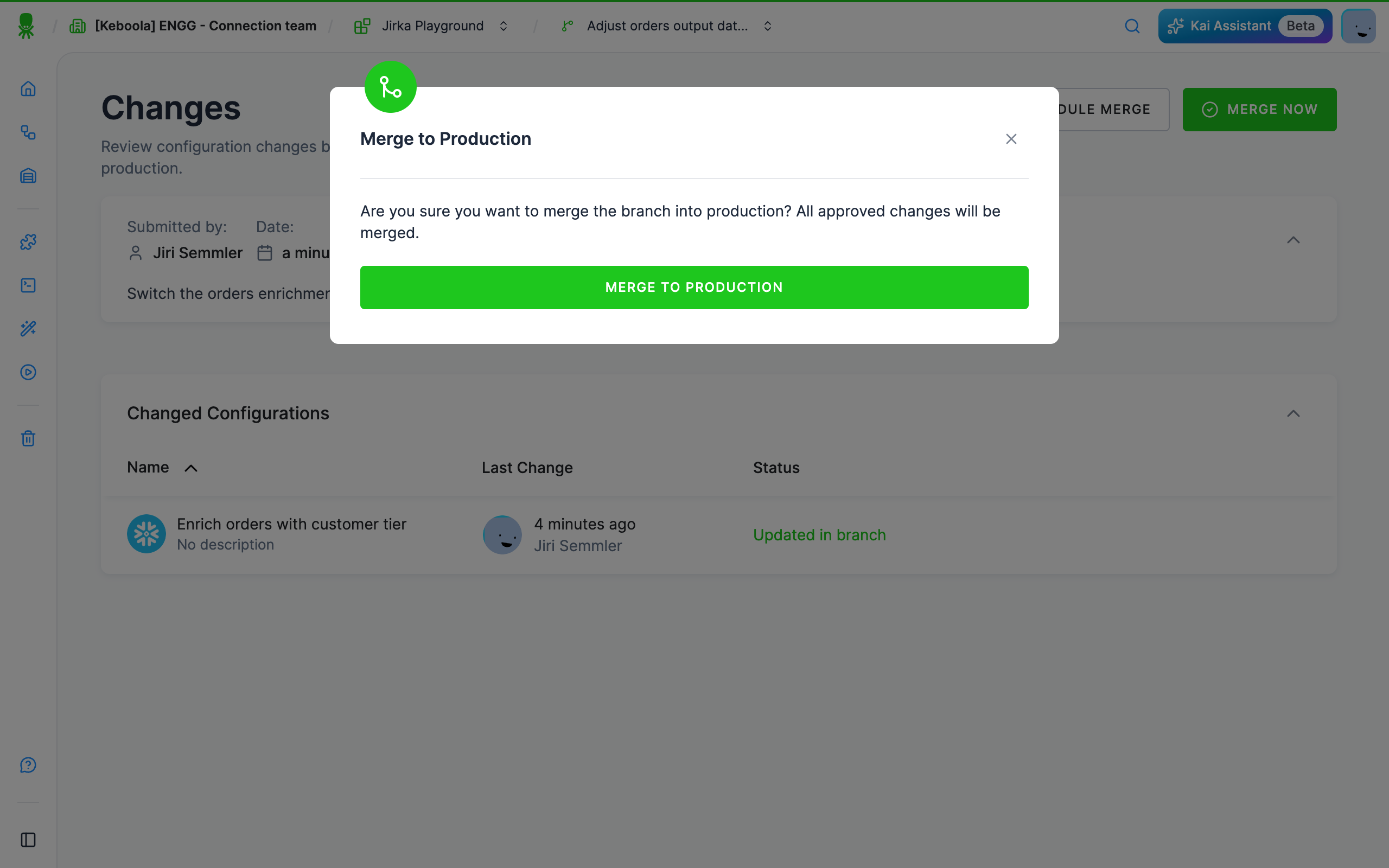
- Merge Nowapply the changes to production immediately. You are asked to confirm; after that, new configuration versions are created in production with the merge as their change description.
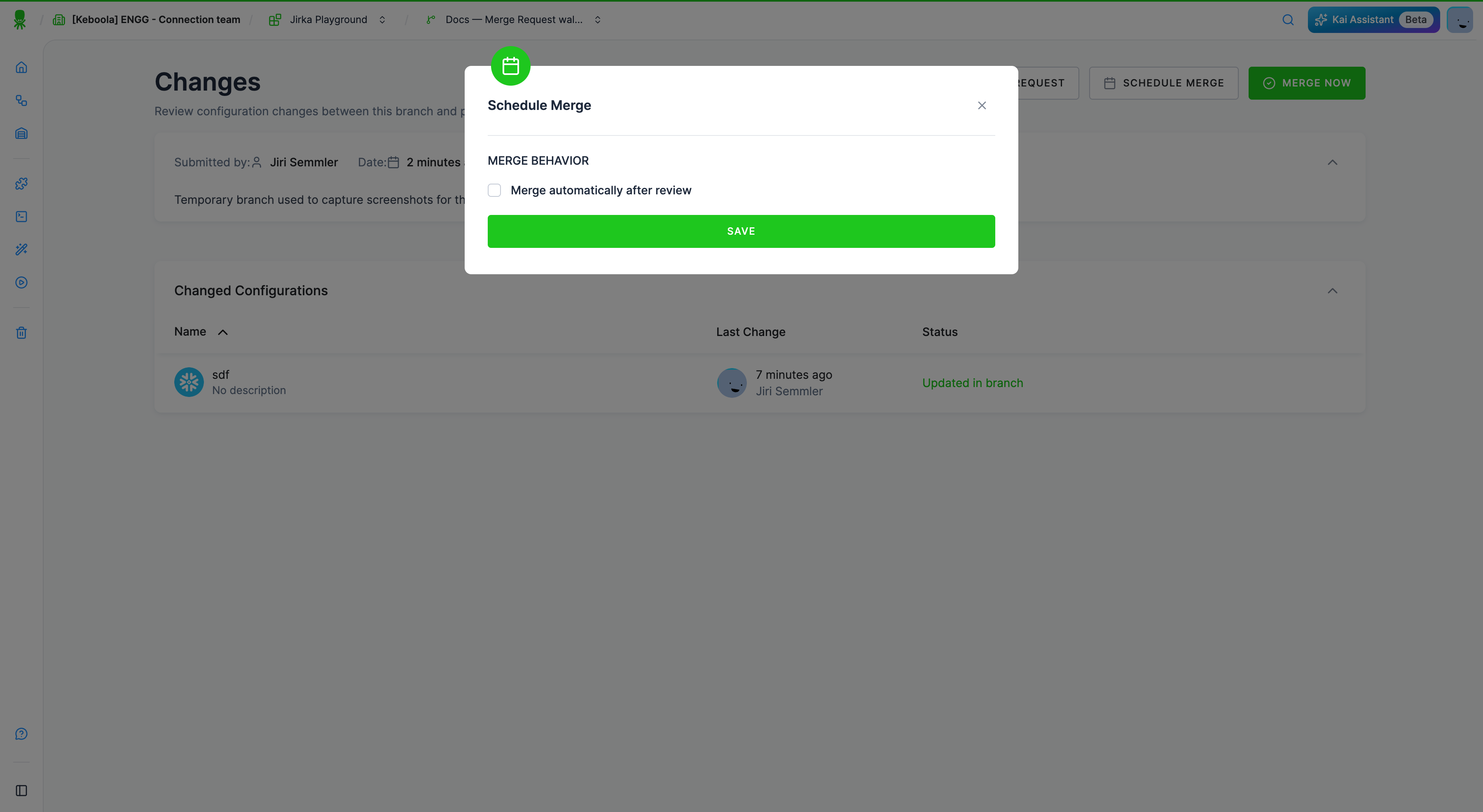
- Schedule Mergeenable Merge automatically after review so the request merges on its own the moment it is approved, without anyone having to click Merge Now.
- Cancel Requestclose the request without merging (the branch stays and can be resubmitted).
- Changelogdownload a record of what was merged.
Clicking Merge Now asks you to confirm before anything reaches production:
To merge automatically once the request is approved, enable Merge automatically after review:
Merge Conflicts
Section titled “Merge Conflicts”A conflict occurs when a configuration was changed both in production and in your branch after the branch was created, so the branch can no longer be merged cleanly. Keboola detects this and can notify you (see notifications). The affected configuration is marked Conflicting configuration in the Changes view, and the request cannot be sent for review or merged until every conflict is resolved.
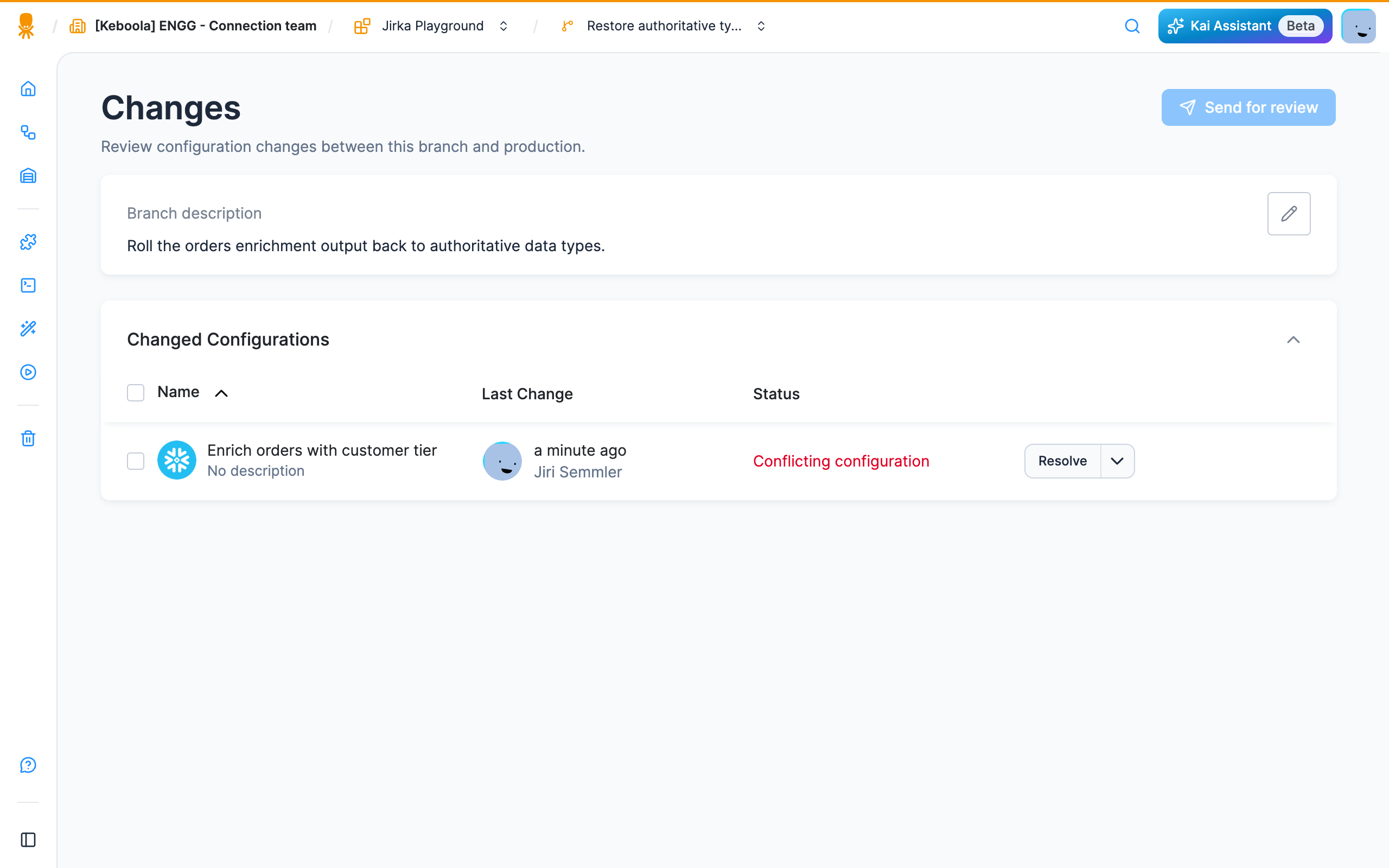
You resolve each conflicting configuration directly from the row:
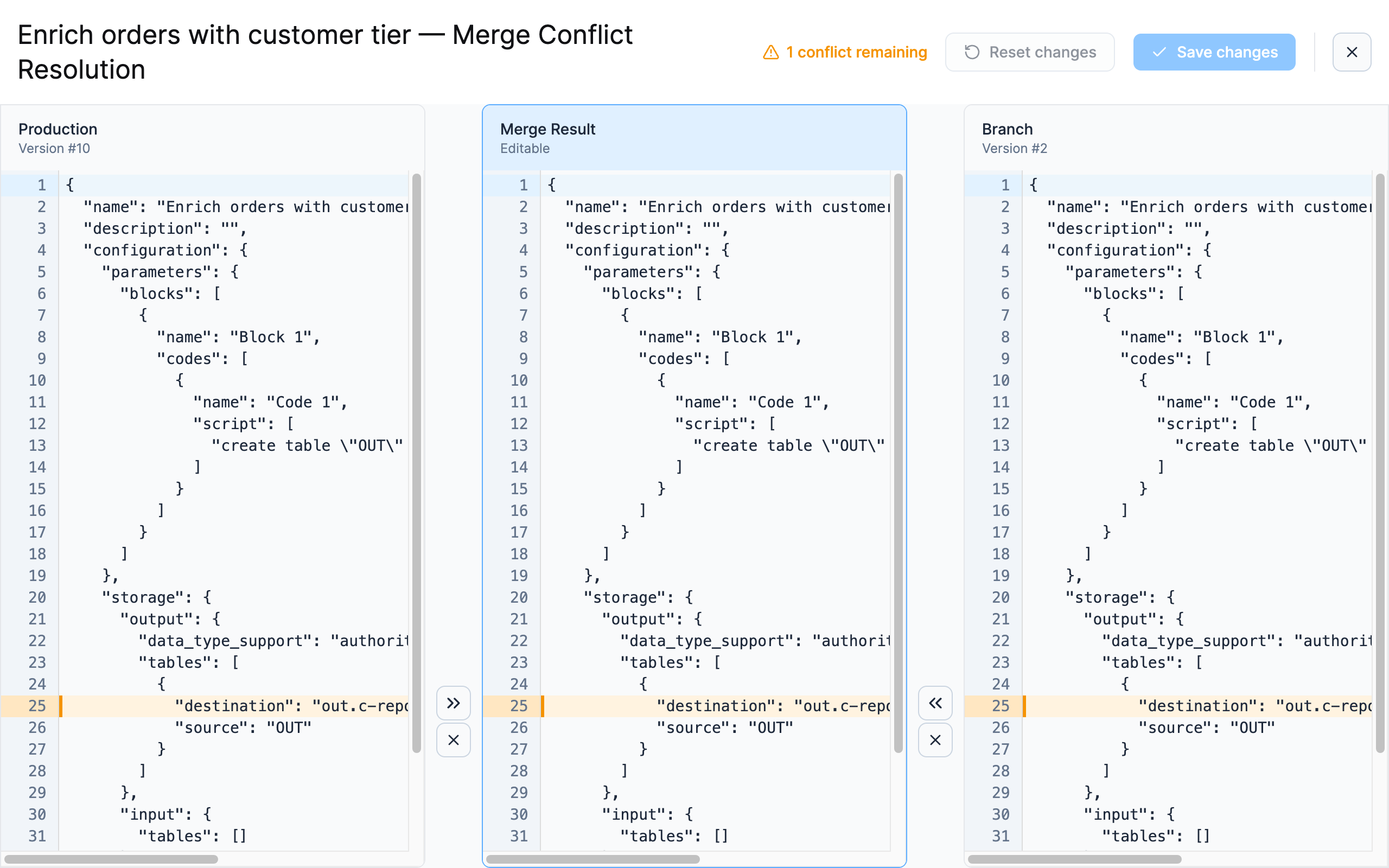
- Resolve opens a three-way Merge Conflict Resolution view (see below).
- The dropdown next to it offers a one-click shortcut, Keep production version, which discards your branch change for that configuration and takes what is currently in production.
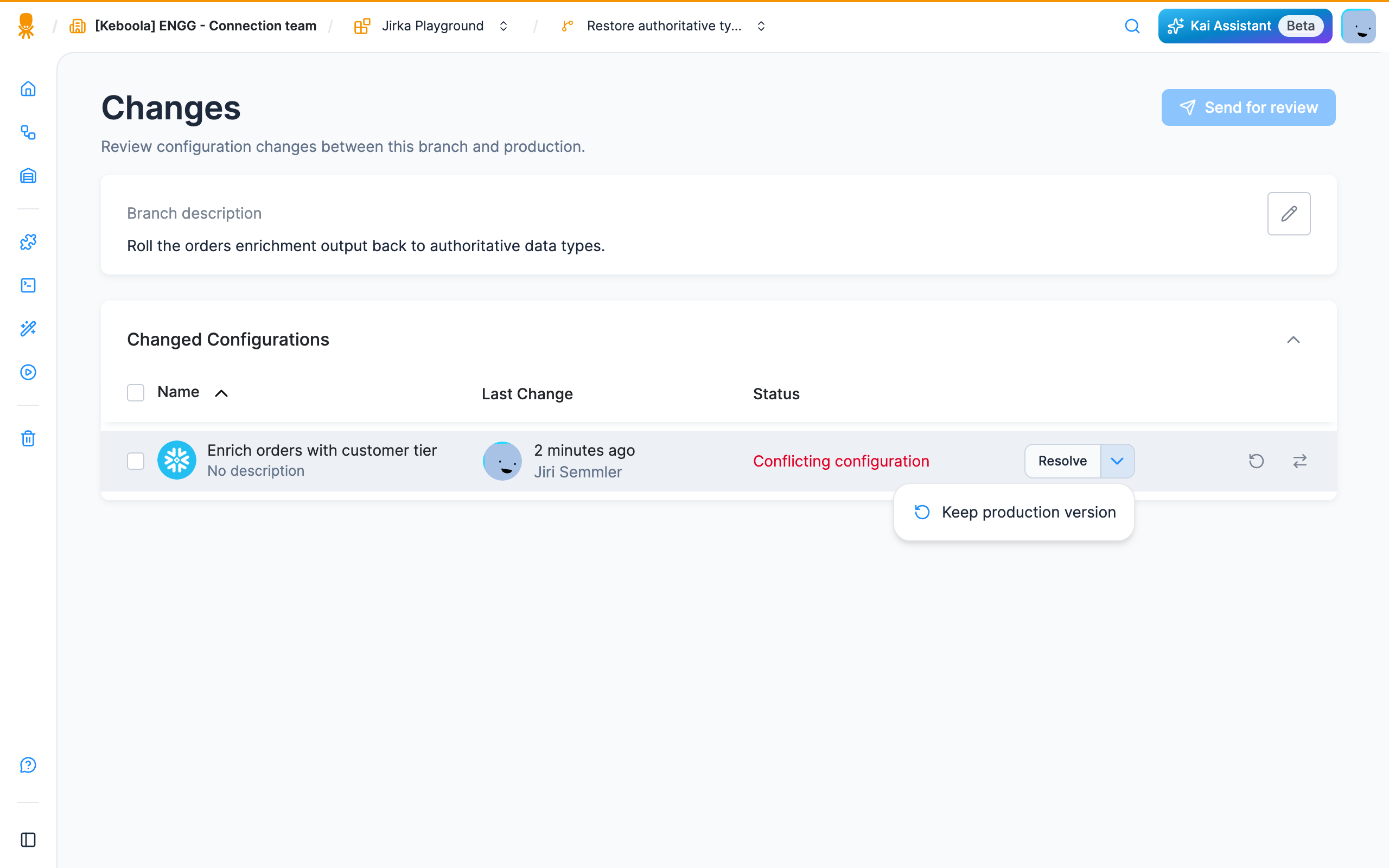
Three-way merge resolution
Section titled “Three-way merge resolution”Resolve opens the configuration side by side in three panes — Production (the current production version), an editable Merge Result in the middle, and your Branch version. Conflicting lines are highlighted; use the arrows to pull a line from either side into the merge result, or edit the merge result directly. When no conflicts remain, click Save changes to store the reconciled configuration in your branch.
Alternatively, use Pull from Prod in the branch switcher to bring the current production state into your branch, reconcile the affected configurations yourself, and then submit the merge request again.
After a Merge
Section titled “After a Merge”A merged request is kept in the list with the Merged status, and you can Download Changelog from its row for a record of exactly what was applied.
Because a merge produces new configuration versions in production, nothing is lost: if a merged change causes problems, you can open the affected configuration and roll it back to its previous version, restoring the pre-merge state.
Requiring Review (Branch Protection)
Section titled “Requiring Review (Branch Protection)”Whether review is required — and who may review — is configured per project in Project Settings → Branch Protection.
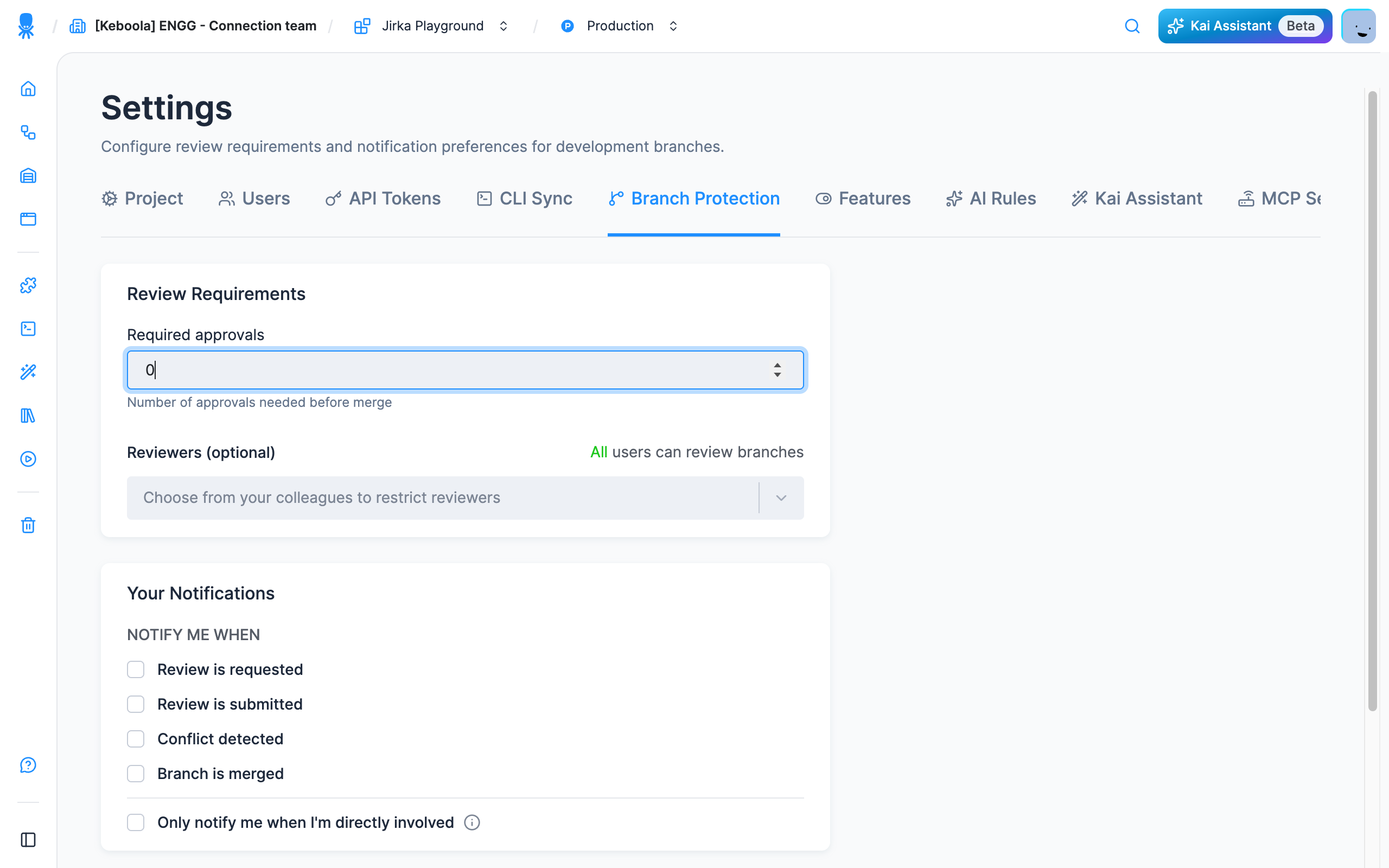
- Required approvalsthe number of approvals a merge request needs before it can be merged.
Set it to
0to let anyone merge without review (requests are auto-approved on submit). - Reviewersby default all project users can review branches. You can restrict reviewing to a chosen set of colleagues.
- Your Notificationschoose when you receive an email: when a review is requested, when a review is submitted, when a conflict is detected, and when a branch is merged. Only notify me when I’m directly involved limits notifications to requests you created or were asked to review.
Once review requirements are in place, every merge request must collect the required approvals before it can reach production.
Was this page helpful?
Thank you for helping improve Keboola's documentation!