

Build an app
Turn the staffing outlook into a shareable grid app, six cafés by seven days with the short-handed cells in red, described to Kai in one prompt and published from the builder.
A chat answer reaches only the person who asked. The manager of the Brno café wants to glance at next week on Monday morning and see which day is red.
Before you start
Where you are staffing_outlook exists in Storage.
When you finish the grid as a private draft you can open and refine and, if you publish it, an app at its own URL behind a password.
You need
- A Keboola project. No project yet? Create or join a project.
Apps in the project’s navigation. No Apps there? Skip this page; the flow on the next page does not need the app.
A table to build from:
staffing_outlookfrom Transform data, or any table of yours with a few numeric columns. The note below says what to adapt.
What each tab needs
- Prompt tab Kai, from Apps (Create app once the project has an app), on supported stacks. A new Free Plan project has it from the start; elsewhere an organization admin switches it on once: see Get started with Kai.
- UI tab a Git repository and your own Streamlit or Python/JS code. The UI tab points to where that is covered.
- CLI / API tab kbagent, connected with write access, and the app you built on the Prompt tab.
Prompt, UI and CLI / API are three tabs, not three steps, and here only Prompt builds it: the UI tab says where the hand-built route is covered, and CLI / API works on what the Prompt tab built. Pick one tab below; later pages open on it.
One thing stays yours either way: deciding who gets the URL and the password.
Most of it can be undone: if a step builds something else, say so in the same chat.
Arriving from the Apps announcement, with a table of your own?
The prompt below names this guide’s table and its columns, so with a table of your own you adapt both, and the checks further down describe our data rather than yours. If you would rather start from nothing, Build your first app with Kai does that without a tutorial dataset.
What an app is
Section titled “What an app is”- A table in Storage
- A small web app that runs inside Keboola and reads it
- A URL you send to whoever you choose
A grid, a dashboard or an explorer. Like everything else in this guide it is a component, so it can sit in a flow; the Apps section covers it in full.
Set it up
Section titled “Set it up”Describing an app is a one-paragraph job, and the Apps section has Kai wired in as the primary way to build one (Build your first app with Kai).
-
Open Apps in the navigation. In a project with no apps yet, that page is the builder itself: Build web apps from your Keboola data and a field that says Describe what you want to build…. Once the project has an app, the page lists it, with a Create app button for the next one. The ways to bring your own code sit below the field; the UI tab says where they are covered.
-
Describe the app and send it:
Prompt Build a data app from the table out.c-Boolabean-staffing-outlook.staffing_outlook. Show one grid: a row per café (store_name and city) and a column per forecast date, in date order. Each cell shows expected_units_per_person as the big number, with the weekday, forecast_temp_c and forecast_rain_mm in small text underneath. Colour a cell red when short_handed is true and leave the other cells neutral. Above the grid, one caption line: how many café-days in the table are short-handed. No filters, no other charts, no sidebar.Saying what not to build is half the prompt: left to itself Kai adds filters and a second chart. Kai also names the app, Staffing Outlook in our run; the Apps list shows what it called yours.
-
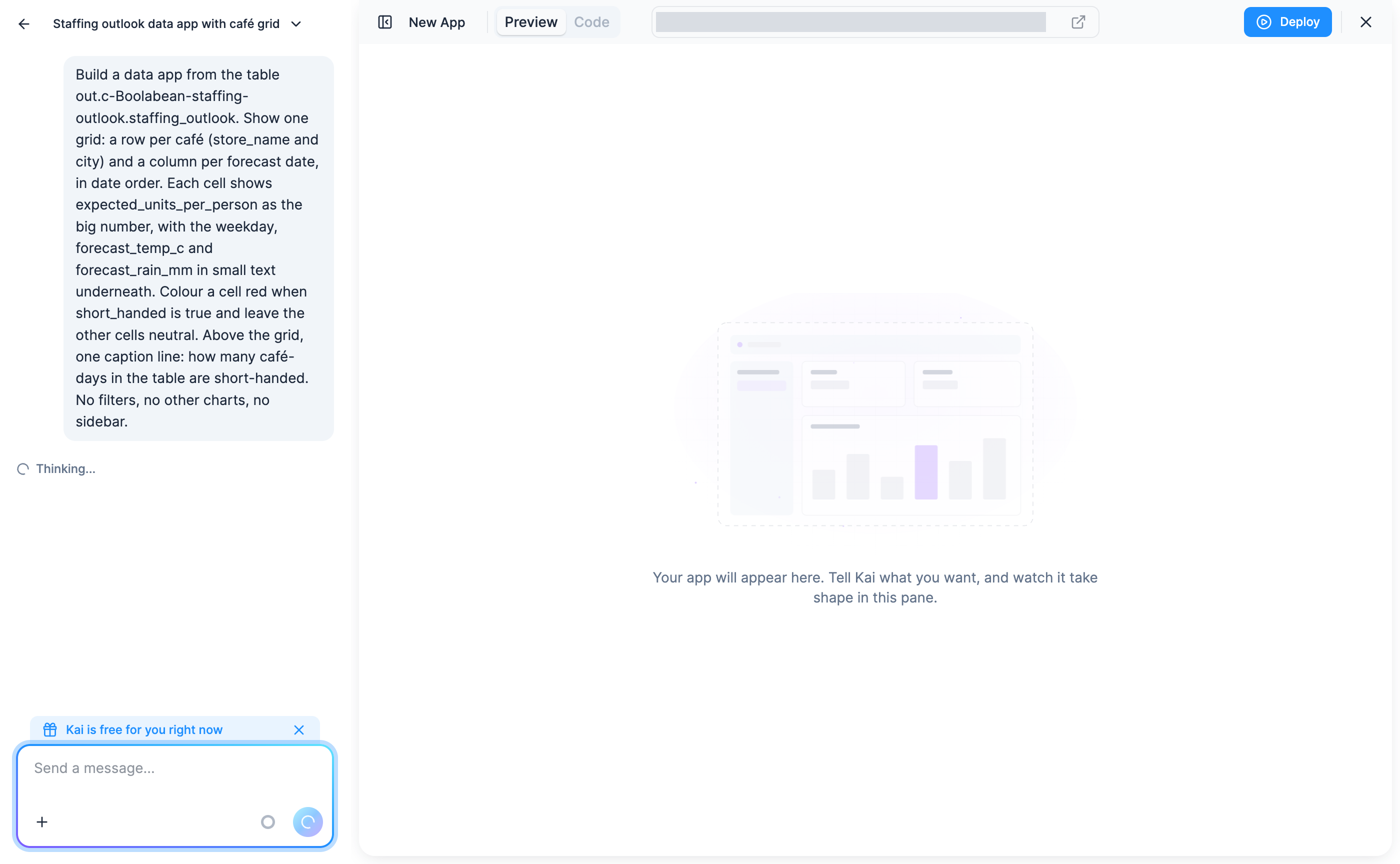
Kai builds a draft of the app without asking first: it creates the app, writes the code and starts a live preview, and nothing is published until you say so. The builder shows the chat on the left and Preview and Code on the right; when it is done, the chat ends with Draft ready, Not live yet. Expect about five minutes to a grid you can look at. Not what you wanted? Say so in the same chat, and the draft updates.
-
Check the preview itself: six rows, seven columns, one big number per cell, red where
short_handedis true, and the caption’s count matching the red cells. If it does not match, say so in the same chat; the draft updates in place. In our Free Plan run the first preview had no red cells and a caption saying none were short-handed, while Kai’s summary said three; one message in the same chat, naming the three rows, fixed it (the fold under If it goes wrong has one to copy). Ours, on a week with three red days: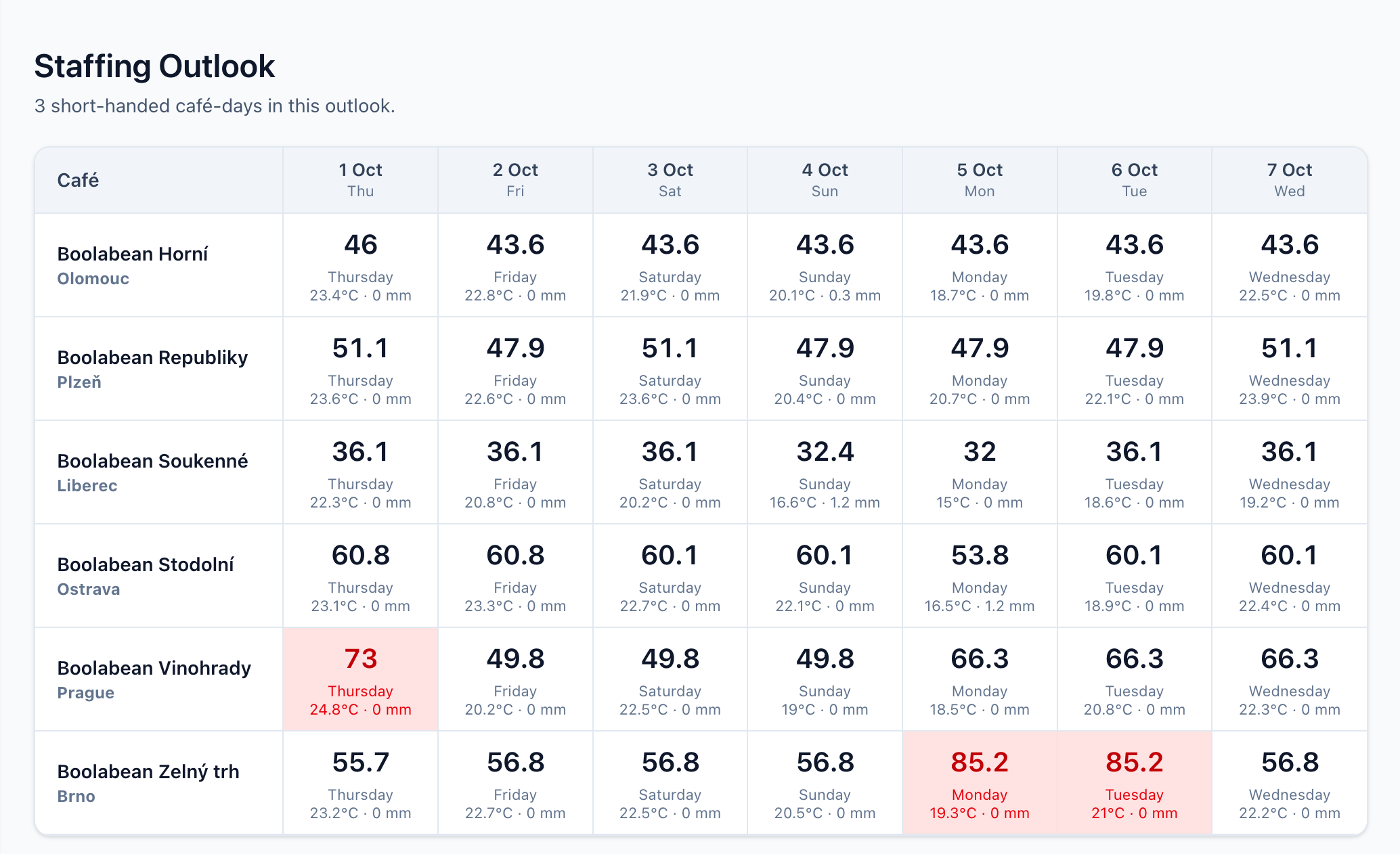
Weather data by Open-Meteo.com (CC BY 4.0).
-
Optional, to share it: first ask Kai in the same chat to put Open-Meteo’s credit in the app, since the grid’s numbers come from their forecast:
Prompt Under the grid, add the line "Weather data by Open-Meteo.com (CC BY 4.0)", with Open-Meteo.com linking to https://open-meteo.com/ and CC BY 4.0 linking to https://creativecommons.org/licenses/by/4.0/.Then click Publish to Production in the builder, the step the Apps pages describe in Publish to production. If the builder shows only Deploy there, send
Publish to productionin the chat instead: in our Free Plan run that was one of Kai’s What’s next? suggestions, and picking it published the app. Kai moves the draft’s code into the app and asks twice, the first approvals on this page: once to give the published app access to Storage, and once to deploy it. A few minutes later the app’s own page (Apps, then the app) says Active and offers Open: a dialog with the app’s address, its password and an Open app button (App actions). The grid sits behind the password from the app’s Authentication setting, Basic (Password) by default. This worked in our Free Plan project; in an older project of ours the deploy failed, and If it goes wrong below has the reasons. The draft preview is enough to finish the page. To remove the app later, open More actions (⋮) on its page and pick Delete app.
Check: the draft preview (or the app itself, through Open, once deployed) shows the grid, and its caption’s
count equals both the number of red cells and the number of rows where short_handed is true in
Storage. The count moves with the forecast. The sample’s history is one summer, so a week under
18 °C has no red cells at all, and on cold, dry days most cafés have no figure to show; that is the
right answer for such a week, and the fold on red cells below says how to test the colouring
anyway.
While the builder chat is open, also ask Kai:
Does this app read staffing_outlook on every request, or only when it starts? The weekly flow on
the next page rebuilds the table but does not restart the app. Ours reads it on every request. An
app that reads it only when it starts still shows a new week once it has slept and started again.
To be sure, ask Kai in the same chat to make yours read the table on every request. If the app is
already published, click Publish to Production again so the live app gets the change.
Building an app by hand means a Git repository and your own Streamlit or Python/JS code, a real development workflow rather than a form. It has its own pages: create an app manually for the UI flow, and Build locally for the repo-based workflow. Finish the guide with the Prompt tab first; come back when the app you want is one the description field cannot hold.
The app itself is written by Kai in the builder. No command turns a paragraph into a grid.
What kbagent does is the part you repeat: listing apps, deploying the version Storage
holds, waking one that has gone to sleep, and reading its log when it will not start.
kbagent data-app list --project docs-demoThat prints each app with its numeric app ID, its state and its URL. kbagent data-app detail --project docs-demo --app-id <app-id> adds the Storage configuration ID, a different
identifier.
With the app ID, a deploy of the latest saved configuration is one command:
kbagent data-app deploy --project docs-demo --app-id <app-id> --wait--wait blocks until the container is running or the deploy fails.
Four more worth knowing:
kbagent data-app start --project docs-demo --app-id <app-id>kbagent data-app logs --project docs-demo --app-id <app-id>kbagent data-app runs --project docs-demo --app-id <app-id>kbagent data-app password --project docs-demo --app-id <app-id>start wakes an app that auto-suspended, logs is the app’s own output, runs lists each
start with the container’s startup log, which is where a failed deploy actually explains itself,
and password prints the Basic-auth password for the URL, the one thing to keep out of a
screenshot or a chat.
If it goes wrong
Section titled “If it goes wrong”The grid is empty, or shows another table
On a cold, dry day most cells have no figure by design: under 18 °C with no rain, five of the six
cafés have no summer history to average (Transform explains). If the
whole grid is empty or shows other data, the app is reading the wrong table. Give Kai the full
table ID, out.c-Boolabean-staffing-outlook.staffing_outlook, in the same chat and let the draft
update.
The red cells do not match the caption
Kai coloured on a threshold of its own instead of the short_handed column. Tell it to use the
column; the transformation already decided what red means, and the app should not decide again.
No cell is red, and the caption says none are short-handed
If Storage has no rows where short_handed is true, the grid is right: a week under 18 °C flags
nothing. If it has some, the app read the column wrong. In our Free Plan run it reached the app as
1 or an empty string rather than true or false, so nothing matched, while Kai’s own summary in
the chat still said three cells were red. Say what you see in the same chat, for example like this
(ours also named the three rows):
The preview shows no red cells, but staffing_outlook has rows where short_handed is true. Check how short_handed arrives in the app, then colour those cells red and make the caption count them.In a week with nothing flagged you can still test the colouring: ask Kai in the same chat how the
app reads short_handed. It should turn whatever arrives (in our run the text 1 or an empty
string) into true or false before it colours a cell.
The production deploy fails, and Terminal Logs says the app is not running
The draft ran, so the code works; the production container did not come up. The job’s own error is
usually just Internal Server Error occurred, which says nothing. The reason is in the container’s
startup log: on the app’s All Runs tab, open the failed run, or from a terminal run
kbagent data-app runs --project docs-demo --app-id <app-id> (your project’s alias, as in the CLI
tab). Two causes have shown up in our older project, and neither is your grid (the same deploy
worked in a new Free Plan project):
App must have keboola-config/nginx/ directory: the repository Kai wrote has no nginx configuration, which a Python/JS app needs in production. The draft does not, because it runs in dev mode.Authentication failed for https://git.<stack>/keboola/app-<id>.gitwith Credentials are incorrect or have expired: the app’s managed Git credentials have expired, so the container cannot clone its own code.
One failed start is enough for the platform to disable the app, even though its page says it “failed to start automatically multiple times”; the page then offers Start. Since Kai built this app, open it in the builder and click Fix with Kai: Kai reads the logs and recent runs, tells you what it found before it changes anything, then deploys the fix and starts the app. By hand, The app doesn’t start has the fix for the missing nginx configuration, and Sleeping and waking how to start a disabled app again. For the expired credentials, redeploy; if it happens again, report it to Support with the job ID. The rest of the pipeline is unaffected: the table is rebuilt every week whether or not the app is up, and the draft preview still shows it.
Nothing happens for a minute after you open the app
It went to sleep. Apps stop after a while without visitors (Auto Sleep on the app’s page; ours was set to fifteen minutes) and wake on the next request, which is the wait you are seeing. While it sleeps, the Apps list and the app’s page say Stopped, and the page offers Start.
Going further
Section titled “Going further”- Publish and share: authentication options beyond the default password, and who can reach the URL.
- Authentication: who can open the app. Basic (Password) is the
default. Every other gate (OIDC with Auth0, Google Cloud, Microsoft Entra ID or Okta, or GitHub,
GitLab and JumpCloud) needs a client you register in that provider’s own console, which neither
Kai nor
kbagentdoes for you;kbagent data-app create --authoffers onlypasswordorpublic. - Build locally: the Git-based workflow once an app outgrows its first description.
Was this page helpful?
Thank you for helping improve Keboola's documentation!