

Getting started with Keboola
Build one working, scheduled pipeline: load six tables, join five of them with SQL, ask the result a question, turn it into an app, and have it rebuild itself every week.
Your data lives in more places than one: files, a spreadsheet someone keeps, an API, a database. Keboola is where you bring it together and shape it with SQL. Once you have a project, Kai, its AI assistant, can do the work from what you tell it in plain language: it loads your data, answers questions about it, and turns the answer into an app, asking for your approval along the way. The pipeline then reruns by itself every week. This guide does each of those once, on a small sample, so you can do them on your own data.
The café grid in the clip uses weather data by Open-Meteo.com (CC BY 4.0).
Where you are you have heard of Keboola and have nothing set up.
When you finish a scheduled pipeline and an app, in a project you created or joined.
The sample is six cafés: five files (a summer of sales, the rosters, the weather) and next week’s forecast from a public API that needs no account. The moves are the same on your own tables. Every step works toward one question: Which day next week will leave a café short-handed? By the fifth page a grid answers it, and every Monday the answer is rebuilt on the new forecast. The grid is one kind of app; Kai builds interactive dashboards and what-if simulators the same way, from a description you write (What you can build).
Before you start
You need
An email address to create a free project on the first page, or an invite to your company’s project. A free project is enough.
A browser. Every step after the first also has a Prompt way and a terminal way; How every page works says what those need.
What you get
Section titled “What you get”- Create or join a project
One place for your data, its SQL, the app and the flow.
- Transform data
Join five of them with SQL into one table: café, day, expected demand, crew, a flag.
In Keboola: a transformation
- Explore your data
Ask that table a question in plain words and get an answer that says why.
- Build an app
Describe an app in a paragraph and get a grid: six cafés by seven days.
- Build and schedule a weekly flow
Rebuild the table every Monday on the new forecast, and hear about it if it breaks.
- Check Storage and Jobs
What a good run leaves there, and the failures that actually happen.
Read the steps in order, or land on any one of them: each page says where you should be, what it needs, and how to tell it worked.
How every page works
Section titled “How every page works”Every page with a task on it offers that task three ways:
- Prompt: paste it into Kai Agent, the assistant in the project’s top bar, and watch it build; the app’s prompt goes into the field on the Apps page instead. Create or join a project says how to tell you have it, and shows it at work.
- UI: the same task click by click, to see where each setting lives.
- CLI / API: the same task from a terminal with kbagent, with the raw request where there is no command for it.
Pick a tab once and every page after it opens on the same one:
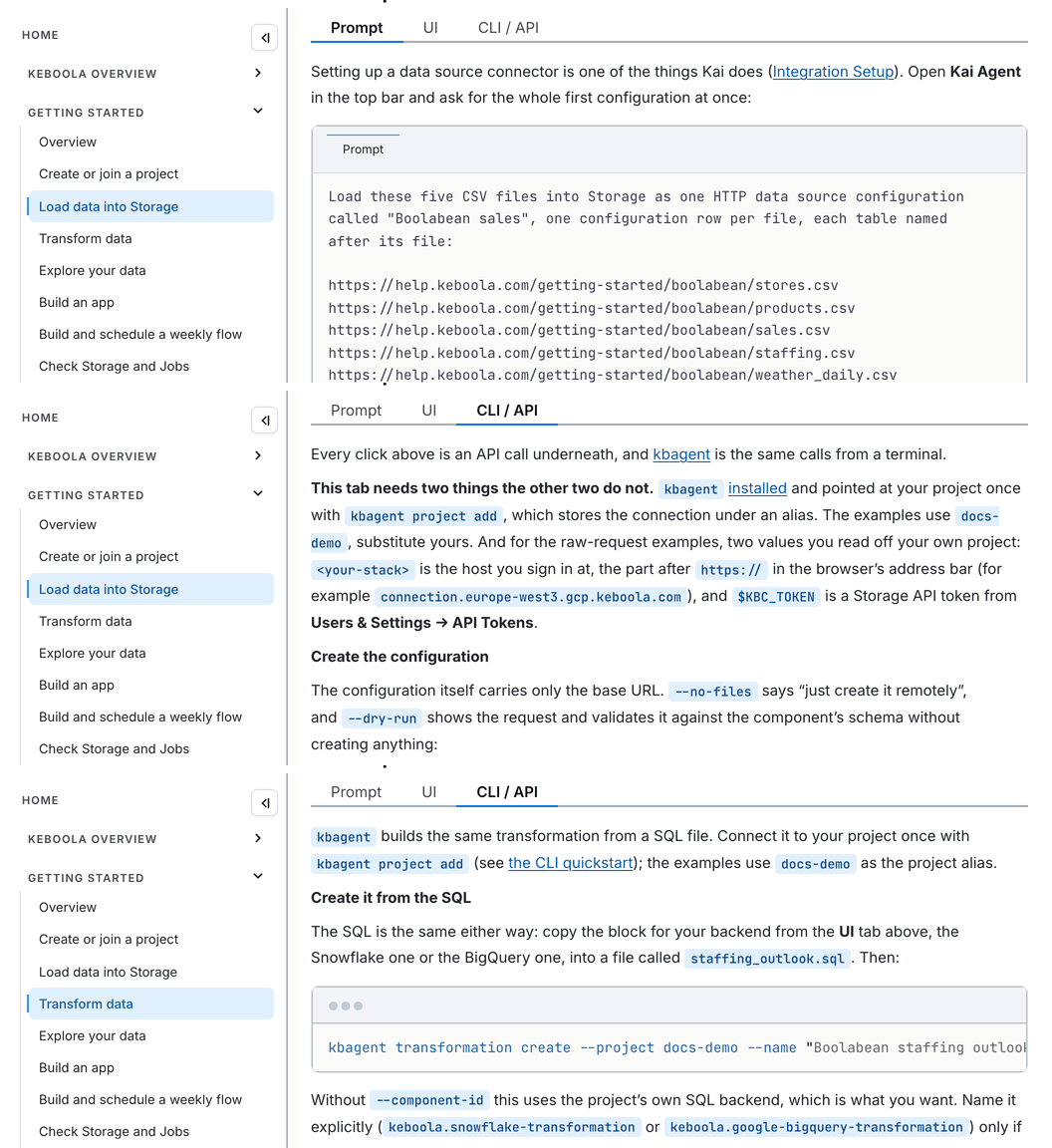
Where one of the three cannot do the job (a signup form, a Google consent screen, a branch merge), the page says so rather than showing an empty tab.
Approvals and plan mode
Section titled “Approvals and plan mode”In the chat, Kai asks before each change it makes: an approval card shows exactly what it is about to write or run, with Approve, Decline and Always allow. Questions that only read do not ask, and neither do tools set to Always allow; a new account has two write tools set that way, both for apps. In the chat, an approval left unanswered for about five minutes counts as declined: Kai says so, and you ask it to try again. The Apps builder asks less: it builds a draft of the app, code and preview included, without asking, and when you publish it asks twice, once for the app’s access to Storage and once to deploy it.
Fewer approvals, plan mode, and undoing a step
-
If confirming each one gets tiring, pre-approve tools in tool permissions: the gear in the Kai panel, then Tools.
-
Plan mode is a different thing. With Plan mode from the + menu in the chat’s message field, Kai writes the steps down and asks you to approve the plan before it starts, and then still asks for each change. Use it when you want to read the plan first, not to save clicks.
-
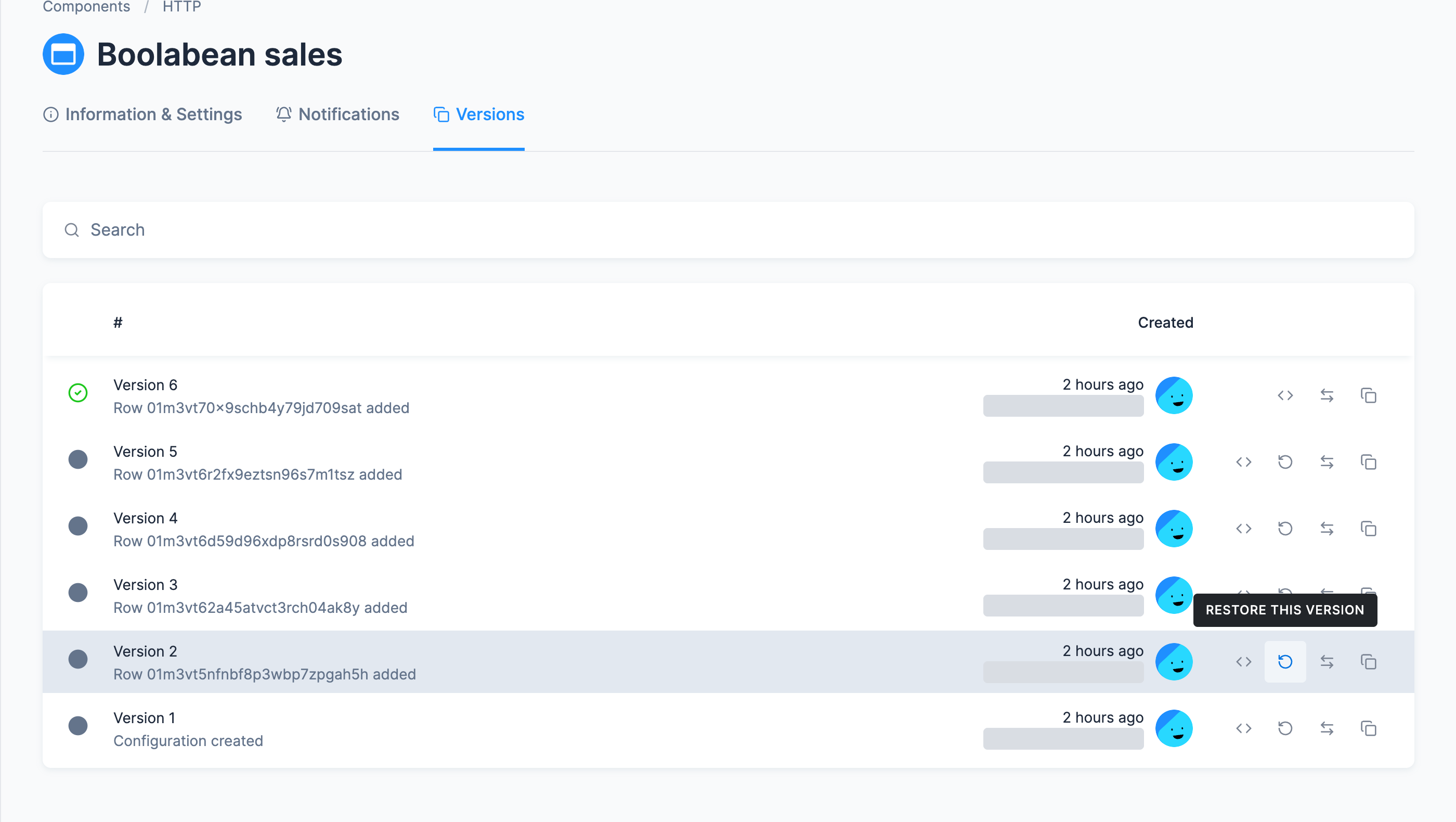
Most of it can be undone. If a step builds something other than the page describes, say so in the same Kai chat, or edit the configuration by hand. Every configuration Kai creates or changes keeps a Versions tab, and Restore this version on an earlier row takes it back; Delete configuration removes one you do not want, into Trash. Restoring a version changes the configuration only: tables a job already wrote stay as they are. The weekly schedule is a configuration of its own, outside the flow’s versions, and an app’s versions record its settings, not the code Kai wrote.
Where to start instead
Section titled “Where to start instead”This guide is the browser path, prompt first. Three others start from the same place:
Going further
Section titled “Going further”Optional side trips, none of them needed to finish the guide:
- Send a table to Google Sheets: the result where people read it.
- Load from Google Sheets or from a database: sources behind credentials.
- Use a workspace: test SQL on a copy of the data first.
- Ad-hoc data analysis: a Python or R notebook instead of a pipeline.
- Development branches: change a running project safely.
If you are planning a rollout, not learning the tool
Section titled “If you are planning a rollout, not learning the tool”This guide is for one person building one pipeline. For introducing Keboola to a team, with project architecture, a data model, naming conventions and governance, start with Platform Onboarding instead.
Was this page helpful?
Thank you for helping improve Keboola's documentation!