

Build and schedule a weekly flow
Wire your two connectors and the transformation into a single flow, run the two loads in parallel, give it a Monday 06:00 schedule, and get notified when it fails.
Your table is true today because you ran every step by hand; next week the forecast has moved on and the table has not. A flow runs your configurations in order, on a schedule, so every Monday the outlook for the week ahead is rebuilt before the first café opens.
Before you start
Where you are the pieces work individually, each run by hand.
When you finish one flow that runs them in order every Monday morning and emails you when it breaks.
You need
- A Keboola project. No project yet? Create or join a project.
The two connector configurations from Load data into Storage.
The transformation from Transform data.
Optional: the destination from Send a table to Google Sheets. The flow runs without it.
What each tab needs
- Prompt tab Kai, the Kai Agent button in the top bar, on supported stacks. A new Free Plan project has it from the start; elsewhere an organization admin turns it on once: Get started with Kai.
- UI tab a browser.
- CLI / API tab kbagent, connected with write access.
Prompt, UI and CLI / API: three ways to do the same task, not three steps. Pick one tab below; later pages open on it.
One thing stays yours either way: the notifications, which come after the tabs and are the same either way.
In the chat, Kai asks before each change it makes (how approvals work), and most of it can be undone: if a step builds something else, say so in the same chat.
Phases and tasks
Section titled “Phases and tasks”- Every Monday at 06:00, Europe/Prague, the schedule starts the flow
- Phase 1: both HTTP connectors, at the same time
- Phase 2: the transformation, which needs both tables
- Configurations in one phase run in parallel. A task can also send a notification or set a variable; those run first, one after another.
- Phases run one after another, and the flow moves on only when a phase is finished. Things that can happen at the same time share a phase; things that depend on each other get their own.
- The app is not in the flow. Ours reads
staffing_outlookeach time someone opens it, so it shows whatever the last run wrote; the Prompt tab of Build an app has the question that checks yours. - If you took the spreadsheet side trip, its destination goes in a third phase: it sends the table, so it runs after the transformation.
Adding tasks and phases by hand, and what else a flow can do
To add a second task to a phase that already has one, hover the phase and click the + in the small toolbar that appears on its top edge. It opens an Add Task menu scoped to that phase (Component, Notification, Variable). The + on the line between phases opens a longer one that also offers Conditions, because a condition sits between phases rather than inside one. Do not confuse it with the + below a phase, which starts a new phase instead. That toolbar belongs to the phase; the one that appears on the card itself is the task’s, and carries Run task and its settings.
Inside the sales configuration the five files are already fetched by one task. Row-based components like this one can be parallelized internally, and in Jobs you will see that one task fan out into a job per row.
Flows can also branch on what happened: retry a task, take a different path on failure, end early. That is conditions, and you need none of it yet.
Set it up
Section titled “Set it up”Open Kai Agent in the top bar and ask for the whole flow; in our runs Kai built it from the configurations already in the project. Complex Workflows shows the bigger pipelines it builds from scratch. The Flows section has Kai wired in too: Create Flow opens with a prompt field, and a flow that already has tasks offers Modify with Kai in its header.
Create a flow called "Boolabean morning outlook" with two phases, in this order:1. Phase 1 runs the two HTTP data source configurations "Boolabean sales" and "Boolabean forecast" in parallel.2. Phase 2 runs the transformation "Boolabean staffing outlook".
Then give the flow a schedule: every Monday at 06:00 Europe/Prague. Then run the flow once now and tell me whether every phase succeeded and how long the run took.
Expect three approvals: the flow, the schedule, the run. If you took the spreadsheet side trip,
change “two phases” to “three phases” and add a third line: 3. Phase 3 runs the data destination configuration "Boolabean outlook to Sheets".
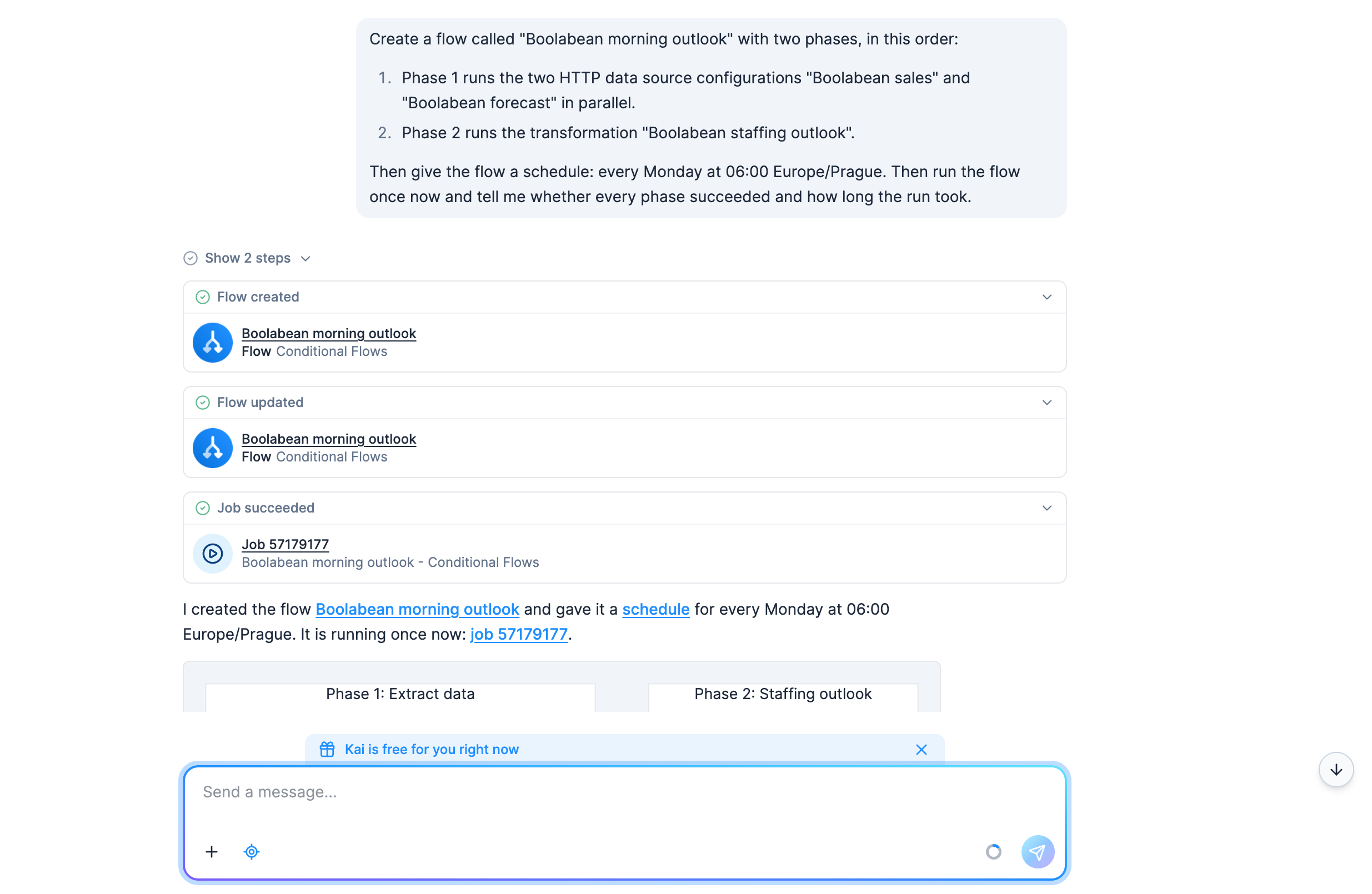
In the chat, the schedule’s card reads Flow updated, and the run’s card says Job succeeded once the run has ended; Kai then reports how each phase went.
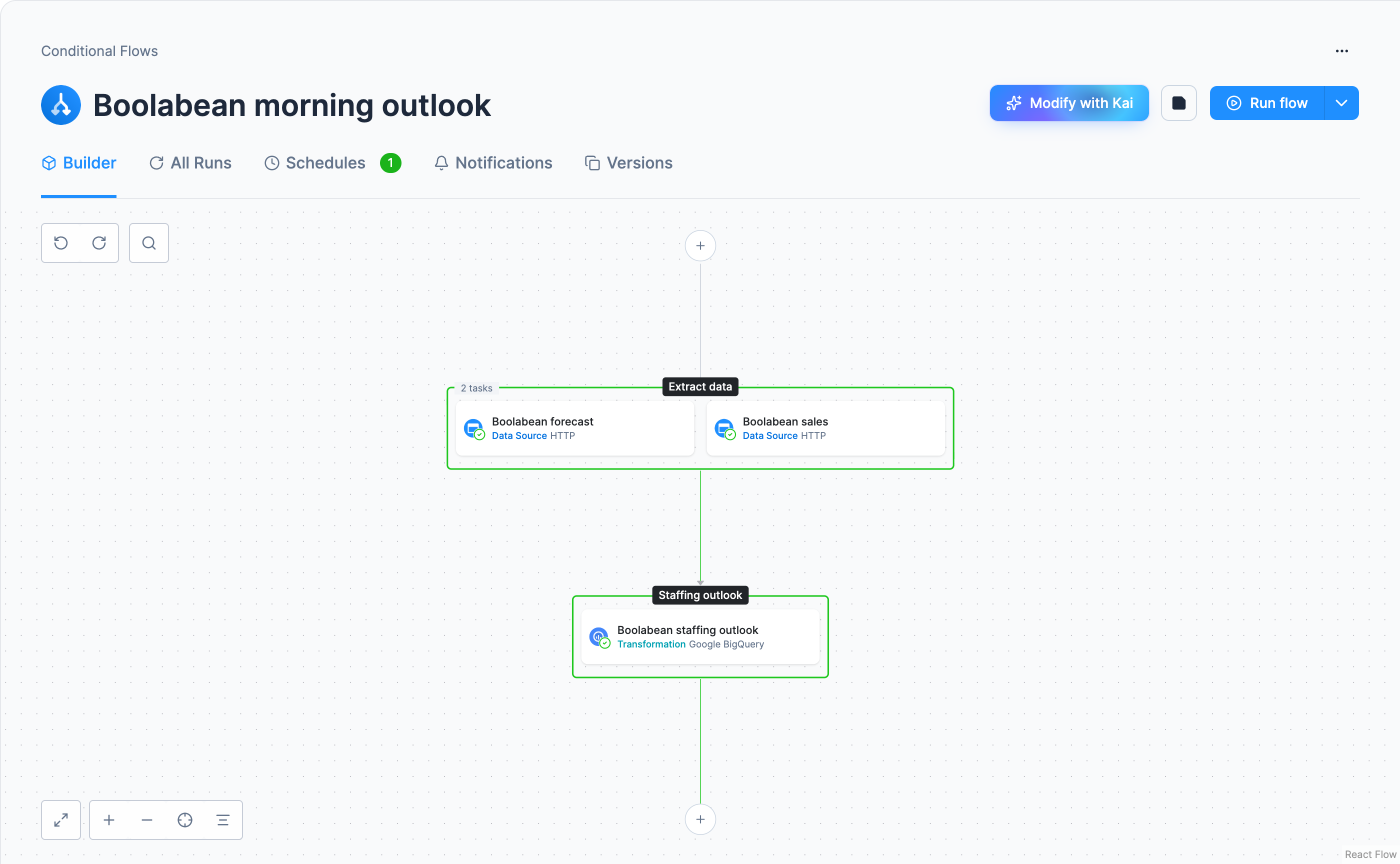
Check: the canvas shows two separate phases (three with the spreadsheet destination), with the two connectors side by side in the first. If it came out as one phase, switch to the UI tab, where the + below a phase starts a new phase, and move the later tasks there. The flow’s Schedules tab shows the schedule Kai set, with its timezone and a toggle to pause it.
To see what will run and when, ask in the same chat:
What will the "Boolabean morning outlook" flow run next time, and in what order?It only reads, so it asks for no approval by default.
Notifications are still yours: two clicks in the flow’s own tab below, and the part people forget exists.
Build the flow
-
Open Conditional Flows in the navigation (older projects may call it Flows). Click Create Flow; on the screen that opens, click Create Flow under Build It Yourself. The prompt field above it is the Kai path from the other tab. In the dialog that opens, name the flow
Boolabean morning outlook, optionally add a description, and click Create Flow.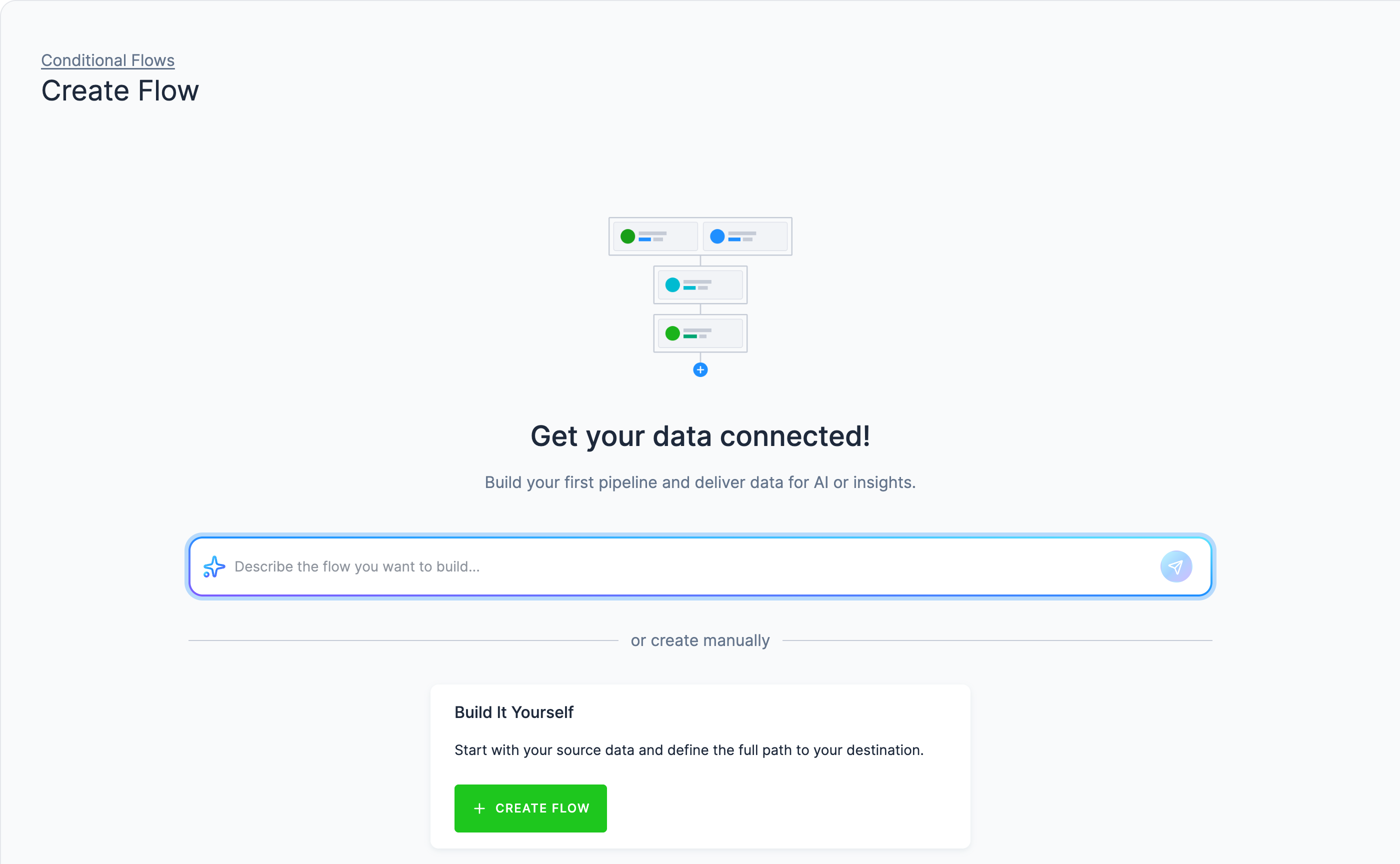
-
You land in the Builder on an empty canvas. Open the Add Task menu, if it is not open already, and choose Component. Here it is on a flow that already has phases:
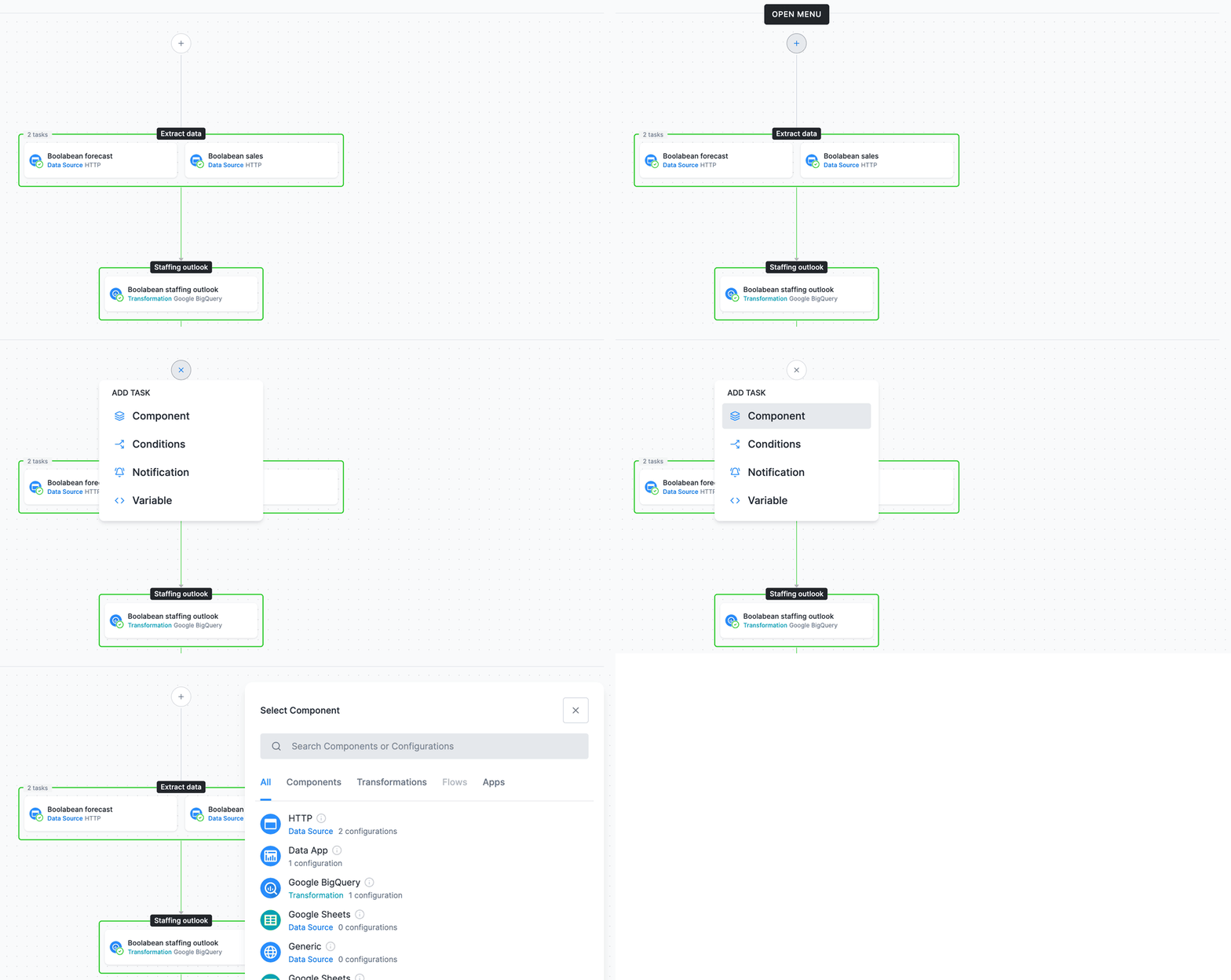
-
A component picker opens, listing what the project has, grouped by component with each one’s configurations. Pick HTTP, then the
Boolabean salesconfiguration. It drops onto the canvas as a task inside a box labelled Phase 1. -
Hover Phase 1 and click the + in the toolbar on its top edge, the one that adds a task to this phase. Pick HTTP again, then
Boolabean forecast. The two connectors now sit side by side and will run at the same time. -
Click the + below Phase 1. That is the control that starts a new phase. Add the
Boolabean staffing outlooktransformation there. Being in a later phase is what guarantees both tables have landed before the SQL runs.The finished flow further down shows phases that have been renamed. Yours start life as Phase 1, Phase 2, … until you rename them.
-
If you took the spreadsheet side trip, click the + below Phase 2, pick Google Sheets (Data Destination), then
Boolabean outlook to Sheets, so it sends the table after the transformation has rebuilt it. -
Click Save. The Builder keeps your changes as a draft until you do. Save and Reset only appear while there are unsaved changes, and Run flow stays disabled until you save.
You now have two phases, the two loads and then the transformation, plus the destination’s phase if you took the side trip.
A flow is a configuration like any other, and kbagent writes it from a YAML file. Run kbagent flow schema
once to see the full format with comments (add --project <alias> --full for the live JSON
schema); the file below is the two phases of this guide.
phases: - id: "extract" name: "Extract data" next: - id: "default" goto: "transform" - id: "transform" name: "Staffing outlook" next: - id: "done" goto: nulltasks: - id: "task-sales" name: "Boolabean sales" phase: "extract" enabled: true task: { type: job, componentId: "keboola.ex-http", configId: "<sales-config-id>", mode: run } - id: "task-forecast" name: "Boolabean forecast" phase: "extract" enabled: true task: { type: job, componentId: "keboola.ex-http", configId: "<forecast-config-id>", mode: run } - id: "task-outlook" name: "Boolabean staffing outlook" phase: "transform" enabled: true task: { type: job, componentId: "keboola.google-bigquery-transformation", configId: "<transformation-config-id>", mode: run }Two tasks in one phase is the parallelism: both connectors sit in extract, and the phase is done
when both are. goto: null ends the flow. On a Snowflake project the transformation’s
componentId is keboola.snowflake-transformation. With the spreadsheet side trip, add a third
phase the same way, with a task for keboola.wr-google-sheets and its configuration ID, and point
the transform phase’s goto at it.
Where the three IDs come from. The configId values for the connectors and the transformation
were printed when you created them. kbagent config list --project docs-demo --component-id keboola.ex-http finds the two connectors again, and the same command with the transformation’s
componentId finds the transformation.
Check the file before it reaches the project, then create it:
kbagent flow validate --project docs-demo --file @flow.yamlkbagent flow new --project docs-demo --name "Boolabean morning outlook" --file @flow.yamlIt prints the flow’s configuration ID, which the next two commands take as <flow-id>;
kbagent config list --project docs-demo --component-id keboola.flow finds it again.
The schedule is a separate configuration, and one command upserts it:
kbagent flow schedule --project docs-demo --flow-id <flow-id> --cron '0 6 * * 1' --timezone Europe/Prague --enabledRun it now rather than waiting for Monday morning:
kbagent job run --project docs-demo --component-id keboola.flow --config-id <flow-id> --waitCheck: the run’s own job and one job per task:
kbagent job list --project docs-demo --component-id keboola.flow --limit 5Notifications have no command; they live in the flow’s Notifications tab, below.
Clicking a task opens its settings
Selecting a task gives you Edit Configuration, Run rows (for row-based components like your HTTP connector, so a flow can run a subset of rows), Retry After Failure, Delay Before Start, and Continue on Failure, which reads Handled via Conditions, because in Conditional Flows that behaviour comes from conditions rather than a toggle.
If you took the connector side trips
If you also loaded data from Google Sheets or a database, put those data source configurations in the first phase alongside the two HTTP ones; that is the same parallelism, with a third source. Then make the transformation read from the tables those connectors produce, since they land in their own buckets: on a hand-built transformation, repoint its input mapping; on a Kai-built one there is no input mapping, so re-prompt Kai to include the new tables. A flow that runs the right components against the wrong inputs succeeds and produces nothing useful.
Run it
Section titled “Run it”Coming from the Prompt or CLI / API tab? The run already happened (the prompt asked for
it, job run --wait did it) and the schedule is set. Read on for notifications.
- If Run flow is disabled, the Builder is still holding your changes as a draft: click Save first, however the flow got built, Kai included.
- Click Run flow and confirm with Run. A notification with a Show job link appears, and while the run is in progress the header offers Terminate flow.
- Jobs shows which step failed, because every task creates its own job; the flow’s All Runs tab shows each run with its phases, and Reading a flow run says how long ours took.
Set a schedule
Section titled “Set a schedule”Coming from the Prompt or CLI / API tab? The schedule is already there; open the tab to see it, and skip to notifications.
Open the flow’s Schedules tab and click Create Schedule. Under Set Your Own, set
Every to Week, on to Monday and at to 06 : 00, before the first café opens.
The dialog starts in UTC: next to Timezone, click UTC and pick your own zone (My
Timezone heads the list), check the Schedule Preview, then click Set Up Schedule.
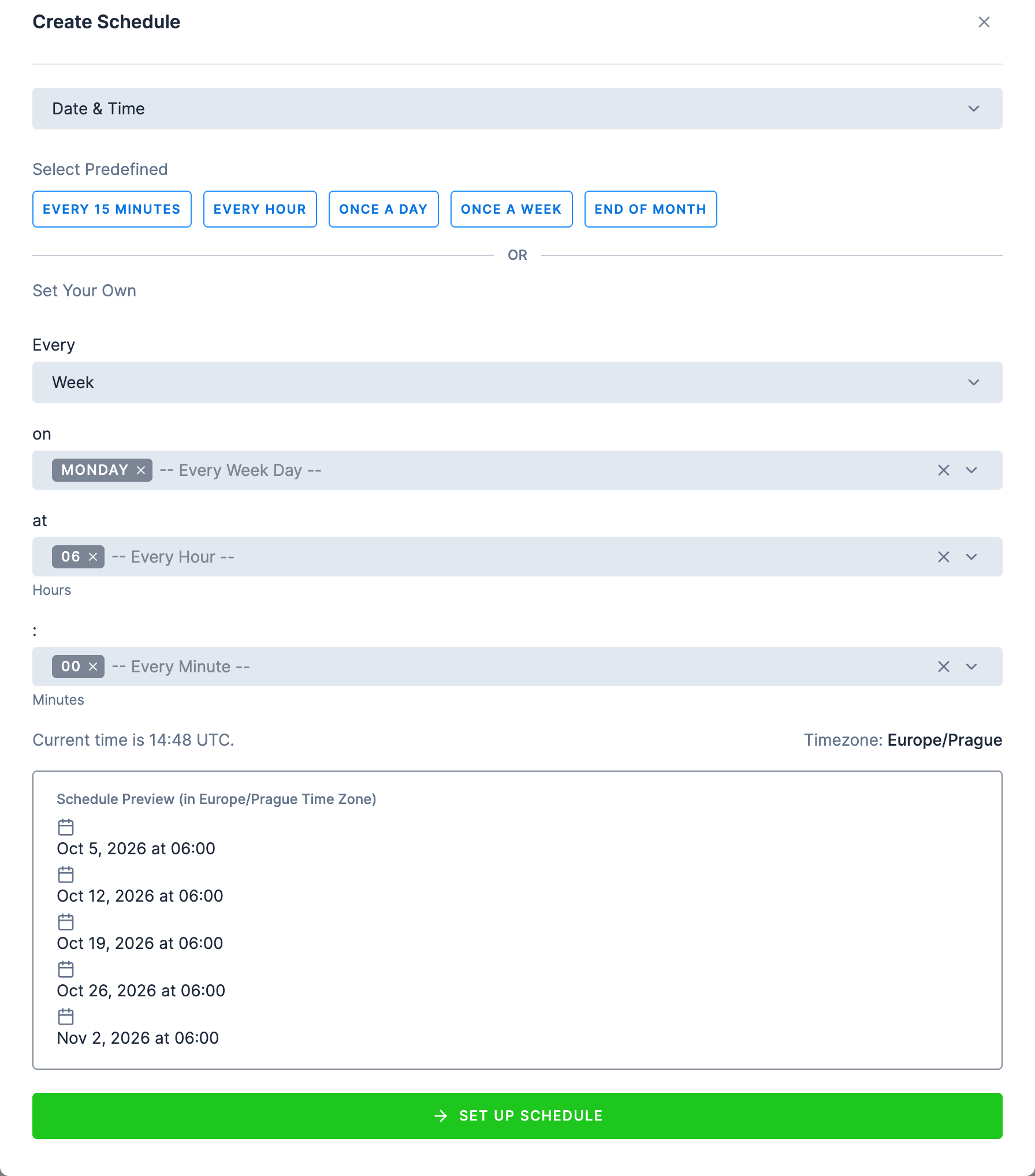
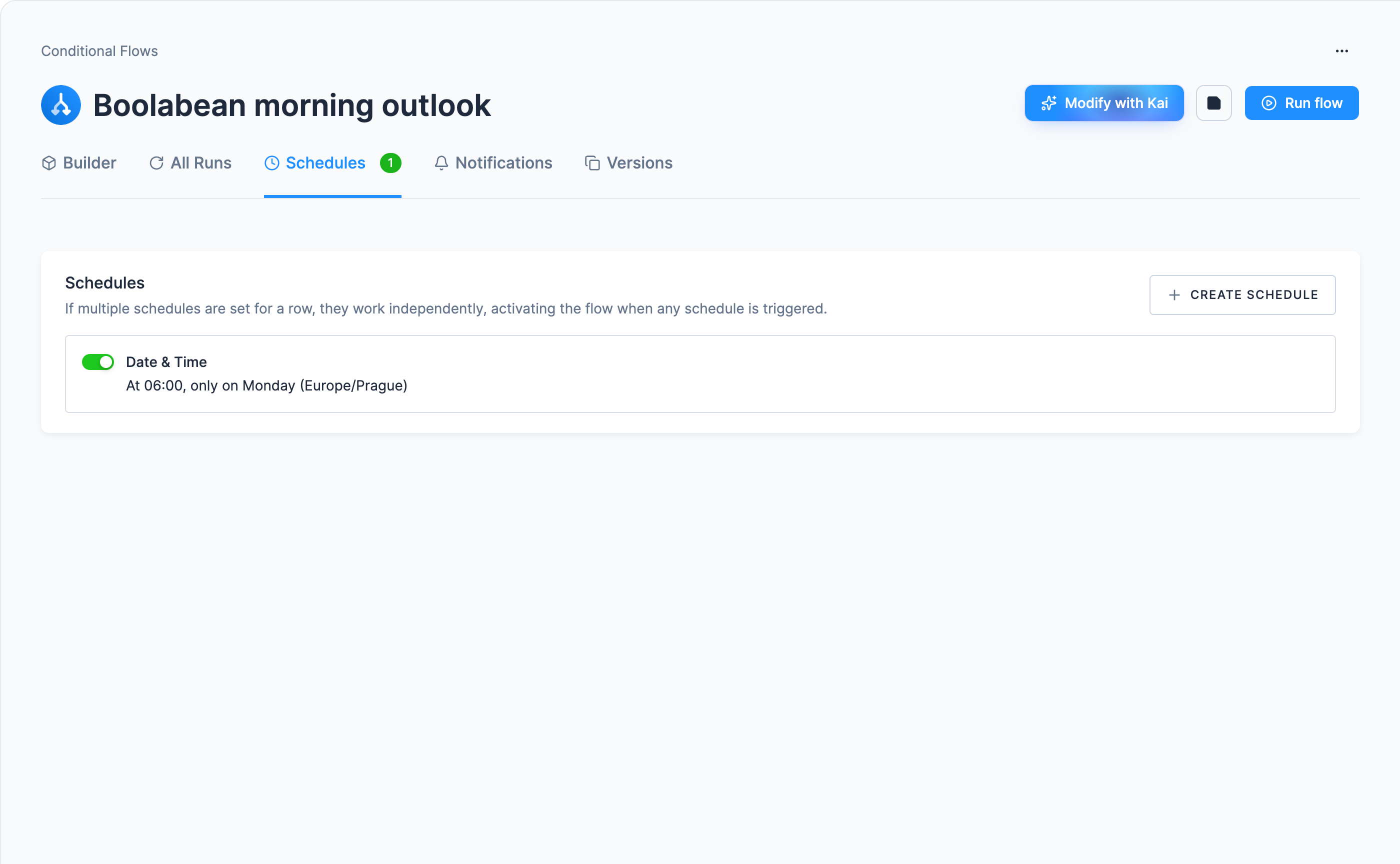
- Mind the time zone. Left on UTC, 06:00 is 08:00 in Prague in summer.
- The toggle pauses it without deleting it.
Other intervals, several schedules, and table triggers
The predefined intervals are Every 15 minutes, Every hour, Once a day, Once a week and End of month; Set Your Own covers every hour, day, week, month or year, at the hours and minutes you pick. A flow can hold several schedules: they work independently, the flow runs whenever any of them fires, and the tab shows a count. If you share a stack with other projects, scheduling slightly off the hour avoids the busiest moments. A schedule can also be driven by a table changing rather than a clock; see Schedule and Automate.
Set up notifications
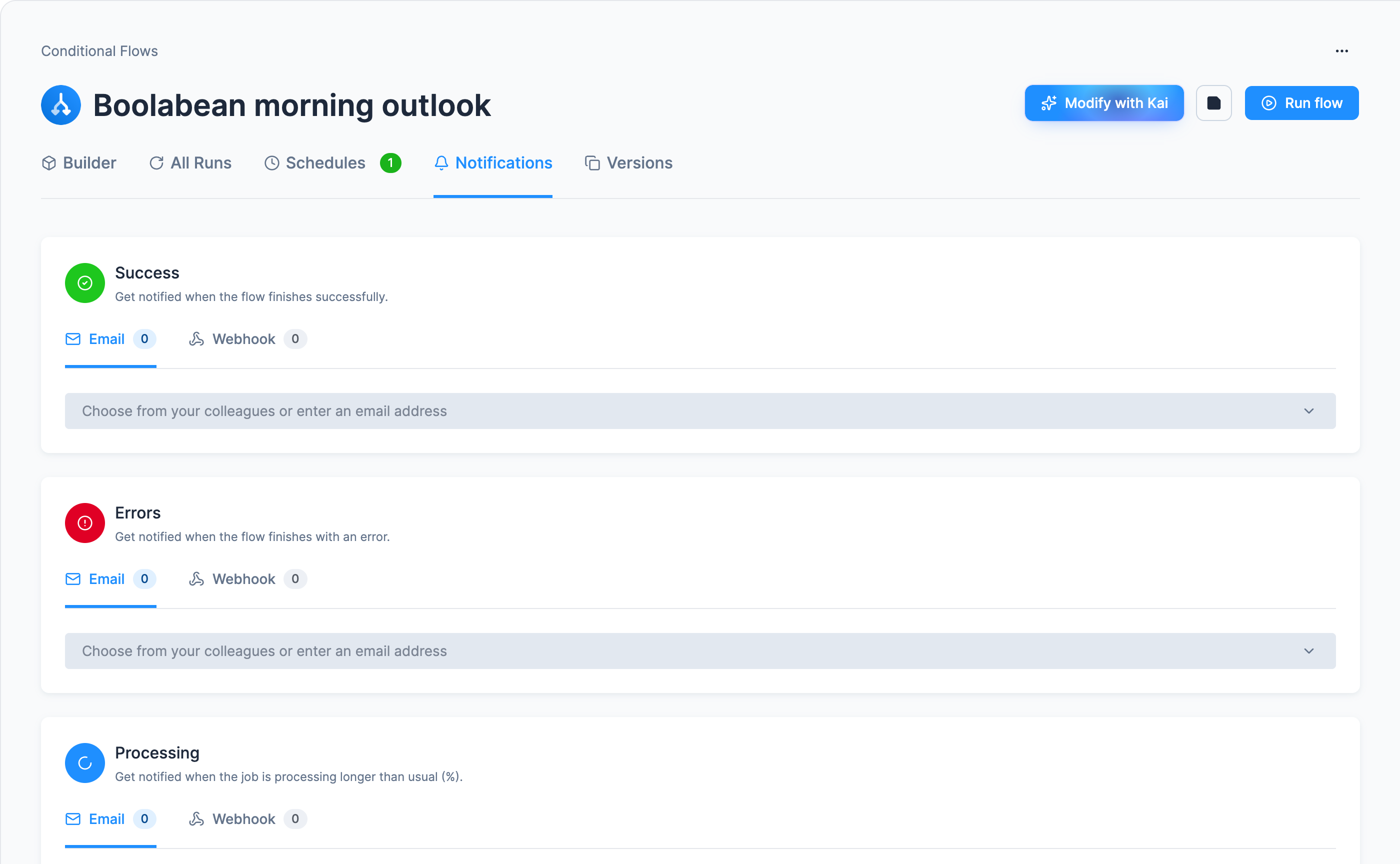
Section titled “Set up notifications”A pipeline that fails silently is worse than a manual one. Open the flow’s Notifications tab and edit it in place; there are three cards:
| Card | Fires when |
|---|---|
| Success | the flow finishes successfully |
| Errors | the flow finishes with an error |
| Processing | the job runs longer than usual, by a percentage you set |
Each takes Email addresses (pick colleagues or type any address) or a Webhook URL. Fill in Errors at minimum.
Different alerts for different failures
There is a second, finer mechanism: a Notification task placed inside the flow, driven by a condition such as if any task in the flow ended with an error. That is what you reach for when one flow needs different alerts for different failures; these three cards are enough here.
Check it worked
Section titled “Check it worked”- The Schedules tab shows a count, and the flow’s All Runs tab a run: your name against a
manual run,
Schedule for <flow ID> Scheduleragainst an automatic one. - A red run can still have done most of its work: Reading a flow run says how to tell, and has the prompt that makes Kai read the run for you.
- Next Monday there will be a second run you did not start, on a forecast that has moved by a week.
Was this page helpful?
Thank you for helping improve Keboola's documentation!