

Transform data
Create an SQL transformation that joins a summer of sales, rosters and weather with a live forecast into one table per café and day, and learn how mappings keep Storage safe.
Sales know what sold, the weather what kind of day it was, the roster who was on shift, the forecast what is coming, and none of them knows what the others know.
Before you start
Where you are six raw tables in Storage, nothing joined yet.
When you finish one table that answers the question, and a transformation you can re-run.
You need
- A Keboola project. No project yet? Create or join a project.
The five tables it reads, from Load data into Storage:
stores,sales,staffingandweather_dailyin one bucket,forecastin another.
What each tab needs
- Prompt tab Kai, the Kai Agent button in the top bar, on supported stacks. A new Free Plan project has it from the start; elsewhere an organization admin turns it on once: Get started with Kai.
- UI tab a browser.
- CLI / API tab kbagent, connected to your project with write access.
Prompt, UI and CLI / API: three ways to do the same task, not three steps. Pick one tab below; later pages open on it.
In the chat, Kai asks before each change it makes (how approvals work), and most of it can be undone: if a step builds something else, say so in the same chat.
How a transformation works
Section titled “How a transformation works”- Tables in Storage
- Input mapping copies them in, under the names your SQL uses
- Your SQL runs in a temporary schema
- Output mapping writes back only the tables you name
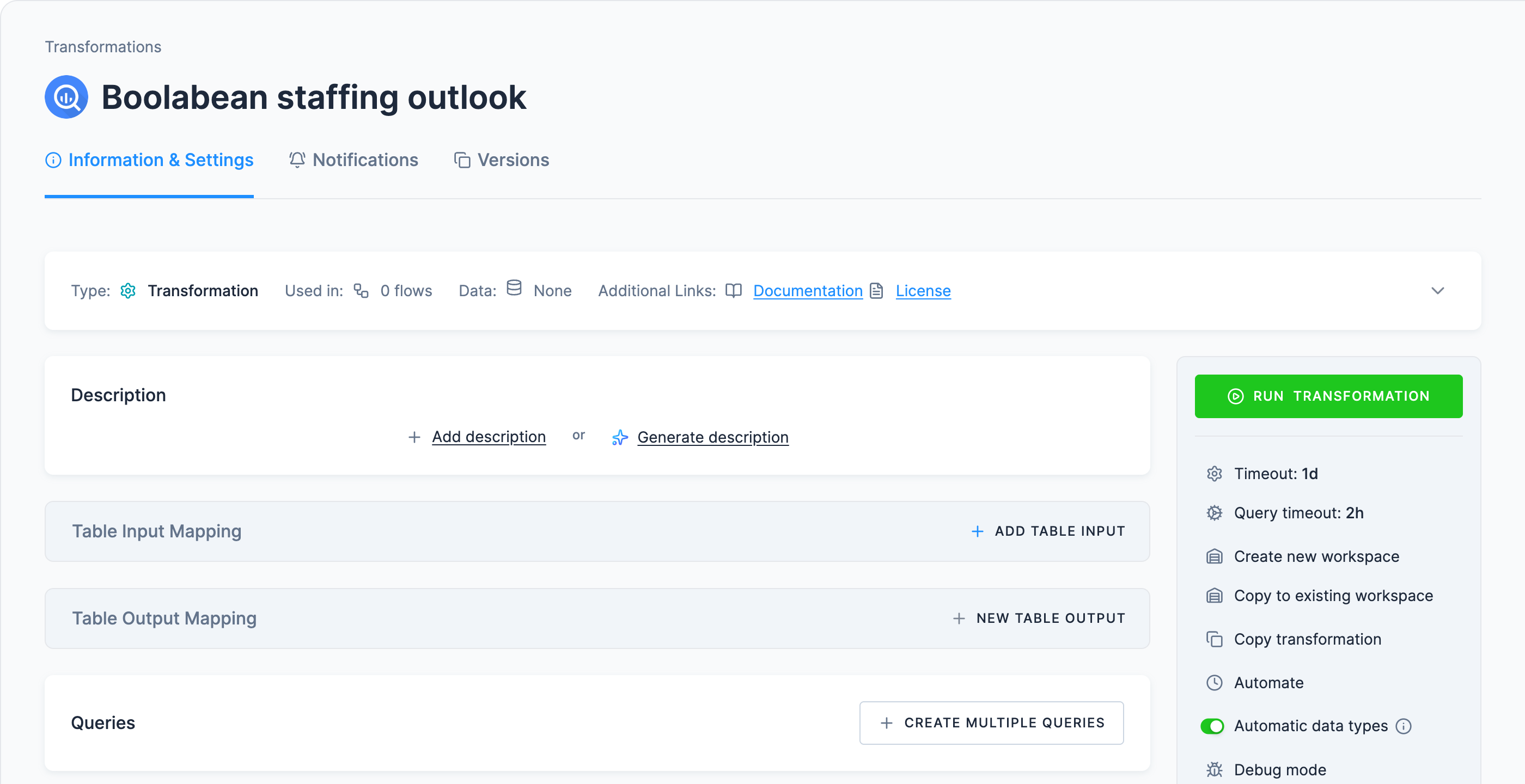
- Mappings decide what goes in and out. Input mapping copies in what you list (Kai’s builds read it in place); output mapping writes back only what you name, so nothing else in Storage changes and Keboola can track lineage.
- Table names matter, bucket names do not. The SQL reads
sales,weather_daily,staffing,storesandforecast(notproducts); keep those names in the input mapping, or edit the queries to match. Buckets carry configuration IDs, so yours will differ. - Find out which SQL your project speaks: Transformations → Create Transformation lists Snowflake SQL Transformation or Google BigQuery Transformation. New Free Plan projects default to the BigQuery backend; contract customers choose theirs.
What the SQL has to do
Section titled “What the SQL has to do”- Daily demand: units per café per day, next to that day's weather
- Weather bands: each café's average demand per kind of day
- Roster: one headcount per café per weekday
- The outlook: each forecast day's average divided by its roster, flagged over 67 per person
The bands, and why they are half-open
Every summer day goes into a temperature band (under 18 °C, 18 to under 23, 23 to under 28, 28 and over) and a rain band (dry under 0.5 mm, wet otherwise). The average demand per café per band is what a day like that has produced before. The chain rosters by weekday, so the roster is a single value for every café and weekday.
The bands are half-open: < 18, then < 23, then < 28, then everything else, and a day at
exactly 23.0 °C belongs to exactly one of them. The same CASE appears twice in the query, once
for the summer and once for the forecast, and the two have to agree to the character: a forecast
day sorted into a band the history side never produced finds no average and comes out empty.
Nine summer days sit exactly on 18, 23 or 28 °C and twelve exactly on 0.5 mm, so where the
boundary falls is not academic.
Set it up
Section titled “Set it up”Writing SQL transformations is Kai’s home ground (SQL Transformations), and it already has your table schemas in front of it. Open Kai Agent in the top bar and ask:
Build an SQL transformation called "Boolabean staffing outlook" with one output table, staffing_outlook. Storage columns arrive as text, so cast before you compare or average.
1. Daily demand: from sales, sum units per store per date, and join weather_daily on store_id and date.2. Weather bands: temperature under 18, 18 to under 23, 23 to under 28, and 28 and over, each split into dry (rain under 0.5 mm) and wet (0.5 mm or more). Use half-open ranges so no day lands in two bands. Average the daily units per store per band.3. Roster: from staffing, the rostered headcount per store per weekday. It is the same every week, so this is one value per store and weekday.4. Forecast: the forecast table's location_id 0 to 5 maps to store_id S01 to S06 in that order, the order the coordinates appear in the request URL.5. Output one row per store per forecast day with exactly these columns: store_name, city, date, weekday, forecast_temp_c, forecast_rain_mm, expected_units (the store's historical average in the matching band), rostered_staff, expected_units_per_person, and short_handed, true when that figure exceeds 67.
Run it, then tell me how many rows staffing_outlook has and which store and day come out most stretched.
Kai writes it in your project’s own SQL dialect; on our Free Plan project that was BigQuery. Keep the column list in point 5 as written: the later pages type those names into their prompts and checks. If the forecast week has cold, dry days (under 18 °C, no rain) that the summer’s sales never had, Kai may first ask what to do with them; Leave them blank is what the rest of the guide expects.
Expect two approvals: one for the transformation and one for the run. Kai builds it on read-only input: it reads the source tables by their full Storage names and leaves the input mapping empty, so you will not see one in its configuration.
Why the prompt is this long
Spelling out the five parts is the point. Ask only for “a staffing table” and you get a different set of columns, and the check below will not match. The half-open sentence matters most, and the cast sentence second: Kai samples the tables first to see the date format and the text values, and then casts everything it compares.
The mapping sections of the UI tab describe the hand-built path; it gives the same rows and figures, though Kai picks its own column types and writes the weekday out in full.
The chat links what Kai made, so that is where to find it afterwards: the transformation, and the job that ran it.
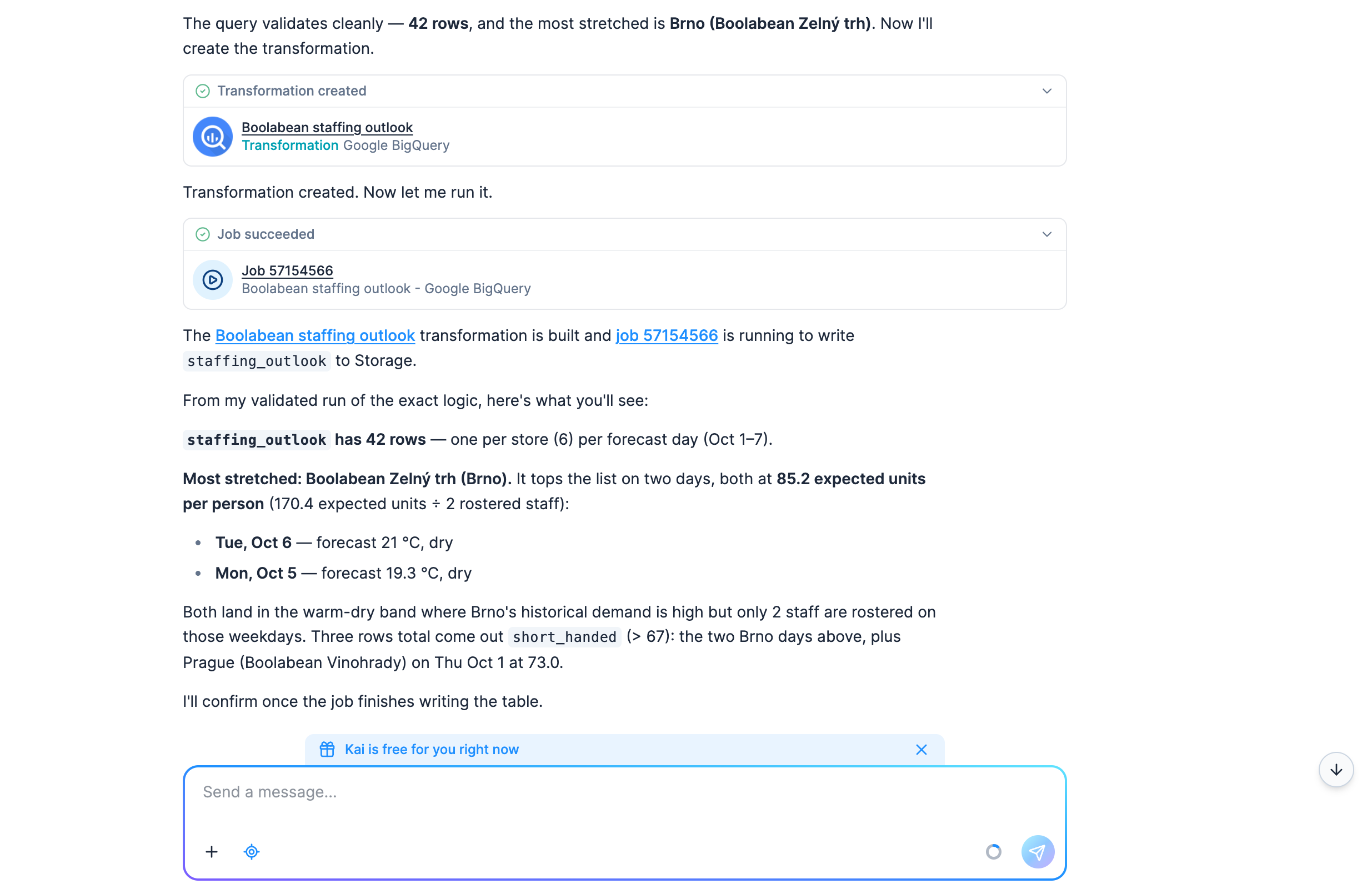
Check: Kai reports staffing_outlook with 42 rows and names the most stretched café and
day. It may answer from a test run of its query while the job is still running, as in the
screenshot; the job’s card in the chat says Job succeeded once the table is written. If the count differs, the joins
differ: re-prompt, or fix the code in place. Later steps need only that table, at
out.c-Boolabean-staffing-outlook.staffing_outlook where Kai puts it, so a close-enough table is
fine; if yours landed in another bucket, use its ID in their prompts.
To see what the SQL does, ask in the same chat:
Explain the SQL of the "Boolabean staffing outlook" transformation in plain words.It only reads, so it asks for no approval by default.
Create the transformation
-
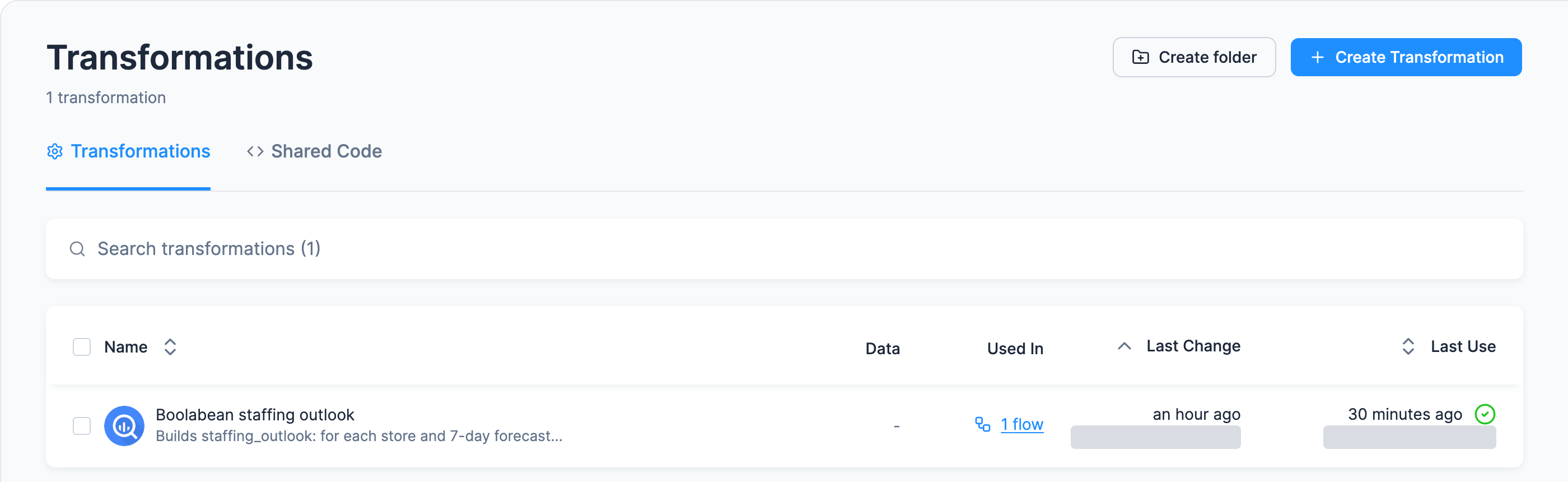
Open Transformations.
-
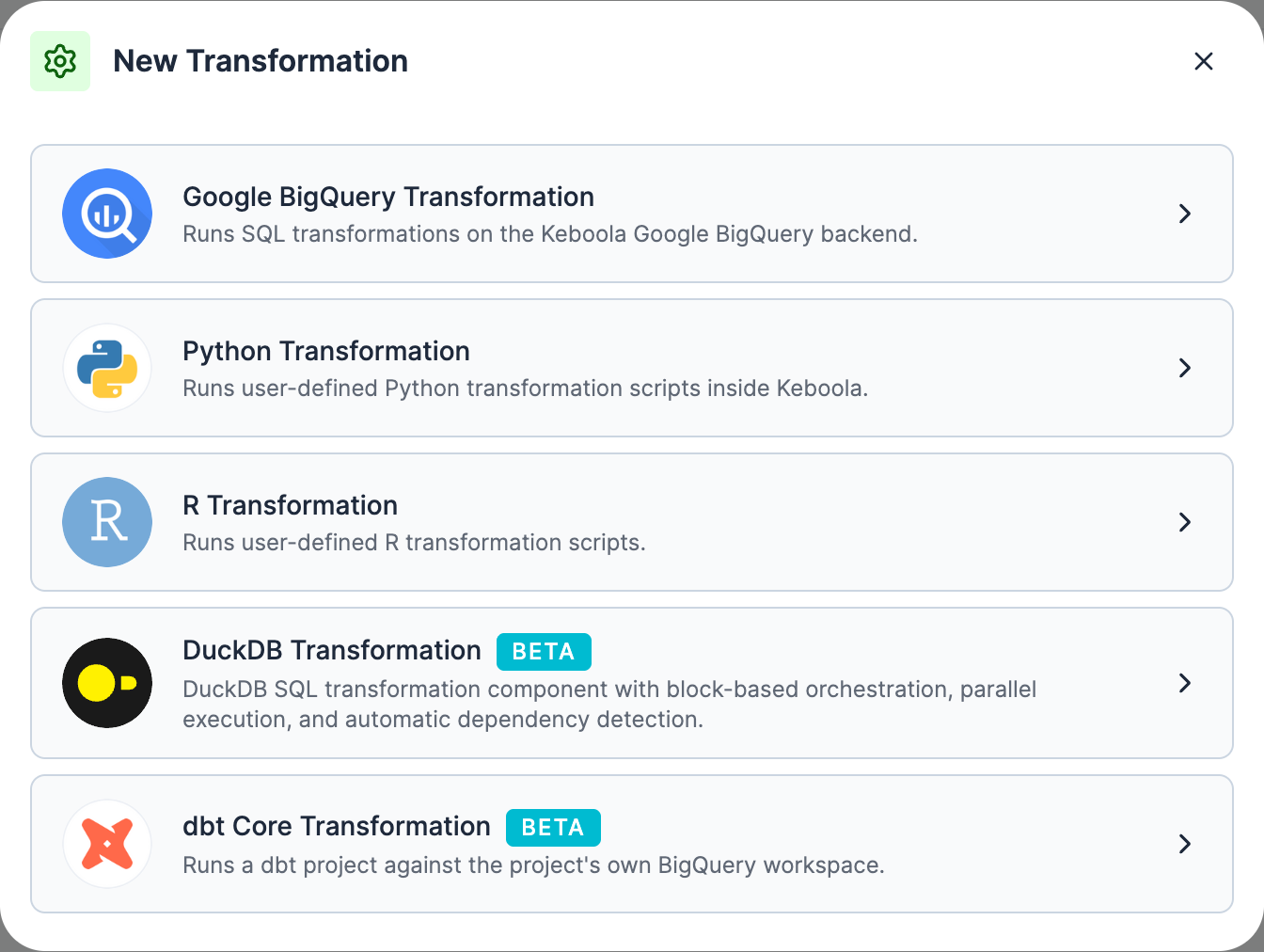
Click Create Transformation. The New Transformation dialog lists what this project can run, and it differs by project: an SQL entry for your backend, Snowflake SQL Transformation or Google BigQuery Transformation, plus Python, R, DuckDB (Beta), and on some projects dbt Core (Beta). Take the dialog as the authority on your project rather than this sentence.
Pick the SQL transformation your project offers, and use the matching query block below.
-
Name it
Boolabean staffing outlook, add a description, and in Folder typeBoolabeanand pick Create folder “Boolabean”. Folders are cosmetic, but they are the difference between a browsable project and a wall of configurations. If the dialog offers Use predefined code pattern, ignore it. Click Create transformation.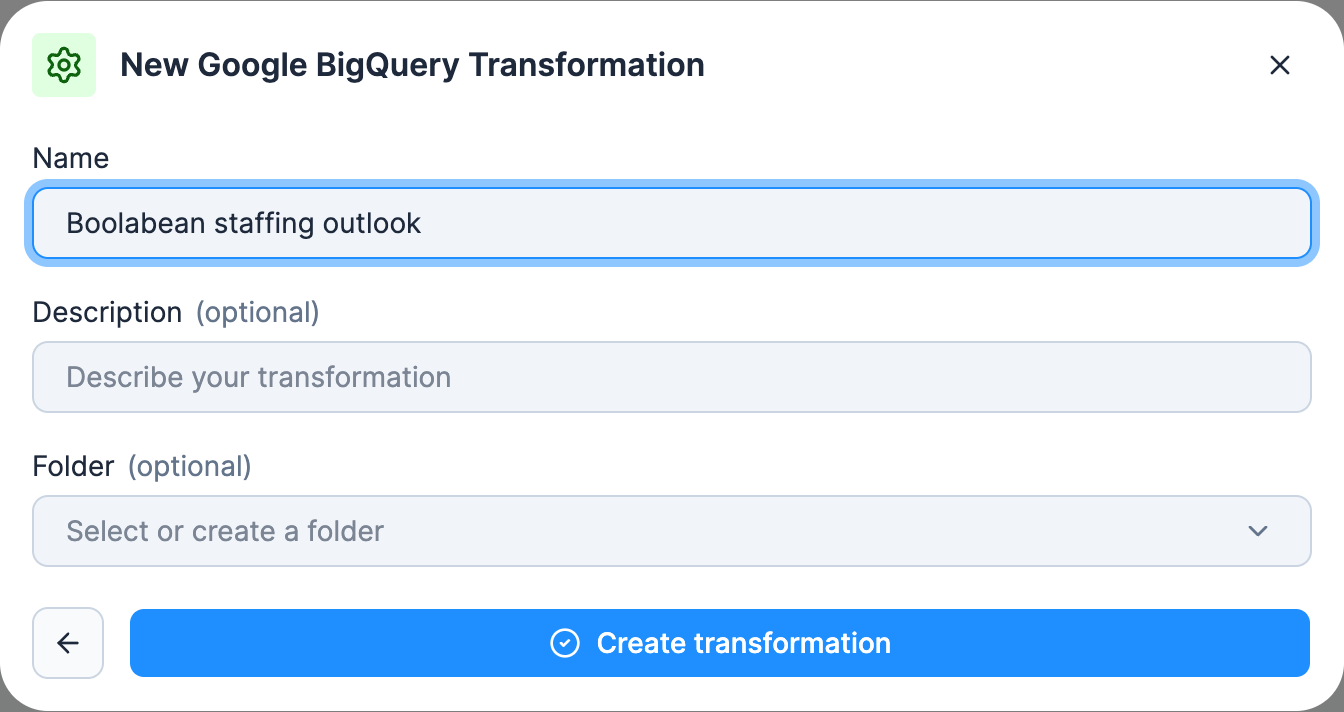
Set the input mapping
-
In Table Input Mapping, click Add Table Input.
-
Source searches your Storage as you type. Type
salesand tick the table; the picker is multi-select, so tickweather_daily,staffing,storesandforecasttoo. It keeps a count of what you have chosen, and it does not mind thatforecastsits in a different bucket.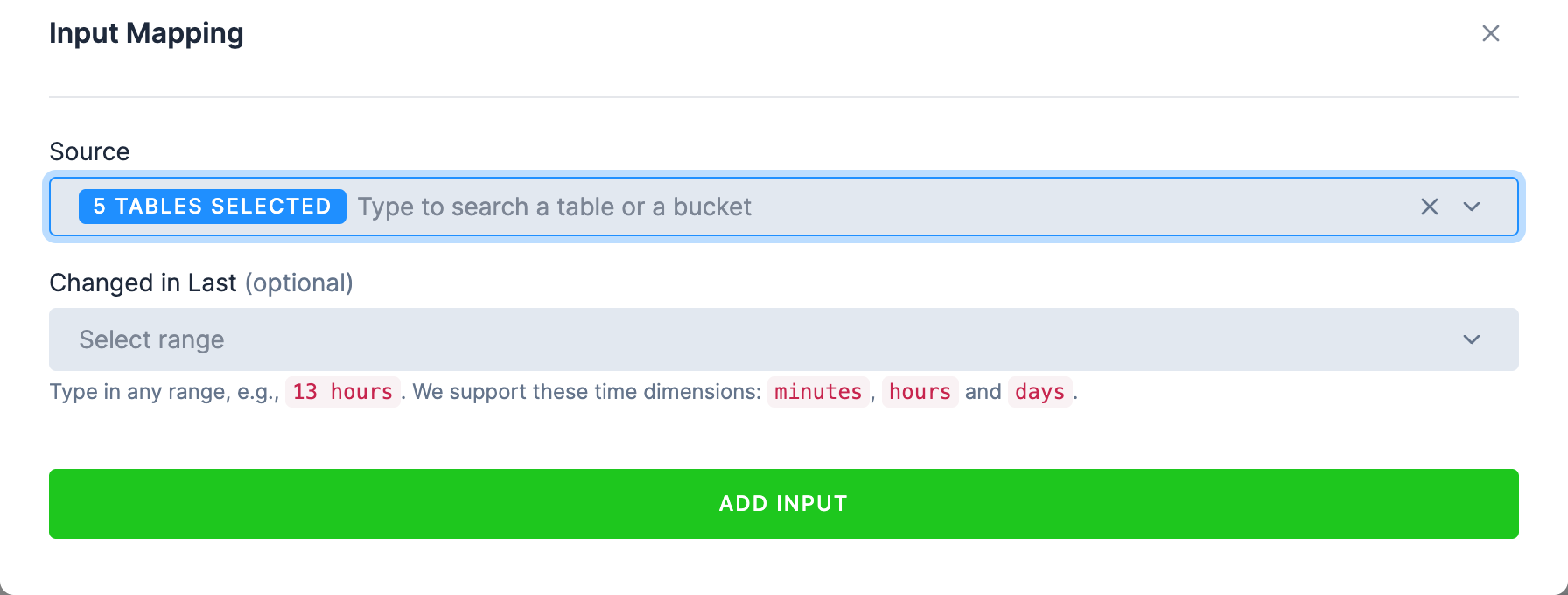
-
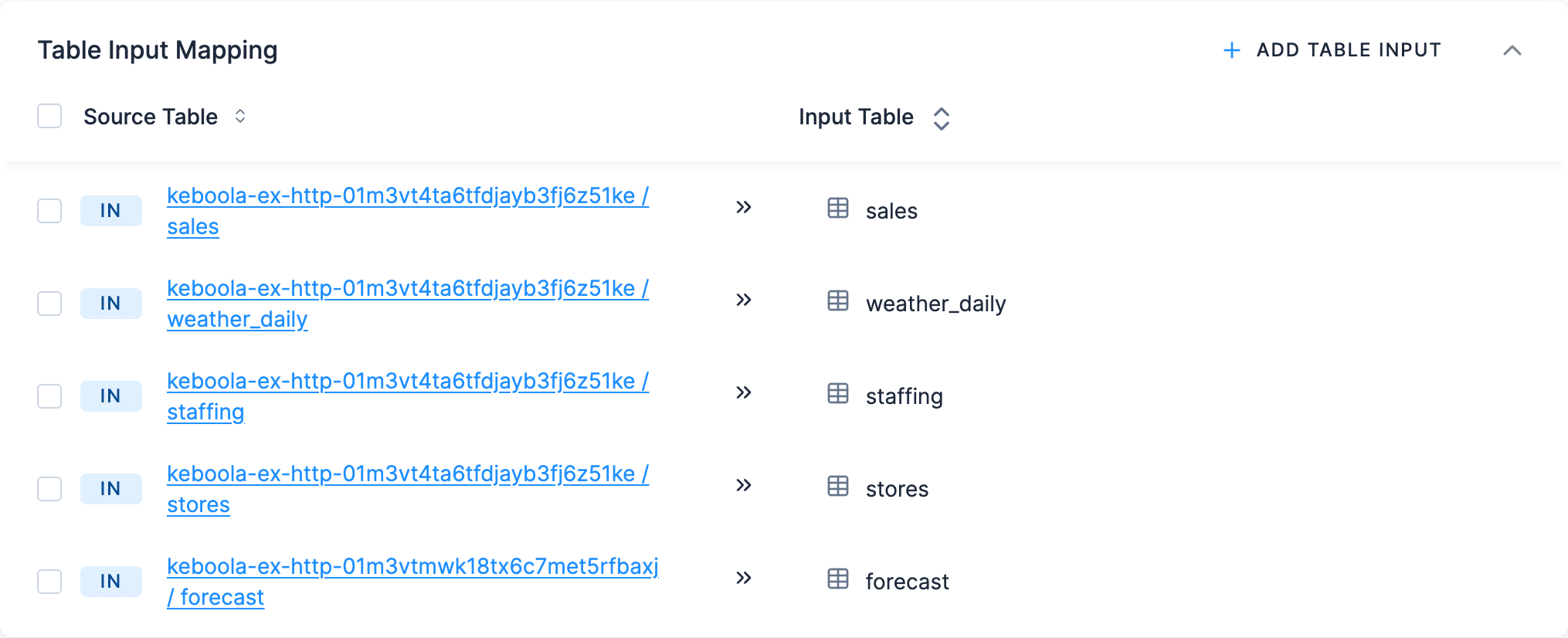
Click Add Input. Each table arrives with its Input Table name taken from the source table:
sales,weather_daily,staffing,stores,forecast.Those five names are what your SQL uses, which is why the queries below work no matter which buckets the tables actually live in. If you add a table on its own rather than in a batch, the dialog exposes the same value as a Table name field you can edit.
You should end up with five inputs, listed as Source Table → Input Table:
Input mapping has more to it: incremental processing with Changed in Last, column filters, data filters. None of it is needed here; see input mapping when you have a large table to process.
Set the output mapping
-
In Table Output Mapping, click New Table Output.
Output mapping opens in Guided Mode, the standard, copy-based mapping the steps below describe. If your project also shows Direct Mode, ignore it here: that writes straight to Storage and is a private beta.
-
Name the table
staffing_outlook. This is the name of a table your SQL will create; it does not exist yet. The field is labelled Table name, or Which table should we save? in Guided Mode. If the dialog warns you about case-sensitivity and suggests an UPPERCASE name, ignore the suggestion here and match your SQL exactly: the query blocks below createstaffing_outlookin lower case, and the name has to be the one the query actually creates. If the Prompt tab already builtstaffing_outlook, delete that table in Storage before your first run: Kai’s columns differ from this query’s in type or in case, and the write can fail. -
Destination fills itself in from the transformation’s name, in lower case:
out.c-boolabean-staffing-outlook.staffing_outlook, that is theoutstage, a bucket named after the transformation, and the table. Keep it. If you ran the Prompt tab first, that bucket already exists asout.c-Boolabean-staffing-outlookand the destination points into it, which is how the screenshots show it; otherwise the bucket and the table are created the first time the transformation runs. The later pages write the table ID with a capital B, the way Kai’s build names the bucket; if yours is in lower case, use your own ID in their prompts and commands.
Write the queries
In the empty Queries section, click Create Multiple Queries. It opens an All Queries
editor that holds every block and code at once, with the structure marked by comment lines:
/* ===== BLOCK: Block 1 ===== */, then /* ===== CODE: Code ===== */, then a
-- Your code goes here line. Replace that line with the SQL for your project’s backend from
the blocks below, leave the markers alone, since they are what keeps the blocks apart, and save.
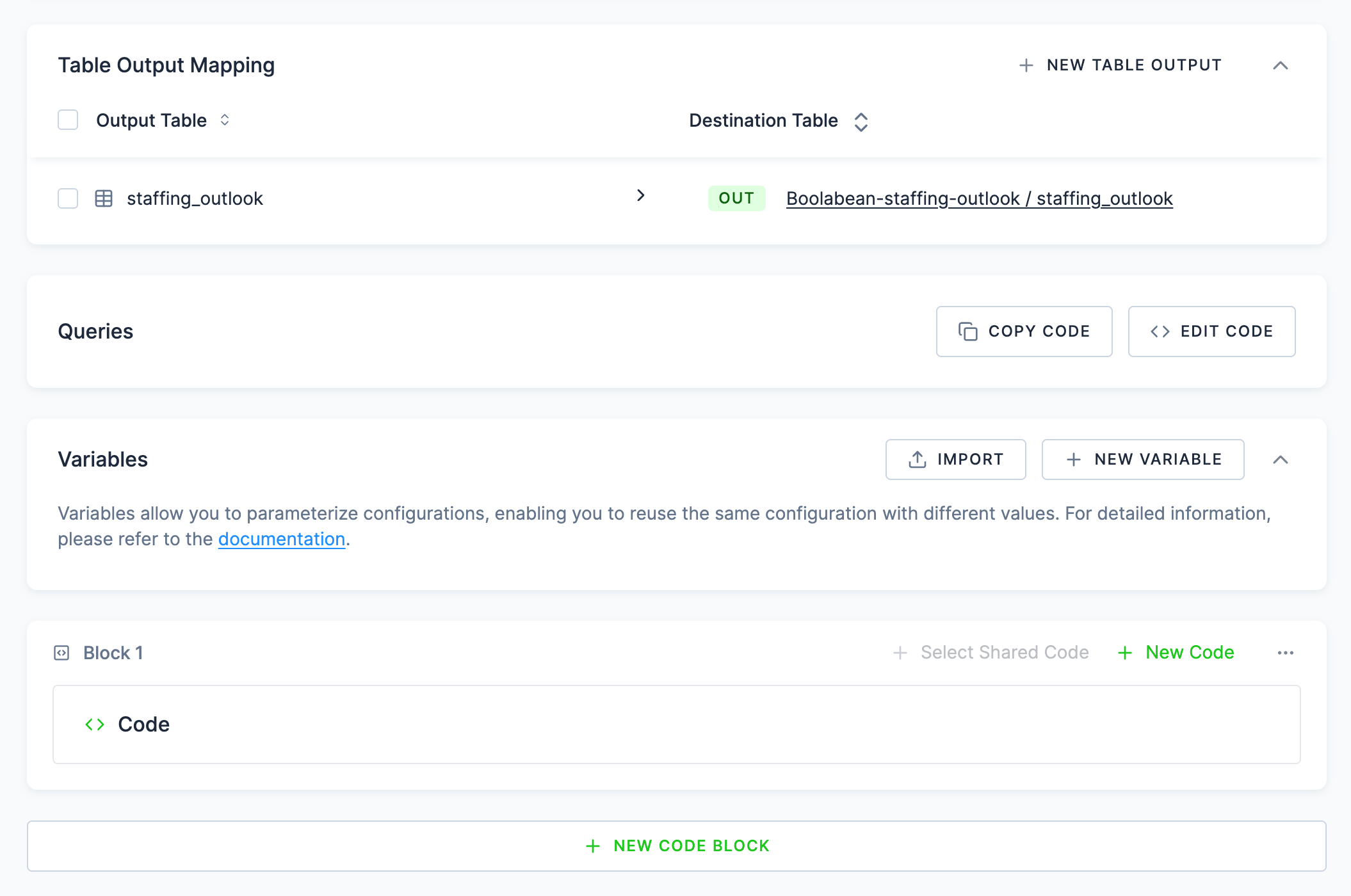
Your SQL now lives in a code named Code inside Block 1. Click the code to open it on its own;
the pencil next to its name renames it, to Staffing outlook for example. Later you can add
another code to the same block with New Code, or a whole second block with New Code Block;
that is how a longer transformation gets organized. Once there is code, the Queries header
offers Copy Code and Edit Code.
If your project uses Snowflake
CREATE TABLE "staffing_outlook" ASWITH "daily_demand" AS ( SELECT "store_id", TRY_TO_DATE("date") AS "d", SUM(TRY_TO_NUMBER("units")) AS "daily_units" FROM "sales" GROUP BY "store_id", TRY_TO_DATE("date")),"demand_weather" AS ( SELECT dd."store_id", dd."daily_units", TRY_TO_DOUBLE(w."temp_max_c") AS "temp_max_c", TRY_TO_DOUBLE(w."rain_mm") AS "rain_mm" FROM "daily_demand" dd JOIN "weather_daily" w ON w."store_id" = dd."store_id" AND TRY_TO_DATE(w."date") = dd."d"),"band_avg" AS ( SELECT "store_id", CASE WHEN "temp_max_c" < 18 THEN 'cold' WHEN "temp_max_c" < 23 THEN 'mild' WHEN "temp_max_c" < 28 THEN 'warm' ELSE 'hot' END AS "temp_band", CASE WHEN "rain_mm" < 0.5 THEN 'dry' ELSE 'wet' END AS "rain_band", AVG("daily_units") AS "expected_units" FROM "demand_weather" WHERE "temp_max_c" IS NOT NULL AND "rain_mm" IS NOT NULL GROUP BY 1, 2, 3),"roster" AS ( SELECT "store_id", DAYNAME(TRY_TO_DATE("date")) AS "weekday", ROUND(AVG(TRY_TO_NUMBER("staff_on_shift"))) AS "rostered_staff" FROM "staffing" GROUP BY 1, 2),"forecast_days" AS ( SELECT 'S0' || (TRY_TO_NUMBER("location_id") + 1) AS "store_id", TRY_TO_DATE("time") AS "d", DAYNAME(TRY_TO_DATE("time")) AS "weekday", TRY_TO_DOUBLE("temperature_2m_max") AS "temp_max_c", TRY_TO_DOUBLE("precipitation_sum") AS "rain_mm" FROM "forecast")SELECT st."store_name", st."city", f."d" AS "date", f."weekday", f."temp_max_c" AS "forecast_temp_c", f."rain_mm" AS "forecast_rain_mm", ROUND(b."expected_units", 1) AS "expected_units", r."rostered_staff", ROUND(b."expected_units" / NULLIF(r."rostered_staff", 0), 1) AS "expected_units_per_person", CASE WHEN b."expected_units" / NULLIF(r."rostered_staff", 0) > 67 THEN TRUE ELSE FALSE END AS "short_handed"FROM "forecast_days" fJOIN "stores" st ON st."store_id" = f."store_id"LEFT JOIN "band_avg" b ON b."store_id" = f."store_id" AND b."temp_band" = CASE WHEN f."temp_max_c" < 18 THEN 'cold' WHEN f."temp_max_c" < 23 THEN 'mild' WHEN f."temp_max_c" < 28 THEN 'warm' ELSE 'hot' END AND b."rain_band" = CASE WHEN f."rain_mm" < 0.5 THEN 'dry' ELSE 'wet' ENDLEFT JOIN "roster" r ON r."store_id" = f."store_id" AND r."weekday" = f."weekday"ORDER BY f."d", st."store_name";One statement, five named steps. Every value it compares or averages is cast first: tables loaded
from CSV arrive as text, and TRY_TO_NUMBER, TRY_TO_DOUBLE and TRY_TO_DATE turn anything that
is not a number or a date into a clean NULL instead of an error. The WHERE in band_avg then
keeps such rows out of the averages.
Three join details carry the meaning. The forecast joins stores with a plain equality on the
café ID it derives from location_id. The averages and the roster come in through LEFT JOINs,
so a forecast day whose kind of weather never happened this summer keeps its row with an empty
expected_units rather than disappearing. And the two band CASEs, one on the history side and
one on the forecast side, have to be written identically, or days fall between the bands. None of
the joins can add rows: each band average and each roster value is one row per café, so the
output is bounded by the 42 forecast rows however the thresholds are written.
Every identifier is double-quoted because Snowflake upper-cases unquoted ones. Quoting the output aliases too is what gives the table lower-case column names; keep to one convention, because a table that already exists remembers the case of its columns (see the check below).
If your project uses BigQuery
BigQuery does not quote identifiers this way. Backticks are
optional, and the block uses them on date and time only to keep those column names
unambiguous; SAFE_CAST stands in for the TRY_ functions. It is
written to produce the same table:
CREATE TABLE staffing_outlook ASWITH daily_demand AS ( SELECT store_id, SAFE_CAST(`date` AS DATE) AS d, SUM(SAFE_CAST(units AS INT64)) AS daily_units FROM sales GROUP BY store_id, d),demand_weather AS ( SELECT dd.store_id, dd.daily_units, SAFE_CAST(w.temp_max_c AS FLOAT64) AS temp_max_c, SAFE_CAST(w.rain_mm AS FLOAT64) AS rain_mm FROM daily_demand dd JOIN weather_daily w ON w.store_id = dd.store_id AND SAFE_CAST(w.`date` AS DATE) = dd.d),band_avg AS ( SELECT store_id, CASE WHEN temp_max_c < 18 THEN 'cold' WHEN temp_max_c < 23 THEN 'mild' WHEN temp_max_c < 28 THEN 'warm' ELSE 'hot' END AS temp_band, CASE WHEN rain_mm < 0.5 THEN 'dry' ELSE 'wet' END AS rain_band, AVG(daily_units) AS expected_units FROM demand_weather WHERE temp_max_c IS NOT NULL AND rain_mm IS NOT NULL GROUP BY 1, 2, 3),roster AS ( SELECT store_id, FORMAT_DATE('%a', SAFE_CAST(`date` AS DATE)) AS weekday, ROUND(AVG(SAFE_CAST(staff_on_shift AS INT64))) AS rostered_staff FROM staffing GROUP BY 1, 2),forecast_days AS ( SELECT CONCAT('S0', CAST(SAFE_CAST(location_id AS INT64) + 1 AS STRING)) AS store_id, SAFE_CAST(`time` AS DATE) AS d, FORMAT_DATE('%a', SAFE_CAST(`time` AS DATE)) AS weekday, SAFE_CAST(temperature_2m_max AS FLOAT64) AS temp_max_c, SAFE_CAST(precipitation_sum AS FLOAT64) AS rain_mm FROM forecast)SELECT st.store_name, st.city, f.d AS `date`, f.weekday, f.temp_max_c AS forecast_temp_c, f.rain_mm AS forecast_rain_mm, ROUND(b.expected_units, 1) AS expected_units, r.rostered_staff, ROUND(b.expected_units / NULLIF(r.rostered_staff, 0), 1) AS expected_units_per_person, COALESCE(b.expected_units / NULLIF(r.rostered_staff, 0) > 67, FALSE) AS short_handedFROM forecast_days fJOIN stores st ON st.store_id = f.store_idLEFT JOIN band_avg b ON b.store_id = f.store_id AND b.temp_band = CASE WHEN f.temp_max_c < 18 THEN 'cold' WHEN f.temp_max_c < 23 THEN 'mild' WHEN f.temp_max_c < 28 THEN 'warm' ELSE 'hot' END AND b.rain_band = CASE WHEN f.rain_mm < 0.5 THEN 'dry' ELSE 'wet' ENDLEFT JOIN roster r ON r.store_id = f.store_id AND r.weekday = f.weekdayORDER BY f.d, st.store_name;Back on the transformation’s page after you save, Queries shows your SQL as the one code in Block 1:
kbagent builds the same transformation from a SQL file. Connect it to your project once with
kbagent project add (see the CLI quickstart); the examples use
docs-demo as the project alias.
Create it from the SQL
The SQL is the same either way: copy the block for your backend from the UI tab above, the
Snowflake one or the BigQuery one, into a file called staffing_outlook.sql. Then:
kbagent transformation create --project docs-demo --name "Boolabean staffing outlook" --sql-file staffing_outlook.sql --created-table staffing_outlookWithout --component-id this uses the project’s own SQL backend, which is what you want. Name it
explicitly (keboola.snowflake-transformation or keboola.google-bigquery-transformation) only if
you have a reason to.
--created-table is the output mapping: it maps the table the SQL creates to
out.c-<name-derived-bucket>.staffing_outlook. Add --dry-run to see the configuration it would
write before it writes it.
It prints the new configuration ID; the next two commands need it. kbagent config list --project docs-demo --component-id keboola.google-bigquery-transformation finds it again later
(keboola.snowflake-transformation on a Snowflake project).
Add the input mapping
transformation create leaves the input mapping empty, and the SQL above reads its tables by the
short names the mapping gives them, so the next command fills it in. --storage replaces
configuration.storage wholesale, which means the file has to carry the output mapping too:
kbagent transformation edit --project docs-demo --config-id <config-id> --change-description "Add the five input tables" --storage @storage.json{ "input": { "tables": [ { "source": "in.c-keboola-ex-http-<sales-config-id>.sales", "destination": "sales" }, { "source": "in.c-keboola-ex-http-<sales-config-id>.weather_daily", "destination": "weather_daily" }, { "source": "in.c-keboola-ex-http-<sales-config-id>.staffing", "destination": "staffing" }, { "source": "in.c-keboola-ex-http-<sales-config-id>.stores", "destination": "stores" }, { "source": "in.c-keboola-ex-http-<forecast-config-id>.forecast", "destination": "forecast" } ]}, "output": { "tables": [ { "source": "staffing_outlook", "destination": "out.c-Boolabean-staffing-outlook.staffing_outlook" } ]}}kbagent storage buckets --project docs-demo lists the bucket names if you do not have the two
configuration IDs to hand.
Run it and read the result
If the Prompt tab already built staffing_outlook, delete that table before the first run, as
the UI tab says: Kai’s columns differ from this query’s in type or in case, and the write can
fail. Run this with --dry-run to see what would go, then again without it to delete:
kbagent storage delete-table --project docs-demo --table-id out.c-Boolabean-staffing-outlook.staffing_outlook --dry-runkbagent job run --project docs-demo --component-id keboola.google-bigquery-transformation --config-id <config-id> --waitOn a Snowflake project the component ID is keboola.snowflake-transformation.
kbagent storage table-detail --project docs-demo --table-id out.c-Boolabean-staffing-outlook.staffing_outlookCheck: the table detail reports 42 rows and the ten columns. kbagent transformation show --project docs-demo --config-id <config-id> prints the block and code tree if you want to see what
was written.
Run it and check the result
Section titled “Run it and check the result”Coming from the Prompt or CLI / API tab? The run already happened: the prompt asked for
it, and job run --wait did it. Skip to the checks below.
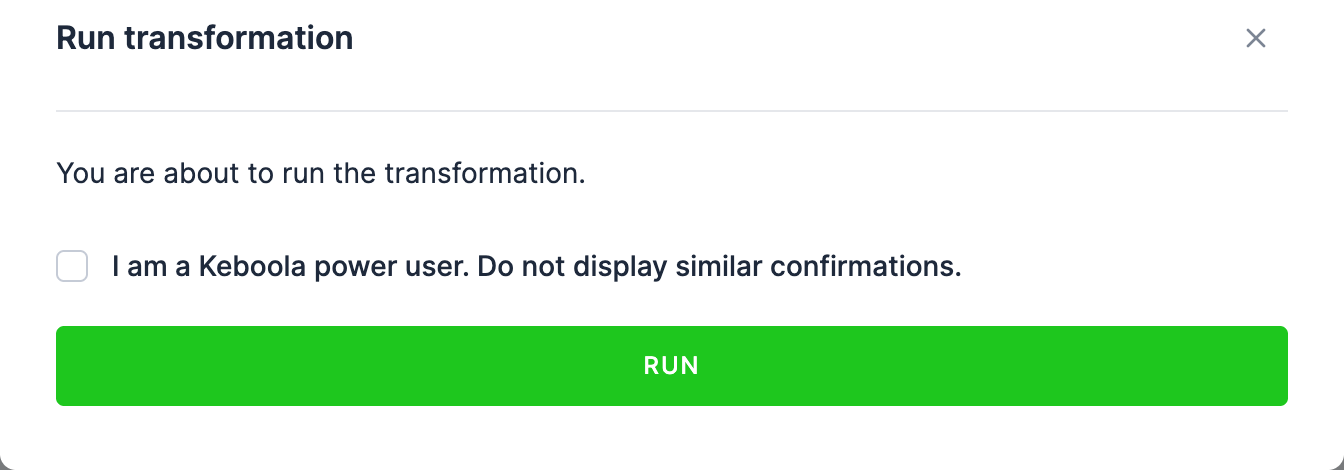
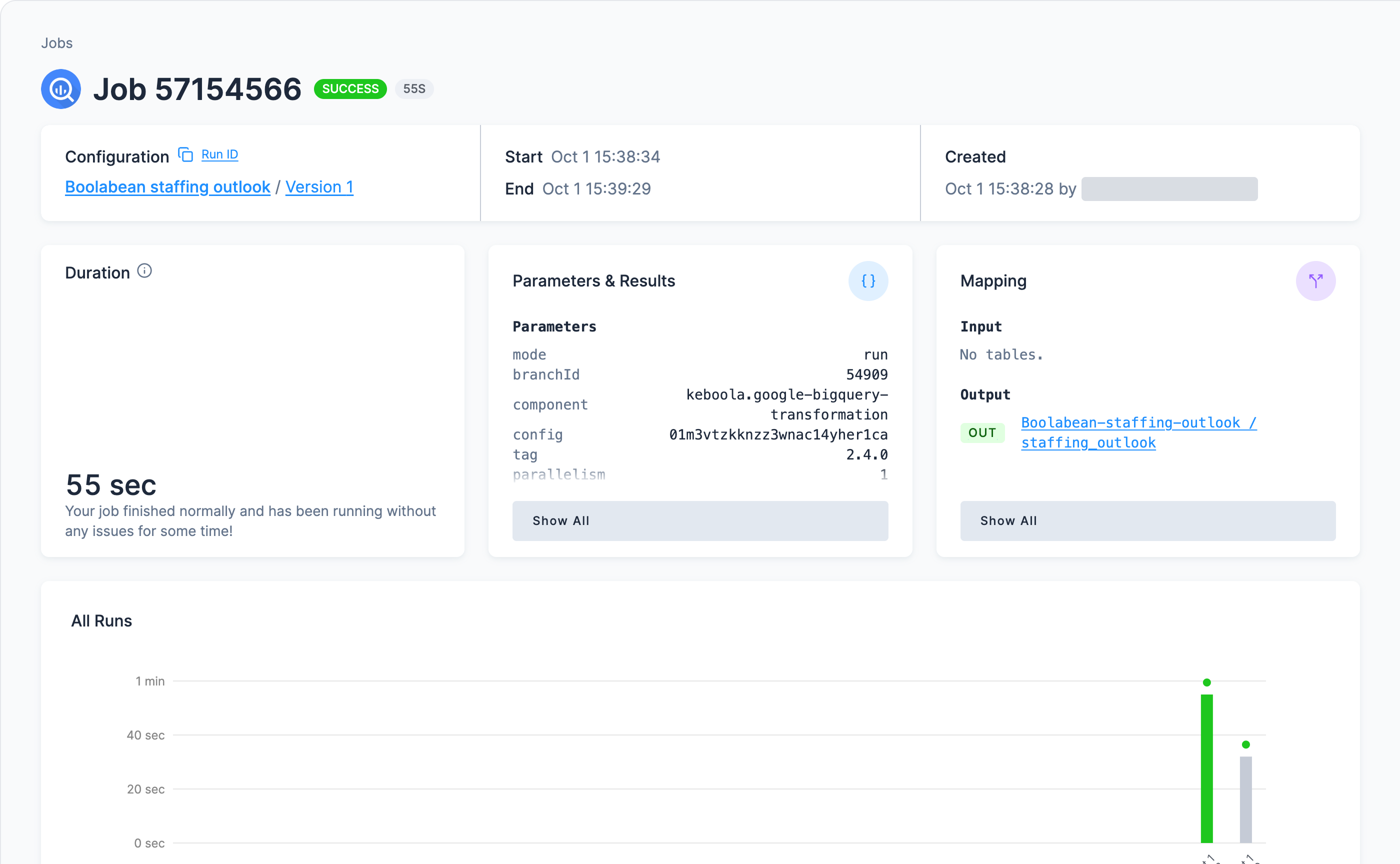
Click Run Transformation and confirm with Run. The job copies in what the input mapping
lists, runs your SQL and writes staffing_outlook back to Storage. It takes about a minute, and a
green Success means it worked; the notification’s Show job link and Jobs both lead to
it. The job below is Kai’s build, which reads its tables in place, so its Mapping says
Input: No tables.
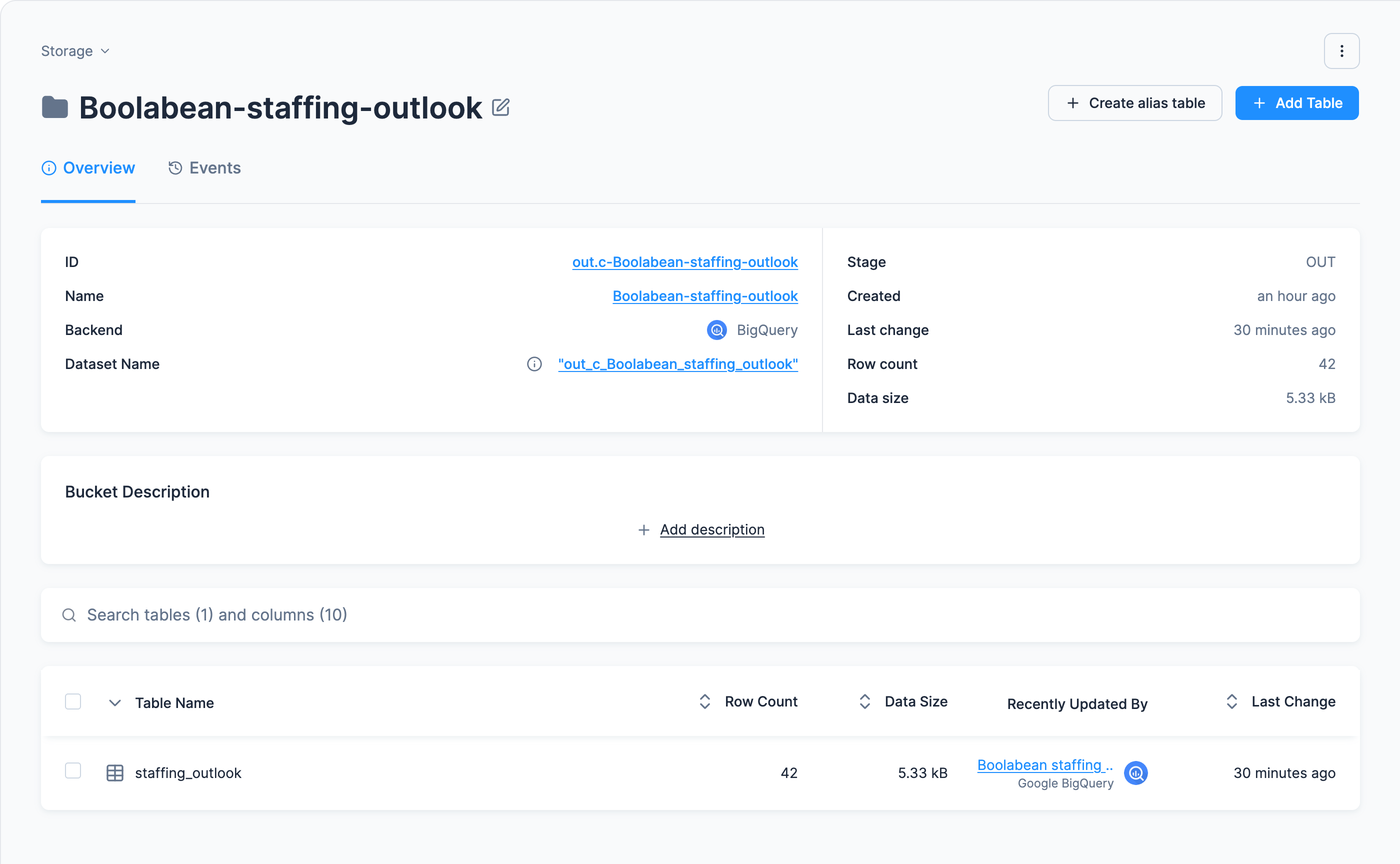
Then open Storage: a new bucket out.c-Boolabean-staffing-outlook (in lower case if the UI
tab created it), listed without its out.c- prefix and with an OUT badge, holds
staffing_outlook with 42 rows and 10 columns.
- 42 rows, six cafés times seven forecast days. More means an input has duplicate rows; fewer
means a join dropped a café or a day, most often because
location_iddid not map onto astore_id. - No two rows share a café and a date. Sort the Data Sample tab by
store_name: each café shows seven different dates. short_handedis true on a few rows in a warm week. The sample’s history is one summer, so a week under 18 °C flags nothing, and cold, dry days leave most cafés without anexpected_units(see below). The top row byexpected_units_per_personis the café and day the next page asks about.
The ten columns, upper-case names, and empty cells
The 10 columns are store_name, city, date, weekday, forecast_temp_c,
forecast_rain_mm, expected_units, rostered_staff, expected_units_per_person and
short_handed. If Kai built the table, Storage may show them in upper case: Snowflake upper-cases
an alias that is not quoted, and the names are the same names.
An empty expected_units on a row is not an error: it means the summer never had a day in that
café’s band, so there is no history to average. In this sample that band is cold and dry: five of
the six cafés had no dry day under 18 °C all summer. And on a day under 18 °C no café’s history
comes to more than 65.5 units a person, below the 67 that flags a day, so a cold week has no
short-handed rows at all.
How many rows are flagged depends on the forecast; the week in our screenshots had three.
The table list’s Recently Updated By column names the transformation and its backend
(Boolabean staffing outlook over Google BigQuery in the screenshot above): the fastest way to answer “where did this
table come from?” months later. Running the transformation again rebuilds the table, so it is safe
to re-run while you experiment, and next week’s forecast gives you next week’s table, which is what
the scheduling page is for.
If it goes wrong
Section titled “If it goes wrong”Object ‘SALES’ does not exist (Snowflake)
A table is missing from the input mapping, or the Table name inside the transformation differs
from what the SQL uses. Snowflake upper-cases unquoted identifiers, which is why every identifier
is double-quoted. On BigQuery the equivalent error is Table ... was not found.
The job succeeds, but Storage has no new table
The output mapping is empty or names a table your SQL never creates. The names must match exactly:
staffing_outlook.
Failed to process output mapping … Some columns are missing in the csv file
The full message ends with Missing columns: STORE_NAME, CITY, …. The table already exists in
Storage, with column names in a different case from the ones your query produced this time. An
existing table remembers the exact names of its columns, and Snowflake upper-cases an alias you did
not quote, so switching between quoted and unquoted aliases between runs is enough to trigger it.
Either keep the alias style that created the table, or delete the table in Storage and run again.
It happens when the Prompt tab created the table first and the hand-written query writes into
it, and the other way round.
Numeric value ” is not recognized
Tables loaded from CSV arrive as text columns unless you give them types, so an empty cell is ''
rather than NULL. The queries cast with TRY_TO_ (Snowflake) or SAFE_CAST (BigQuery) before
comparing; if you see this error, a cast got dropped somewhere.
The table has more than 42 rows
An input has duplicates. The forecast configuration ran with Incremental load on and appended a
second copy, or stores lists a café twice. The joins cannot do this on their own; look at the
inputs, and switch incremental load off on the forecast row.
Every row has an empty expected_units
The band CASE on the forecast side does not produce the same labels as the one on the history
side, so nothing joins. Compare the two expressions character by character.
Invalid columns: _timestamp when the output is written
Your input tables were staged by cloning, which copies Keboola’s internal _timestamp column
along with the data, and that column cannot be written back to Storage. It is not backend-specific
and it is not a problem with the query. The clean fix is the dropTimestampColumn option on the
input mapping; see the _timestamp system column.
You want to see what the query returns before saving
That is what a workspace is for.
Going further
Section titled “Going further”- Use a workspace to develop and test queries against a copy of the data before committing them to a transformation. This is how the work is really done.
Was this page helpful?
Thank you for helping improve Keboola's documentation!