

Power BI Refresh
The Power BI Refresh application automatically triggers dataset refreshes in your Power BI workspace. Add it to the end of your Keboola flow so that your dashboards are updated immediately after your data pipelines complete — no manual steps, no scheduled mismatches.
Prerequisites
Section titled “Prerequisites”- OAuth2 authorization (Microsoft account with access to the target Power BI workspace)
- Dataset ID(s) from Power BI
Authorization
Section titled “Authorization”Create a new configuration of the Power BI Refresh application and authorize it using OAuth2. Click Authorize and sign in with the Microsoft account that has access to the Power BI workspace you want to refresh.
Create New Configuration
Section titled “Create New Configuration”Once authorized, fill in the configuration parameters:
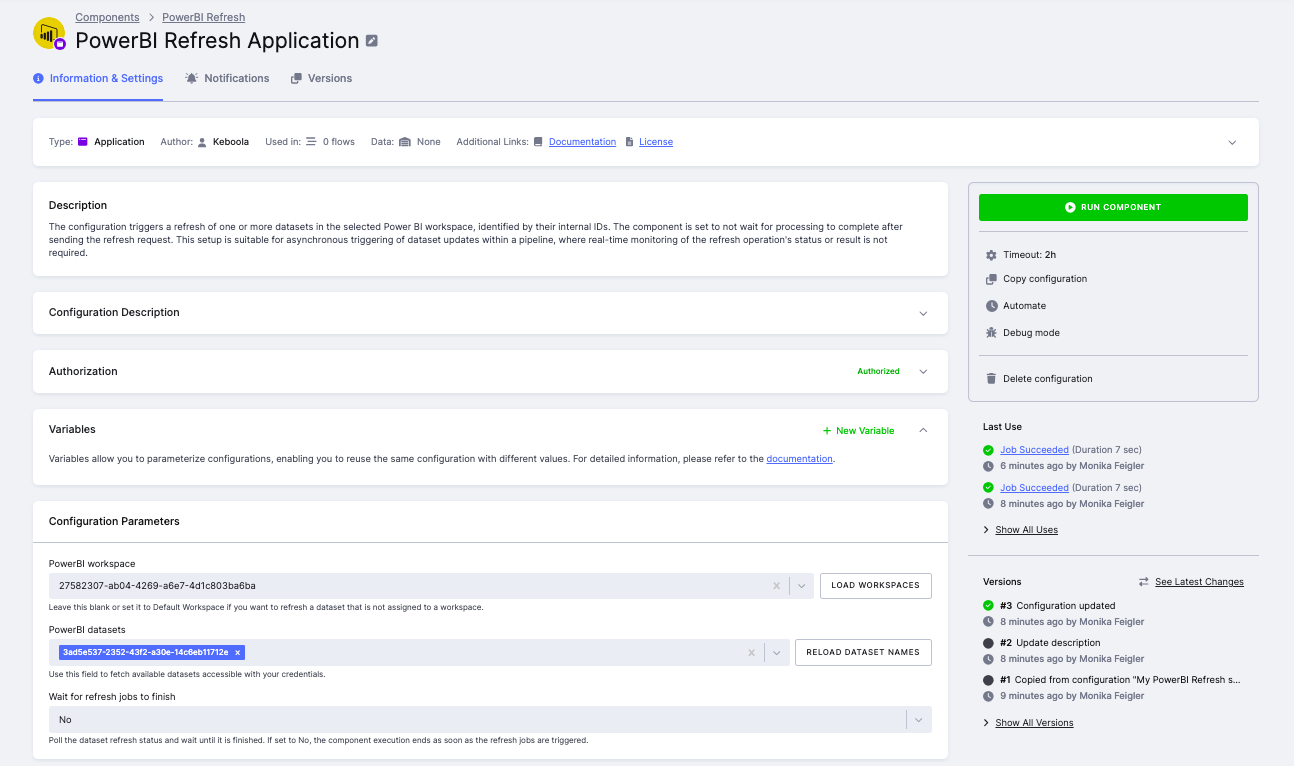
- PowerBI workspaceEnter the workspace ID (UUID) or use the Load workspaces button to select from available workspaces. Leave it blank, or set it to
Default Workspace, to refresh a dataset that is not assigned to a workspace. - PowerBI datasetsEnter the dataset ID (UUID) of the dataset to refresh. Use the Reload dataset names button to select from datasets available in the selected workspace. You can add multiple datasets to refresh them in sequence.
- Wait for refresh jobs to finishSet to Yes to poll the refresh status after sending the request and wait until all refreshes complete. No (default) finishes as soon as the refresh requests are sent.
The following options apply when Wait for refresh jobs to finish is set to Yes:
- Wait for all datasets to finishSet to Yes to end the job with an error if any dataset finishes with a failed status, preventing downstream processes from running on stale data. Default No.
- Refresh job status polling interval(s)How often (in seconds) to check the refresh status. Default
30. - Refresh job status polling timeoutHow long (in seconds) to keep polling before the component stops. Default
3600. A maximum timeout is also set in the project settings.
Finding Your Dataset ID
Section titled “Finding Your Dataset ID”- Open Power BI Service.
- Navigate to your workspace and open the dataset settings.
- The dataset ID is the UUID in the browser URL:
app.powerbi.com/groups/{workspace-id}/datasets/{dataset-id}/details.
Alternatively, use the Reload Dataset Names button in the configuration — this lists all datasets accessible with your credentials so you can select the correct one.
Sample Configuration
Section titled “Sample Configuration”{ "parameters": { "workspace": "27582307-ab04-4269-a6e7-4d1c803ba6ba", "dataset_list": [ "3ad5e537-2352-43f2-a30e-14c6eb11712a" ], "wait": "Yes", "alldatasets": "No", "interval": 30, "timeout": 3600 }}dataset_list is a flat array of dataset UUIDs. Note that wait and alldatasets are the strings "Yes" / "No", not booleans.
Output
Section titled “Output”The component produces log output showing when each dataset refresh was triggered and whether it succeeded. Detailed refresh history is also available directly in Power BI under Semantic Model > Refresh history.
- Dataset credentials set in Power BI Desktop are not transferred when you publish a report to Power BI Online. You must re-enter them in Power BI Service under Semantic Model > File > Settings > Data source credentials.
- The component communicates with Power BI via the Microsoft Power BI REST API using OAuth2.
Was this page helpful?
Thank you for helping improve Keboola's documentation!