

Use variables
Parametrize a configuration with a variable, set static and dynamic variables in a flow, read them in a condition, and override a value on one flow task.
This page has the steps for both kinds of variables in the UI: a placeholder in a configuration, and a variable in a flow. What the two kinds are and how a flow fills a configuration variable is explained on Variables. The API calls are on Variables Through the API.
The flow sections below walk through how to set up and use variables from the UI. The JSON shape generated behind the scenes, for template authors and API users, is in Flow variable tasks.
Parametrize a configuration with a variable
Section titled “Parametrize a configuration with a variable”Goal: replace a fixed value in a configuration with a variable that has a default and can be overridden for one run.
-
Consider the following transformation:
CREATE OR REPLACE TABLE "result" ASSELECT "first", "second" * 42 AS "larger_second" FROM "source"; -
To parametrize the multiplier value (42), you can change it to a variable
{{ multiplier }}:CREATE OR REPLACE TABLE "result" ASSELECT "first", "second" * {{ multiplier }} AS "larger_second" FROM "source"; -
In the configuration’s Variables section, click New variable. In the new row, fill in Variable name (
multiplier) and Default value, then click Save: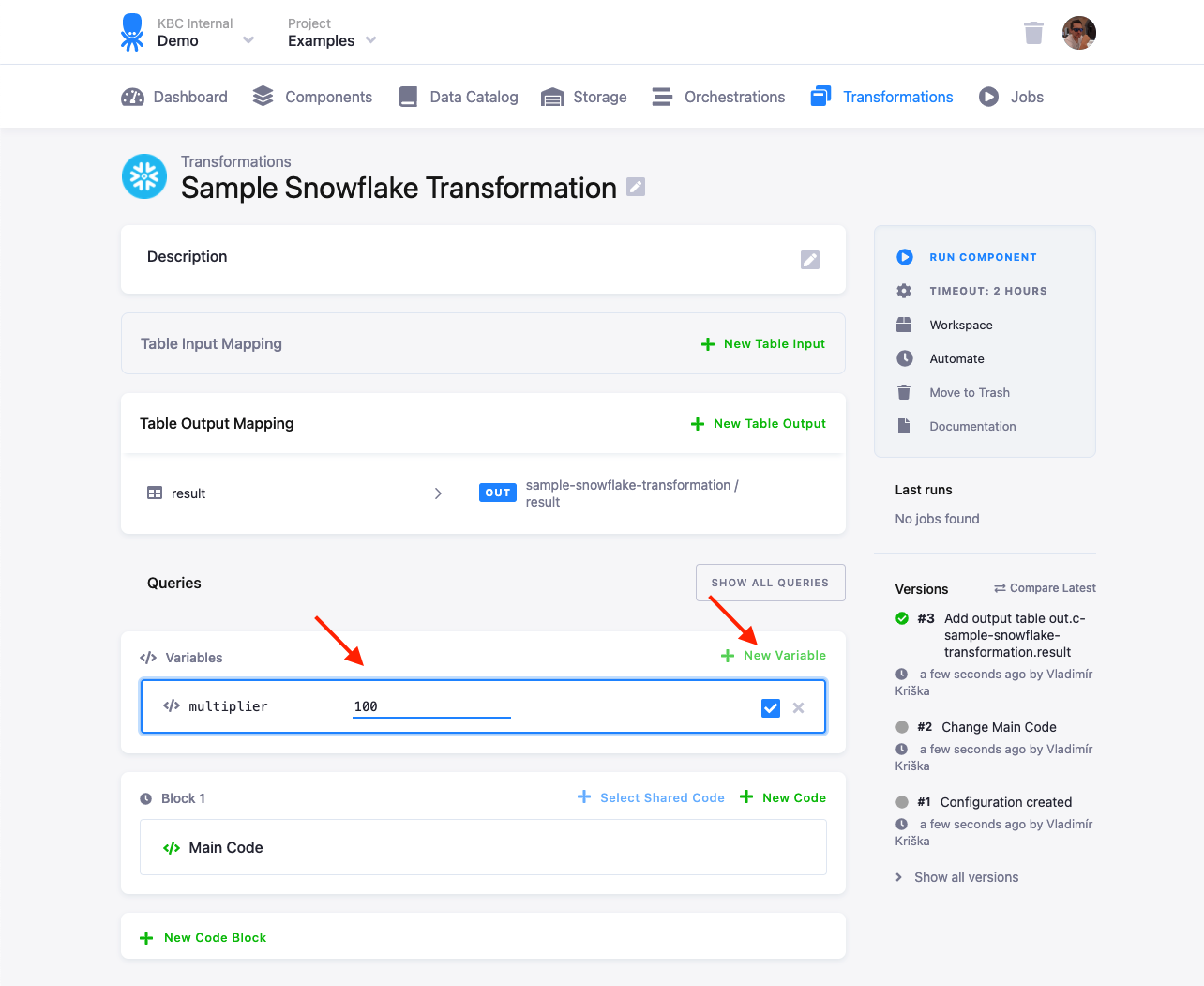
-
Click Run transformation. In the dialog, expand the Variables block to override the default value for this run, then click Run:
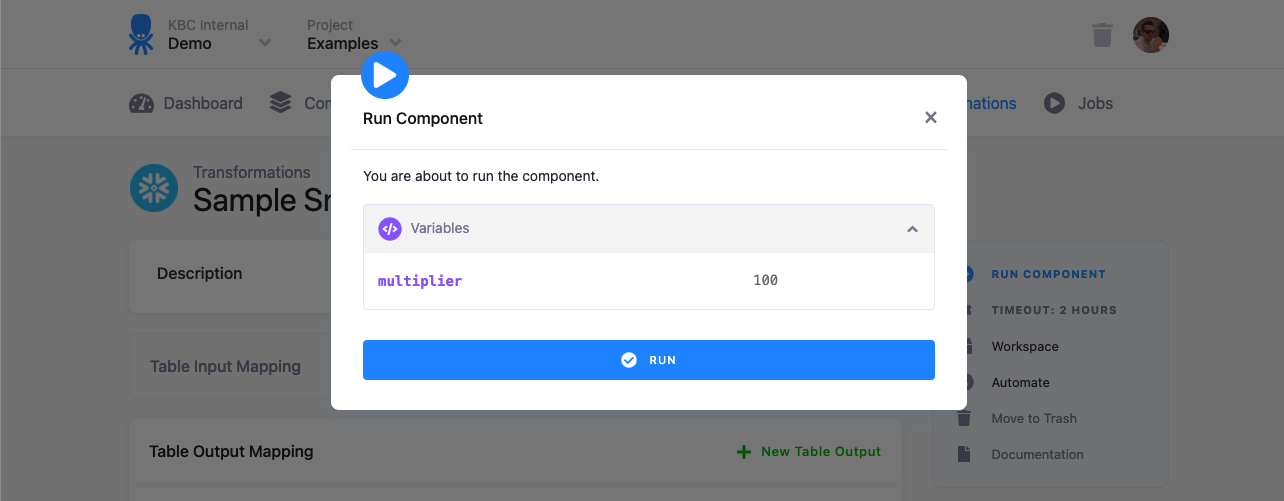
Result: the transformation runs with the default value, or with the override you entered for that run.
When a variable is referenced in the code but not defined, or its value is missing, you’ll get an error:
Missing values for placeholders: "multiplier"or
No value provided for variable "multiplier".Set a variable in a flow
Section titled “Set a variable in a flow”Goal: store a value in a flow so that later tasks and conditions can read it.
- In a phase, click the + icon and choose Variable in the ADD TASK menu. The variable panel opens on the right.
- Enter a Variable Name — this is the identifier other tasks will use to reference the value.
- Choose a Variable Type — either Static Value or Dynamic Value.
Result: the phase has a Set Variable task, and tasks in later phases can reference the variable by its name.
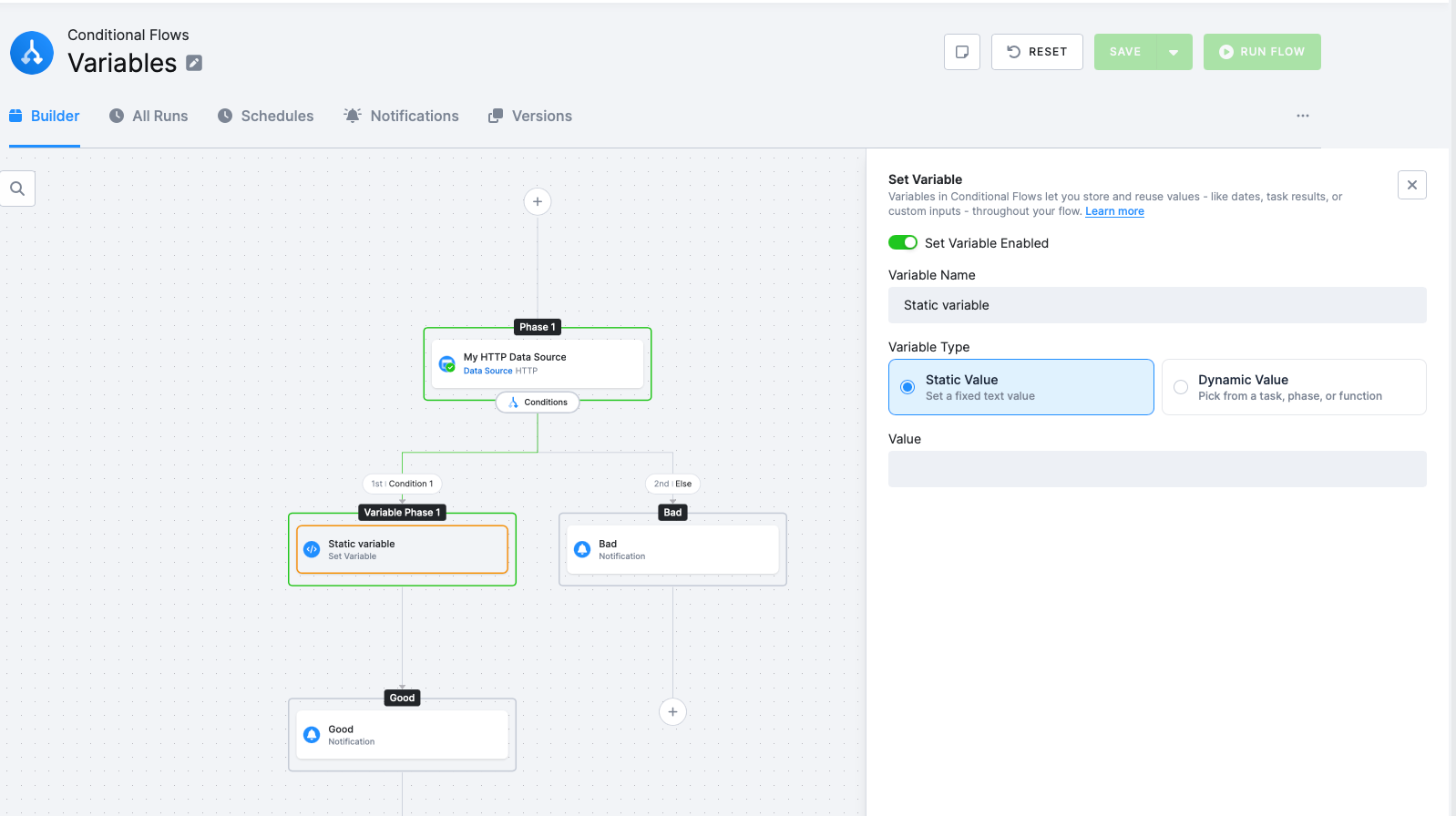
Static value
Section titled “Static value”A Static Value is a fixed text or number you enter directly. Useful for thresholds, IDs, or labels that don’t change between runs.
Dynamic value
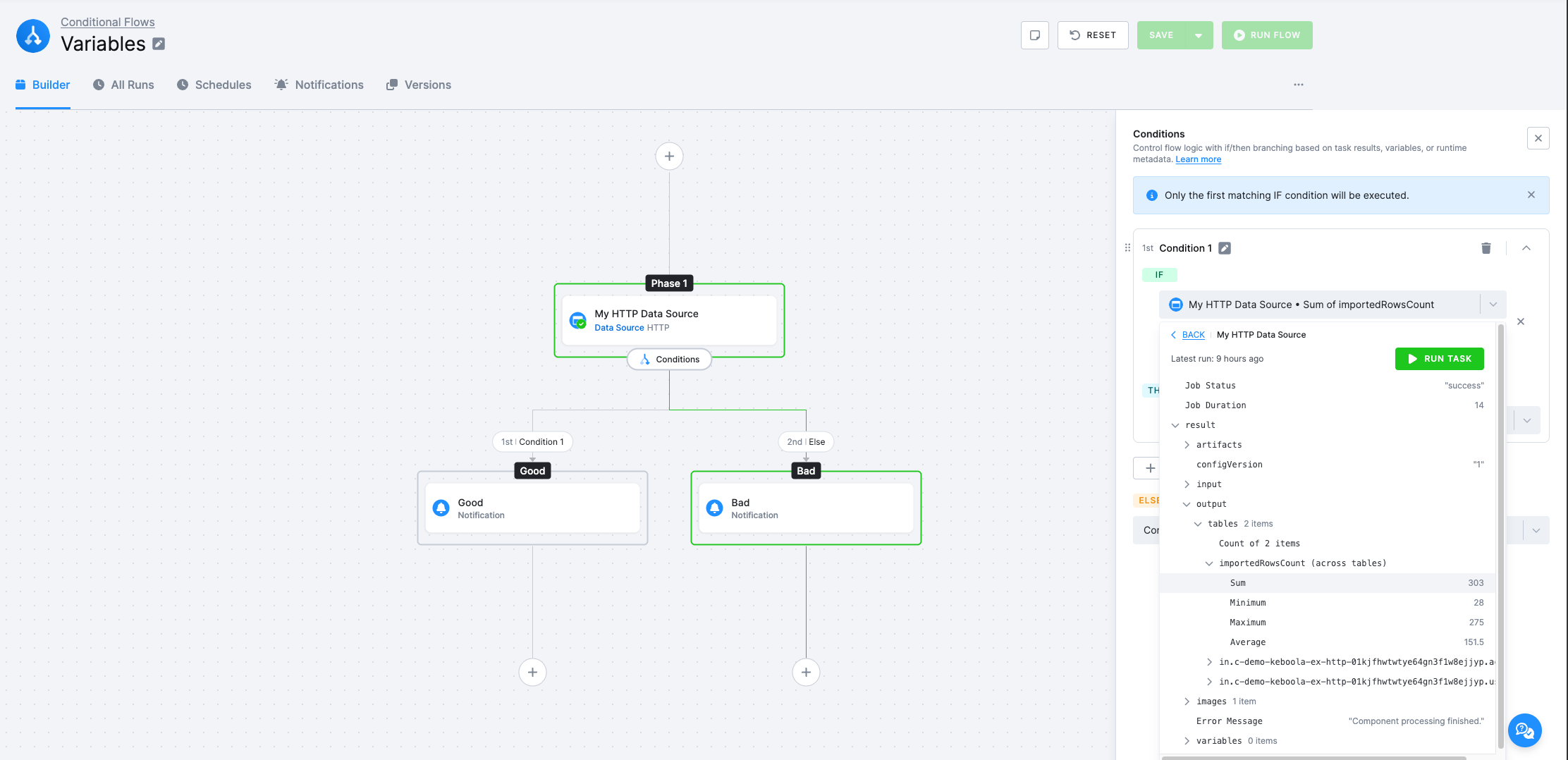
Section titled “Dynamic value”A Dynamic Value is computed at run time from a task result, an earlier phase, or a built-in function (see Date & time function). When you pick this type, the value picker lets you browse the outputs of tasks that ran earlier in the flow. You can pick any field from the job’s result tree — for example result.output.tables, result.artifacts, result.images, result.configVersion, result.errorMessage, and many more.
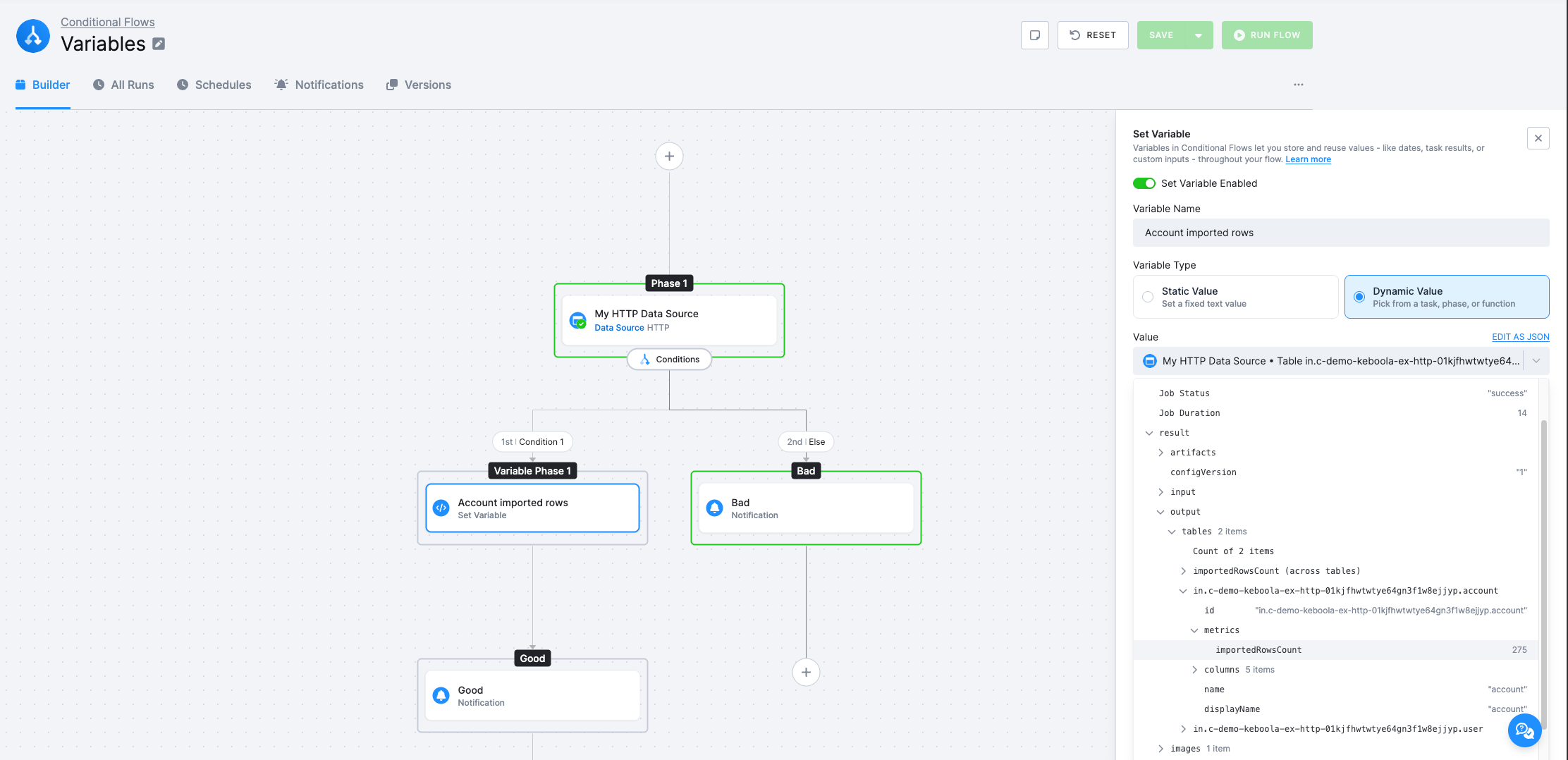
If a task produces multiple output tables, the picker also offers aggregations across all of them: Sum, Minimum, Maximum, and Average of a numeric field. For example, Sum of importedRowsCount returns the total number of rows imported by an HTTP data source across every output table.
Use a variable in a condition
Section titled “Use a variable in a condition”Goal: send a flow down one path or another, depending on a variable or a task result.
Once a variable has been set in an earlier phase, any later Condition can compare its value against a constant, against another variable, or against a task result.
- In the flow builder, click + under a phase and select Conditions in the ADD TASK menu. (Conditions appears only once the flow has its first phase.)
- In the Conditions sidebar, click Add Condition. Condition 1 opens with an If row.
- In the If row, click Select condition subject and choose a variable, a task result, or a phase result from an earlier phase (tabs Phases / Tasks, Variables and Functions).
- Choose an operator (Is, Greater than, Contains, …).
- In the field to the right of the operator, provide the comparison value: a constant, or another value picked from the tree (for a job status, Select status). Use Add AND or Add OR to combine more comparisons.
- Set Then and Else: Continue To an existing phase or a New phase name, or End Flow.
- Click Save in the header to save the flow.
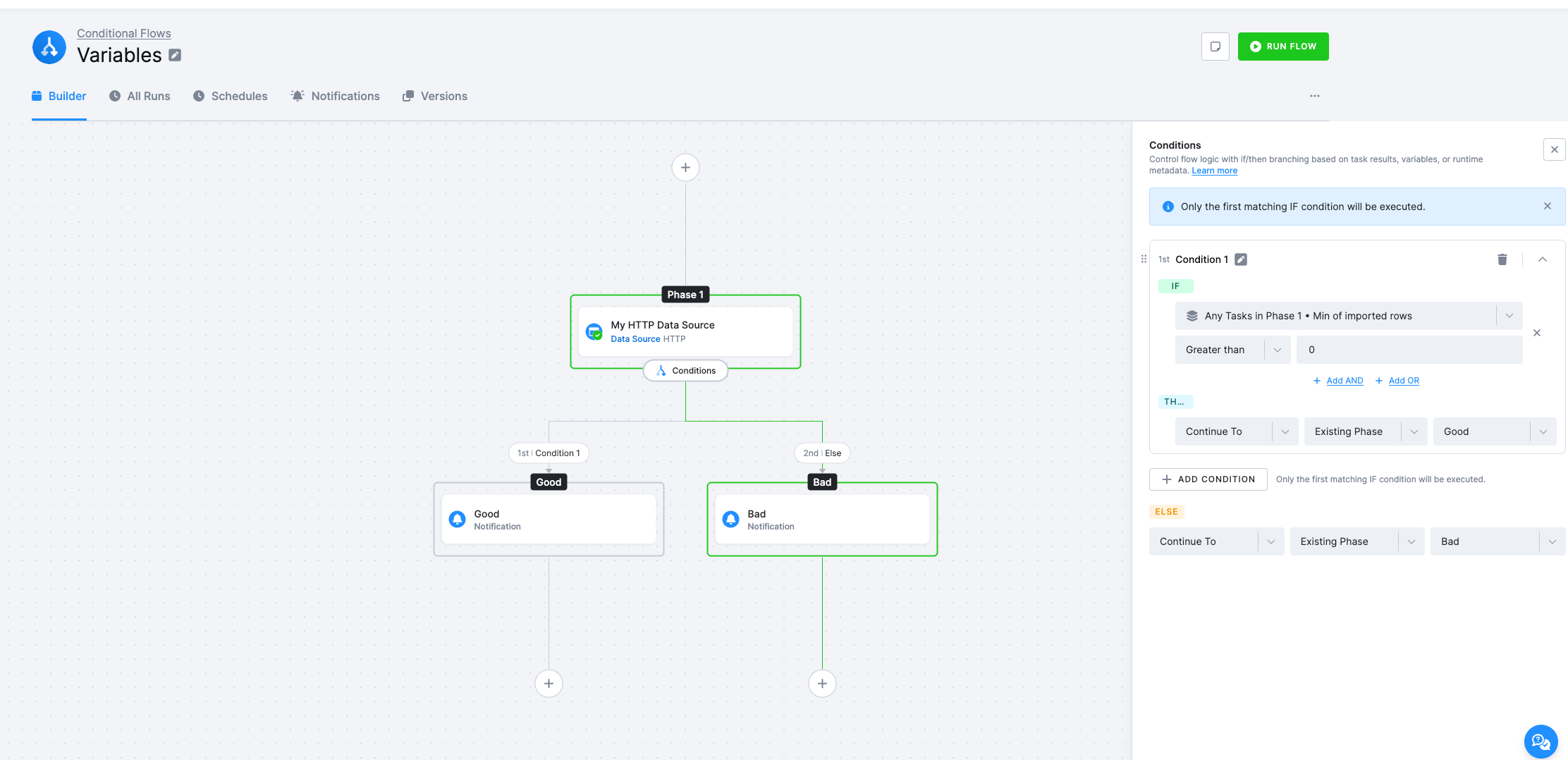
Result: when the flow runs, it continues to the phase you set for THEN or ELSE, or ends. Only the first matching IF condition is executed; subsequent IFs in the same Conditions block are skipped.
See also the Conditions section for the full list of operators and condition types.
Override a variable on one flow task
Section titled “Override a variable on one flow task”Goal: set the value of a configuration variable for one specific task of a flow.
To set a value on one specific task instead, use its Task Parameters:
-
Select the task in the flow’s Builder to open its settings, and click Set advanced parameters. The editor opens pre-filled with the task’s
type,mode,componentIdandconfigId.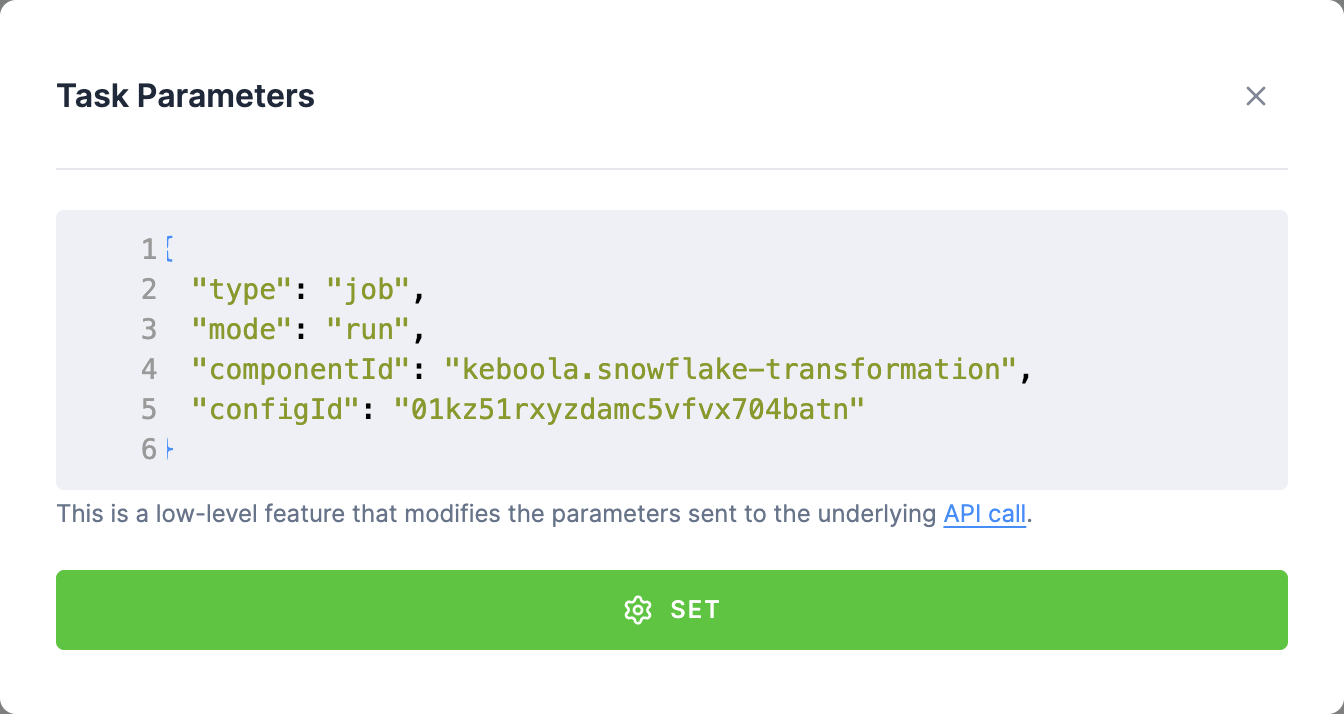
-
Add
variableValuesDatato the task payload. ThevariableValuesDatashape is the same one running a job takes, but the surrounding fields are the task’s own (componentId/configId), not the job API’scomponent/config:{"componentId": "keboola.snowflake-transformation","configId": "0123abc","mode": "run","variableValuesData": {"values": [{"name": "multiplier","value": "1000"}]}} -
Click Set.
Result: the task runs with the value you set. This path does not depend on the variable also being declared as a flow variable. The other way, a flow variable with the same name as the configuration variable, is explained in Driving a configuration variable from a flow.
Was this page helpful?
Thank you for helping improve Keboola's documentation!