 USER DOCUMENTATION
Streamlit Apps
- Overview
- Getting Started
- Deployment Methods
- Secrets
- Access Storage from App
- Loading Data from Storage
- Writing Back to Storage
- Theming
- Base Image
- AgGrid Enterprise License
Overview
Streamlit is a Python framework that transforms data scripts into interactive web applications with minimal code. It is the fastest way to build apps in Keboola, perfect for rapid prototyping and internal tools.
When to Use Streamlit:
- Quick dashboard creation and prototyping
- Data exploration and visualization tools
- Internal reporting and analytics applications
- Model demonstrations and testing interfaces
- Apps primarily built by data scientists or analysts
Key Advantages:
- Write everything in pure Python
- Built-in widgets and interactive components
- Automatic UI generation from Python code
- Extensive data science library support
- Rapid development and iteration
Getting Started
Prerequisites
- Basic Python programming knowledge
- Familiarity with data manipulation (pandas, numpy)
- Understanding of data visualization concepts
Create Your First Streamlit App
- Navigate to Apps in your Keboola project.
- Click the + button to create a new app.
- Enter a custom prefix for your app’s URL.
- Select Streamlit as the technology stack.
- Choose a deployment method (Code or Git repository).

Deployment Methods
There are two ways to deploy a Streamlit app:
- Code
- Git Repository
Code
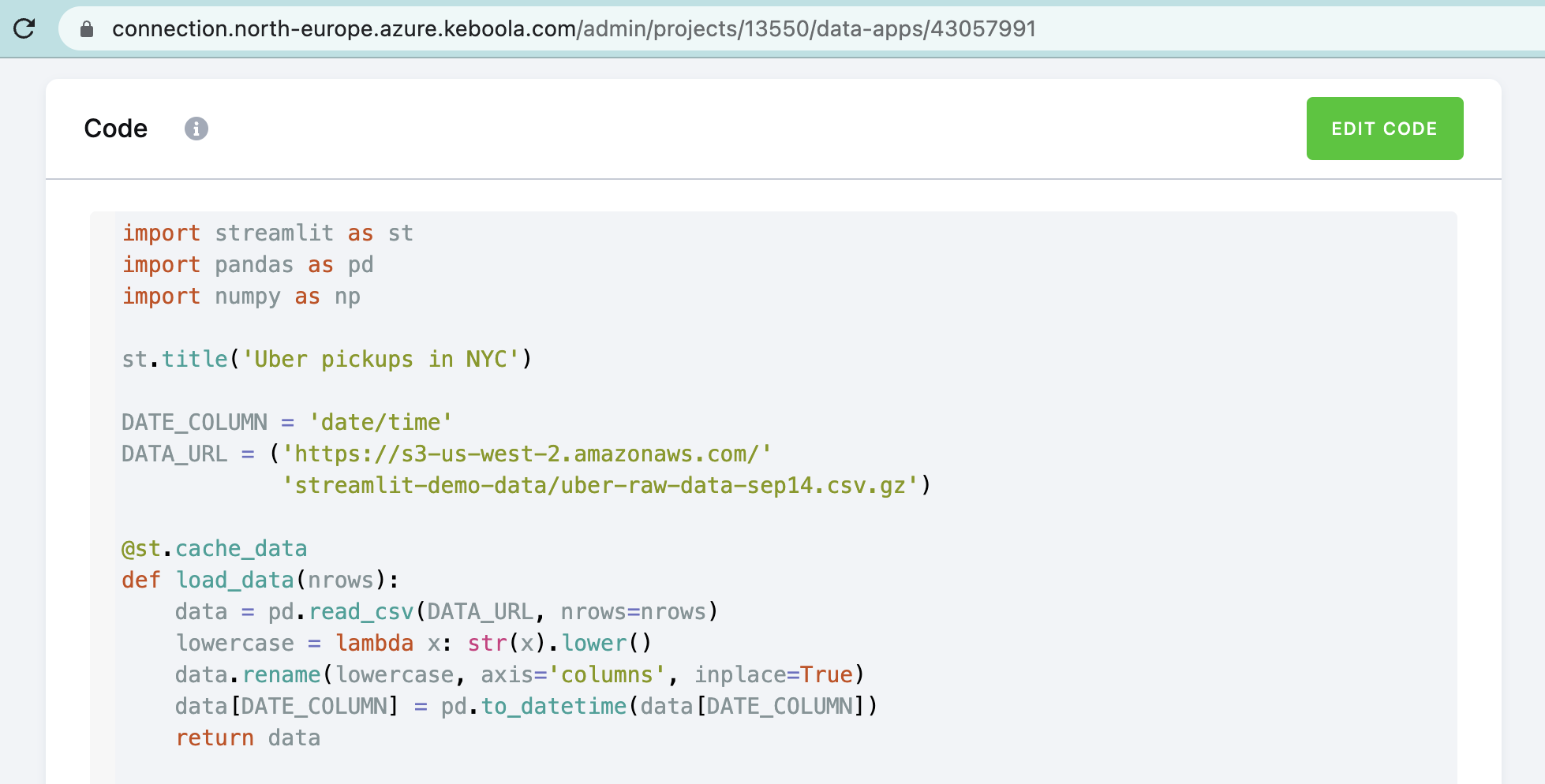
For simple use cases where your Streamlit code fits on one page, paste the code directly into a text area. This deployment type is ideal for simple apps or for testing. Check out this example from Streamlit docs.

Packages
To use additional Python packages that are not already included in the base image, enter them into the Packages field.

Git Repository
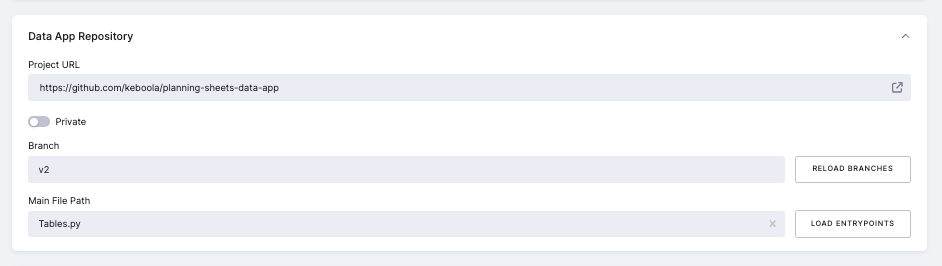
If you have a complex application, push your app sources into GitHub and link the repository in this section. Provide the Project URL, choose the right branch, and finally, select your main entrypoint file.
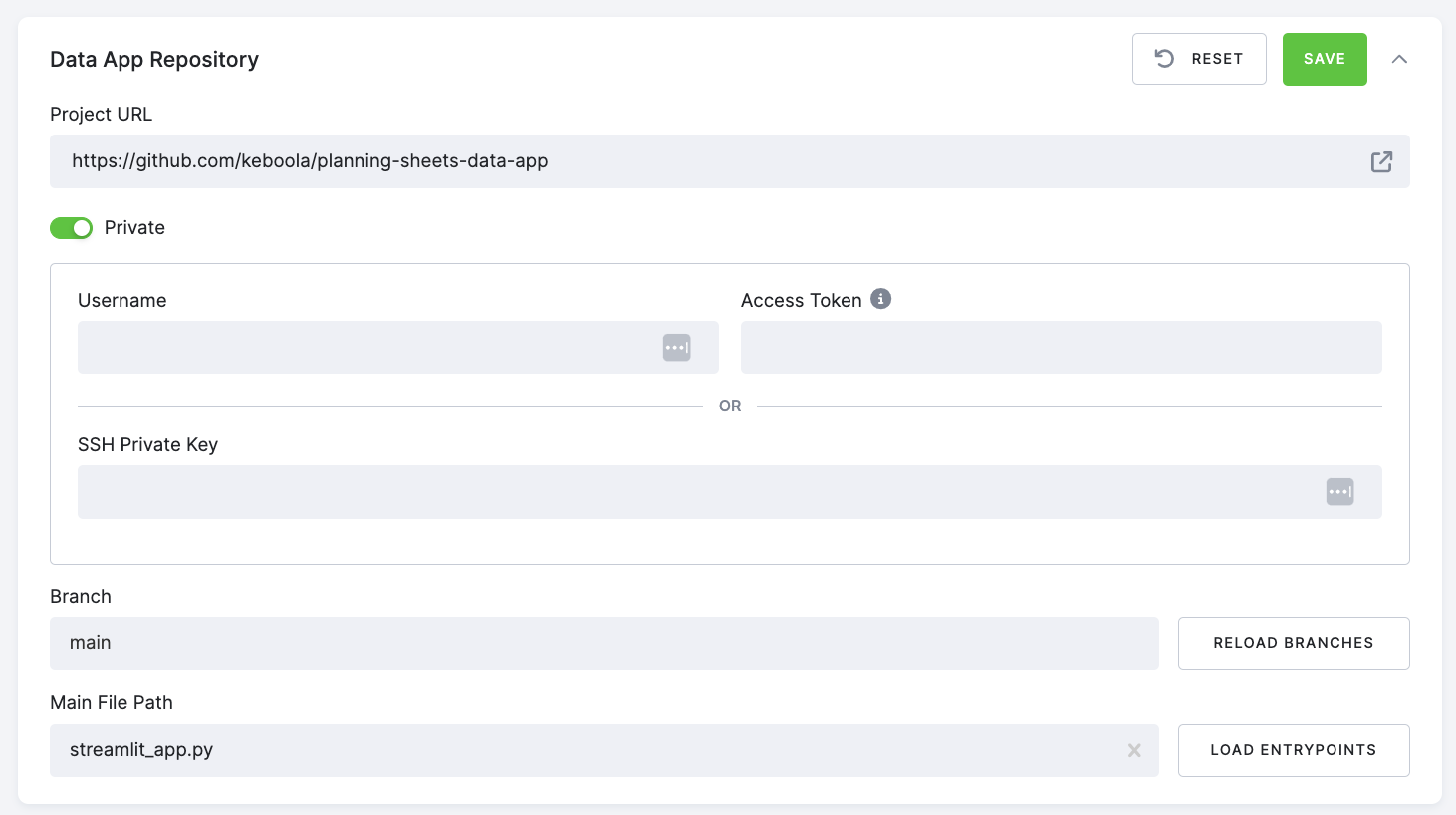
If you are using a private repository, you have two options to authenticate:
- With your GitHub username and personal access token
- With an SSH private key
Follow these steps to authenticate using your GitHub username and personal access token:
- Generate a personal access token on GitHub by going to your GitHub account settings, selecting Developer settings > Personal access tokens, and clicking Generate new token. Ensure the token has the necessary permissions to access the repository.
- In Keboola, navigate to the App Repository in your app configuration, check the
Privateoption, and enter your GitHub username and the personal access token you generated in step 1. - Click Save to authenticate with the private repository.
To authenticate using your SSH private key, follow the instructions in the GitHub manual. After generating your key, enter your SSH private key into the appropriate configuration field and click Save.
Secrets
To provide your app with environment variables or sensitive information like credentials, API keys, etc., use the Secrets section. These secrets will be injected into the secrets.toml file upon deployment of the app.
When you upload secrets.toml using the direct secrets upload UI, Keboola imports secrets as flat, top-level keys. Sections (TOML groups) are not preserved as nested structures. This means keys in the file become st.secrets["your_key"] after upload - you cannot access them as st.secrets["group"]["key"]. If your app expects nested secrets, use repo-based secrets.
Read more about the Streamlit secrets.
Direct Secrets Upload
You can upload a secrets.toml file directly through the UI when developing an app from code. The upload process:
- Overwrites existing secrets with matching names.
- Preserves existing secrets that don’t match the uploaded ones.
- Creates new secrets if they don’t exist.
- Does not delete any existing secrets.
Example secrets.toml structure:
aws_key = "YOUR_AWS_KEY"
aws_secret = "YOUR_AWS_SECRET"
openai = "YOUR_OPENAI_KEY"
Best Practices
- Always use descriptive secret names to improve clarity.
- Back up your secrets configuration regularly.
- Review existing secrets before uploading new ones to avoid unintentional overwrites.
- If you need nested/groups, use repo-based secrets. Direct upload does not support nested access.
Access Storage from App
By default, there are two environment variables available that make it easy to access Keboola Storage from your application:
KBC_URL: This represents the URL of the current Keboola project.KBC_TOKEN: This represents the Storage token with full read-write access to Keboola Storage.
To securely access Storage, we recommend creating a dedicated Storage token with limited permissions and passing it to your app as a secret. You can generate such a token following the guide here.
Important:
Do not name your secret KBC_TOKEN, as this name is reserved.
These environment variables can be accessed within your Streamlit app code. Here is an example of how to initialize the Keboola Storage token:
# Constants
kbc_token = os.environ.get('KBC_TOKEN')
kbc_url = os.environ.get('KBC_URL')
# Initialize Client
client = Client(kbc_url, kbc_token)
These variables represent the project where the application is deployed. To map data from a different project, you need to configure the appropriate secrets.
Loading Data from Storage
To load data from the Storage of a Keboola project into the app, use the input mapping section. Just select your table in the input mapping section and navigate to that by /data/in/tables/your_data.csv or /data/in/files/fileID_FileName.* in your code. Note that the app needs to be redeployed to fetch up-to-date data. Or you can use the Keboola Storage Python Client in the app to load the data as needed.
Writing Back to Storage
For writing data back to Keboola Project Storage, use the Keboola Storage Python Client.
Theming
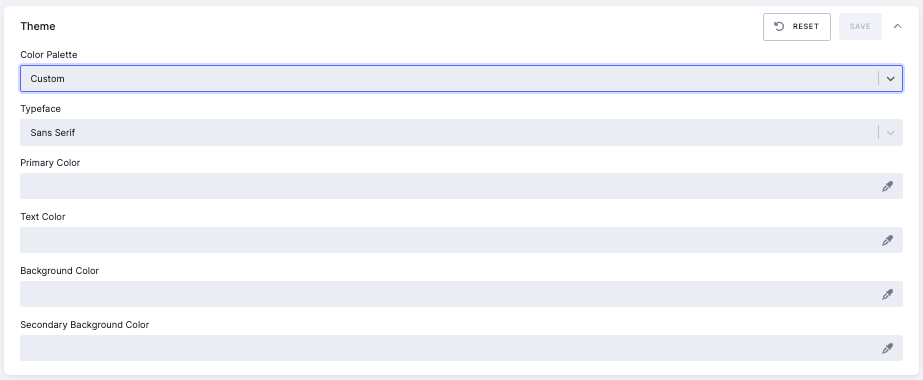
To configure theming in your app, you can select from predefined themes or create a custom theme. Predefined themes include Keboola, Light Red, Light Purple, Light Blue, Dark Green, Dark Amber, and Dark Orange. Each theme has a specified primary color, background color, secondary background color, text color, and font. Users choosing Custom can manually set these values.
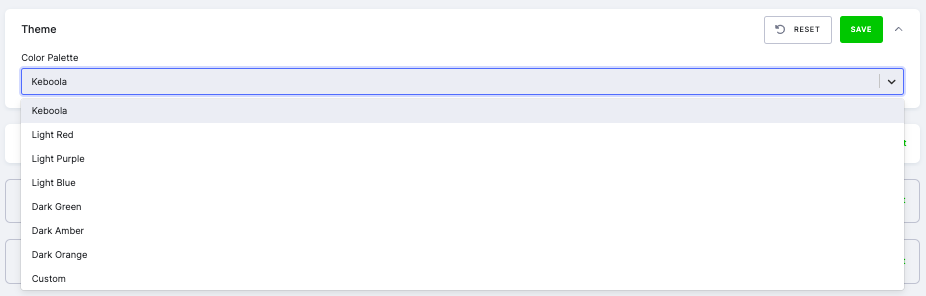
For Custom, users can select colors using the color pickers and choose the desired font from a list.
Predefined Themes:
- Keboola
- Primary Color:
#1F8FFF - Background Color:
#FFFFFF - Secondary Background Color:
#E6F2FF - Text Color:
#222529 - Font: Sans Serif
- Primary Color:
- Light Red
- Primary Color:
#FF5D5D - Background Color:
#FFFFFF - Secondary Background Color:
#FFE6E6 - Text Color:
#222529 - Font: Sans Serif
- Primary Color:
- Light Purple
- Primary Color:
#9A6DD7 - Background Color:
#FFFFFF - Secondary Background Color:
#F2E6FF - Text Color:
#222529 - Font: Sans Serif
- Primary Color:
- Light Blue
- Primary Color:
#0000B2 - Background Color:
#FFFFFF - Secondary Background Color:
#E6E6FF - Text Color:
#222529 - Font: Sans Serif
- Primary Color:
- Dark Green
- Primary Color:
#4CAF50 - Background Color:
#222529 - Secondary Background Color:
#3D4F41 - Text Color:
#FFFFFF - Font: Sans Serif
- Primary Color:
- Dark Amber
- Primary Color:
#FFC107 - Background Color:
#222529 - Secondary Background Color:
#4A3A24 - Text Color:
#FFFFFF - Font: Sans Serif
- Primary Color:
- Dark Orange
- Primary Color:
#FFA500 - Background Color:
#222529 - Secondary Background Color:
#4A3324 - Text Color:
#FFFFFF - Font: Sans Serif
- Primary Color:
Base Image
When the app is deployed, the code specified in one of the deployment methods will be injected into the Streamlit base Docker image. You can select a specific backend version when deploying your app. Each version defines the Python version, Streamlit version, and a set of pre-installed packages.
The following packages are pre-installed in all backend versions:
streamlit,pandas,numpy,matplotlib,plotly,scikit-learn,seaborngraphviz,deepmerge,python-dotenv,tomlkeboola.component,streamlit-aggrid,streamlit-keboola-api,streamlit_authenticator
Starting with backend version 1.15.0, each release is available with multiple Python versions (3.10, 3.11, 3.13). Python 3.10 is the default.
For the full list of available versions, pre-installed packages, and a changelog of what changed in each release, see the Backend Versions page.
AgGrid Enterprise License
The AgGrid Enterprise License is available for Streamlit apps in Keboola, offering enhanced data manipulation capabilities, including:
- Inline dataset editing.
- Advanced features such as pivoting, filtering, and sorting.
- A professional interface, free from the “trial use only” watermark.
Ensure your app is configured to use the AgGrid component to take advantage of these enhanced features.
How to Enable the License
The enterprise license is pre-configured for all Keboola stacks, so no additional setup is required for supported applications.
To access the license key in your Streamlit app, use the following code:
import streamlit as st
from keboola_streamlit import KeboolaStreamlit

URL = st.secrets["kbc_url"]
TOKEN = st.secrets["kbc_token"]

keboola = KeboolaStreamlit(URL, TOKEN)
license_key = keboola.aggrid_license_key
You can use this license_key directly in AgGrid.
Reference Implementation: Keboola Streamlit Integration