 USER DOCUMENTATION
Data Apps
- Overview
- Why Build Data Apps?
- Choose Your Technology
- Creating Your First Data App
- Common Features
- Sleep and Resume
- Deployment and App Management
- Example Data Apps
Overview
Data apps are simple, interactive web applications that use data to deliver insights or automatically take action. They are custom-tailored to tackle specific business problems and enable dynamic, purpose-built user experiences.
As web applications deployed within your Keboola project, data apps can be publicly accessed from outside the project. This means users accessing your data app do not need access to a Keboola project - they simply visit a URL.
Why Build Data Apps?
Data apps transform how your organization interacts with data by providing purpose-built interfaces that solve specific business challenges.
Replace Traditional BI Tools
Move beyond generic dashboards to create custom visualizations that match your exact needs:
- Brand Consistency: Design dashboards in your company’s color palette and visual identity.
- Real-Time Updates: Pull fresh data on demand without waiting for scheduled refreshes.
- Cost Efficiency: Eliminate per-seat licensing costs of traditional BI platforms.
Empower Business Users
Build interactive tools that put data in the hands of non-technical users:
- Self-Service Analytics: Enable business teams to explore data without SQL knowledge.
- Data Editing Interfaces: Replace Excel workflows with controlled, collaborative editing tools.
- Automated Workflows: Trigger actions based on data insights without manual intervention.
- Custom Reporting: Generate tailored reports that match your team’s specific needs.
Solve Specific Business Problems
Create targeted solutions for unique challenges:
- Recommendation Engines: Build personalized product or content recommendations.
- Interactive Segmentation Tools: Allow marketing teams to define and visualize customer segments.
- AI Integration: Connect machine learning models directly to business workflows.
- Financial Analysis Apps: Provide real-time insights into spending patterns and forecasts.
- Campaign Management: Design and execute data-driven marketing campaigns.
Benefits of Building in Keboola
- Integrated Platform: Access all your transformed data directly from Storage.
- No Infrastructure Management: Focus on building features, not managing servers.
- Secure by Design: Built-in authentication and authorization options.
- Automatic Scaling: Resources scale based on usage.
- Version Control: Git-based deployment for production-grade development.
Choose Your Technology
Keboola Data Apps support two technology stacks, each designed for different use cases and skill sets:
Streamlit (Python)
Best for: Data scientists, analysts, and Python developers who want rapid prototyping.
Streamlit is a Python framework that turns Python scripts into interactive web applications with minimal code.
Key Features:
- Write apps entirely in Python.
- Built-in widgets and charts.
- Rapid development cycle.
- Extensive Python data science ecosystem.
Ideal Use Cases:
- Quick dashboards and prototypes.
- Data exploration tools.
- Model demos and visualizations.
- Internal reporting tools.
Learn more about Streamlit Data Apps –>
Python/JS (Custom Frameworks)
Best for: Development teams building production-grade, interactive applications.
A full-stack solution where you bring your own code - use any Python web framework (Flask, FastAPI, Dash), serve a JavaScript frontend, or combine both.
Key Features:
- Any Python or Node.js web framework.
- Full control over UI/UX.
- Custom Nginx and process configuration.
- Modern dependency management with
uv.
Ideal Use Cases:
- Complex interactive applications.
- Customer-facing products.
- Applications requiring advanced UI features.
- Tools needing multiple data processing backends.
Learn more about Python/JS Data Apps –>
Creating Your First Data App
Getting started with Data Apps is straightforward:
- Navigate to Data Apps: In your Keboola project, go to the Data Apps section.
- Create New App: Click the + button to create a new data app.
- Choose Type: Choose your technology stack (Streamlit or Python/JS).
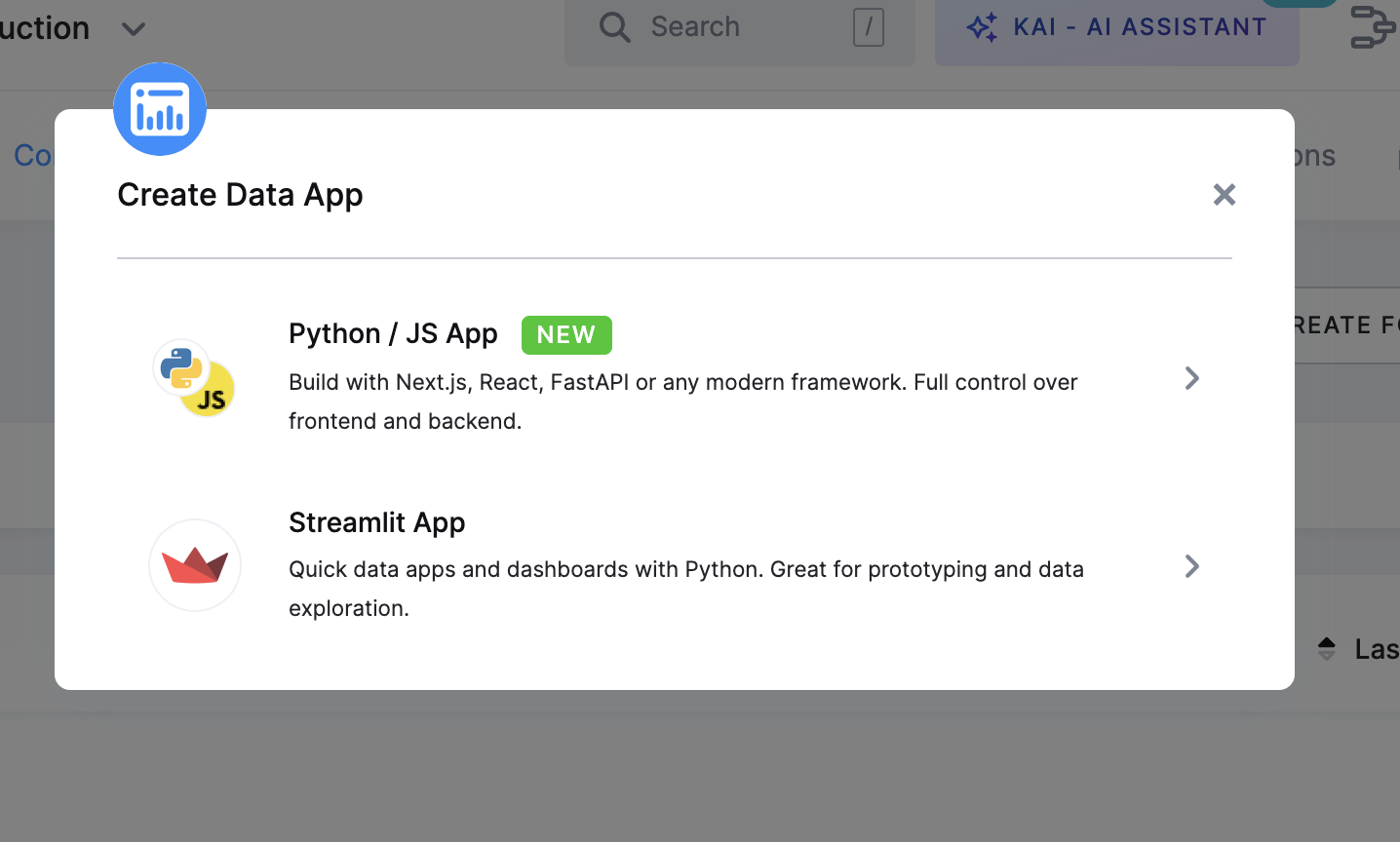
- Configure Basic Settings: Enter a custom URL prefix for your app and select a deployment method (Code or Git repository).
- Deploy Your App: Click Deploy and your app will be available at its public URL.
For detailed setup instructions, visit the technology-specific documentation pages:
Common Features
Regardless of which technology you choose, all Data Apps share these capabilities:
Authentication & Security
Keboola provides built-in authentication methods to protect your data apps:
- None: No authentication - the app is publicly accessible. You may implement your own auth logic within the app.
- Basic Authentication: Simple password protection using a Keboola-generated password.
- OIDC/SSO Integration: Enterprise single sign-on support (Auth0, Google, Microsoft Entra ID, Okta).
- GitHub Authentication: Restrict access using GitHub OAuth - by organization, team, repository, or allowed users.
- GitLab Authentication: Restrict access using GitLab OAuth - by groups, projects, or allowed roles.
- JumpCloud Authentication: Restrict access using JumpCloud OIDC - with optional role-based filtering.
Learn more about authentication –>
Data Integration
- Input Mapping: Automatically load specific tables into your app.
- Storage API Client: Programmatic access to all Storage features.
- Environment Variables: Pre-configured
KBC_URLandKBC_TOKEN.
Configuration & Secrets
- Environment Variables: Pass configuration to your apps.
- Secrets Management: Securely store API keys and credentials.
- Theming: Customize appearance with predefined or custom themes (Streamlit apps).
Resource Management
- Auto-Sleep/Resume: Automatically suspend inactive apps to save costs.
- Configurable Timeouts: Set inactivity periods from 5 minutes to 24 hours.
- Scalable Backend: Choose appropriate compute resources for your needs.
Development Workflow
- Code Deployment: Paste code directly for simple apps (Streamlit only).
- Git Integration: Connect GitHub repositories for version control.
- Private Repository Support: Authenticate with personal access tokens or SSH keys.
- Multiple Branches: Deploy from any branch for testing.
Sleep and Resume
Our Suspend/Resume feature helps you save resources by automatically putting your app to sleep after a period of inactivity. Here is how it works:
Activity Monitoring: The app monitors for HTTP requests and active Websocket connections. If no activity is detected for the configured period, the app automatically suspends. Please note that an inactive browser tab where your app is open may still cause background activity, potentially preventing your app from sleeping. If you are using Google Chrome, you may want to enable Memory Saver in the settings, which can help prevent such background activity.
Automatic Resumption: As soon as a new request is made to the app, it wakes up and resumes operation. While the resume process is designed to be smooth, the first request upon waking may take slightly longer to process.
Cost Efficiency: For example, if your app is active for two hours and then becomes inactive, it will go to sleep after the configured inactivity timeout. You will only be billed for the time when the app was active or waiting to suspend.
This feature ensures you pay only for what you use, while keeping the app ready for when you need it next.
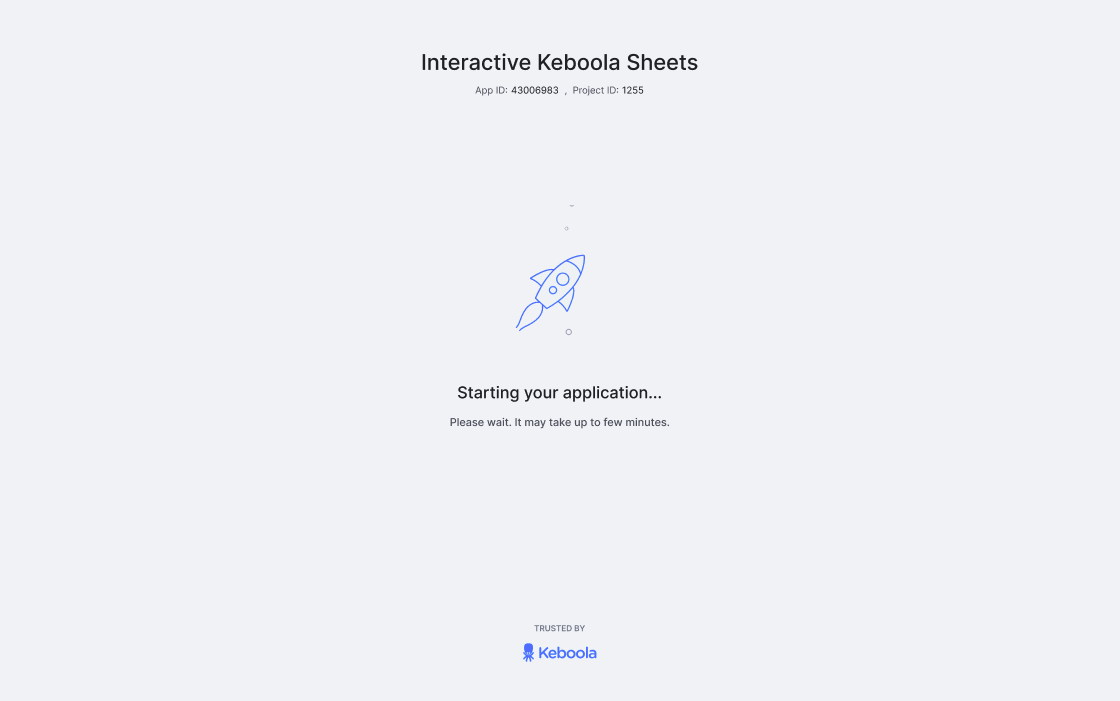
If you enter the URL of a sleeping app, it will trigger its wakeup, and you will see a waking up page.
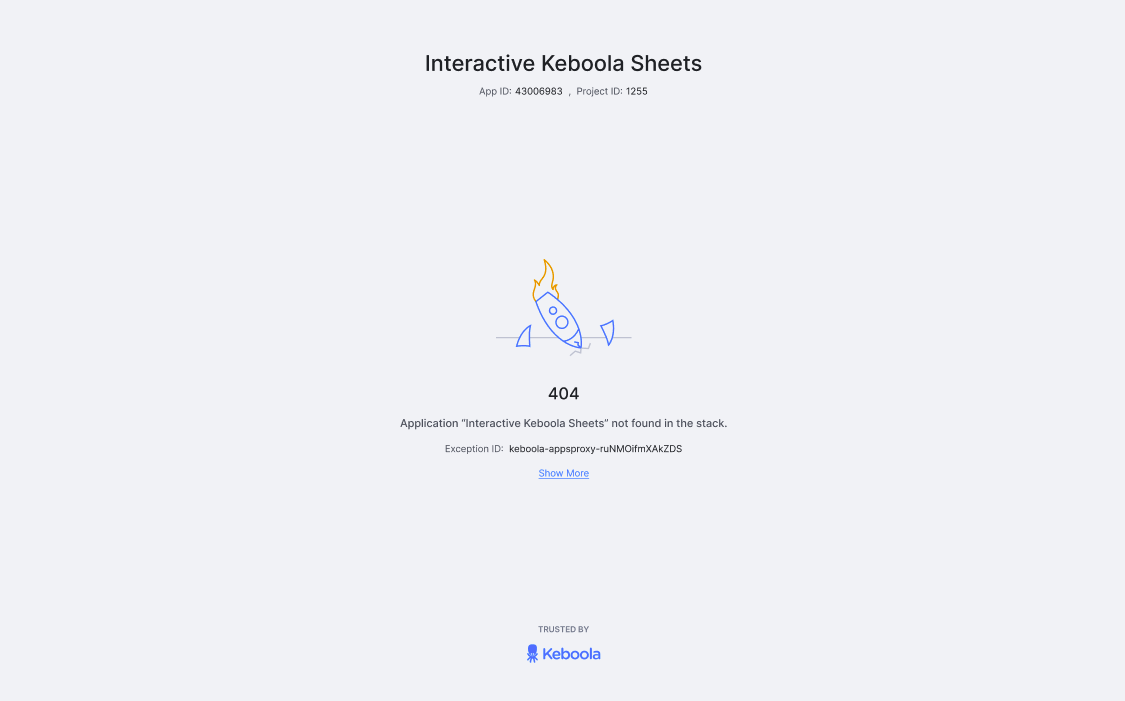
Should anything unexpected occur, a wakeup error page will appear, and you can click Show More to view the error details.
How to Set Up Inactivity Timeout
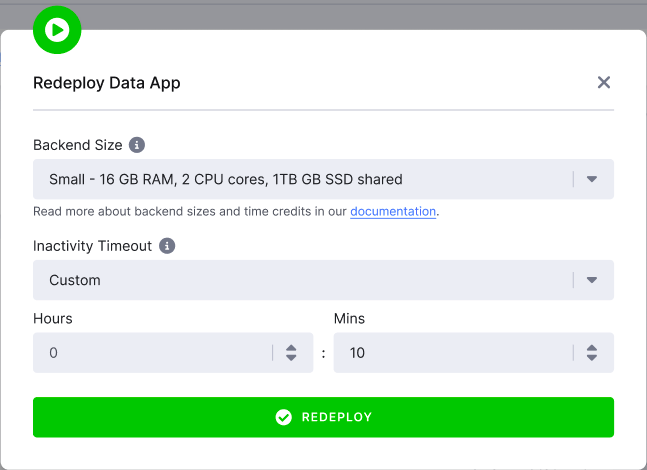
When you click Deploy or Redeploy for your app, a wizard will appear, prompting you to specify the backend size and the auto-sleep timeout. You can set the duration of inactivity after which the app will go to sleep, with options ranging from five minutes to 24 hours. The default is set to five minutes.
Deployment and App Management
Actions Menu
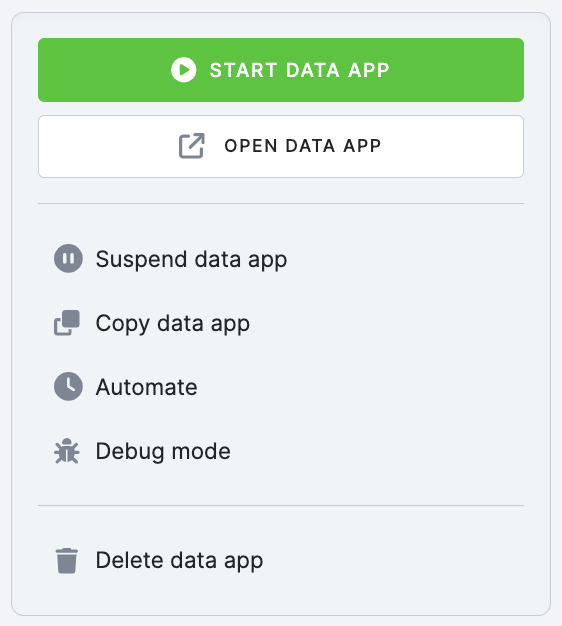
- Deploy Data App - starts the data app. Once the deployment job is finished, you can go to the data app public URL by clicking Open Data App.
- Open Data App - opens a new window with your data app.
- Redeploy - if you made changes in the data app configuration, you have to redeploy it for the changes to take effect.
- Suspend Data App - stops the data app. The container in which the application is running will be stopped, and the app URL will no longer be available. The configuration of the app will remain intact.
- Delete Data App - stops the data app deployment and deletes its configuration.
Debugging App Deployment
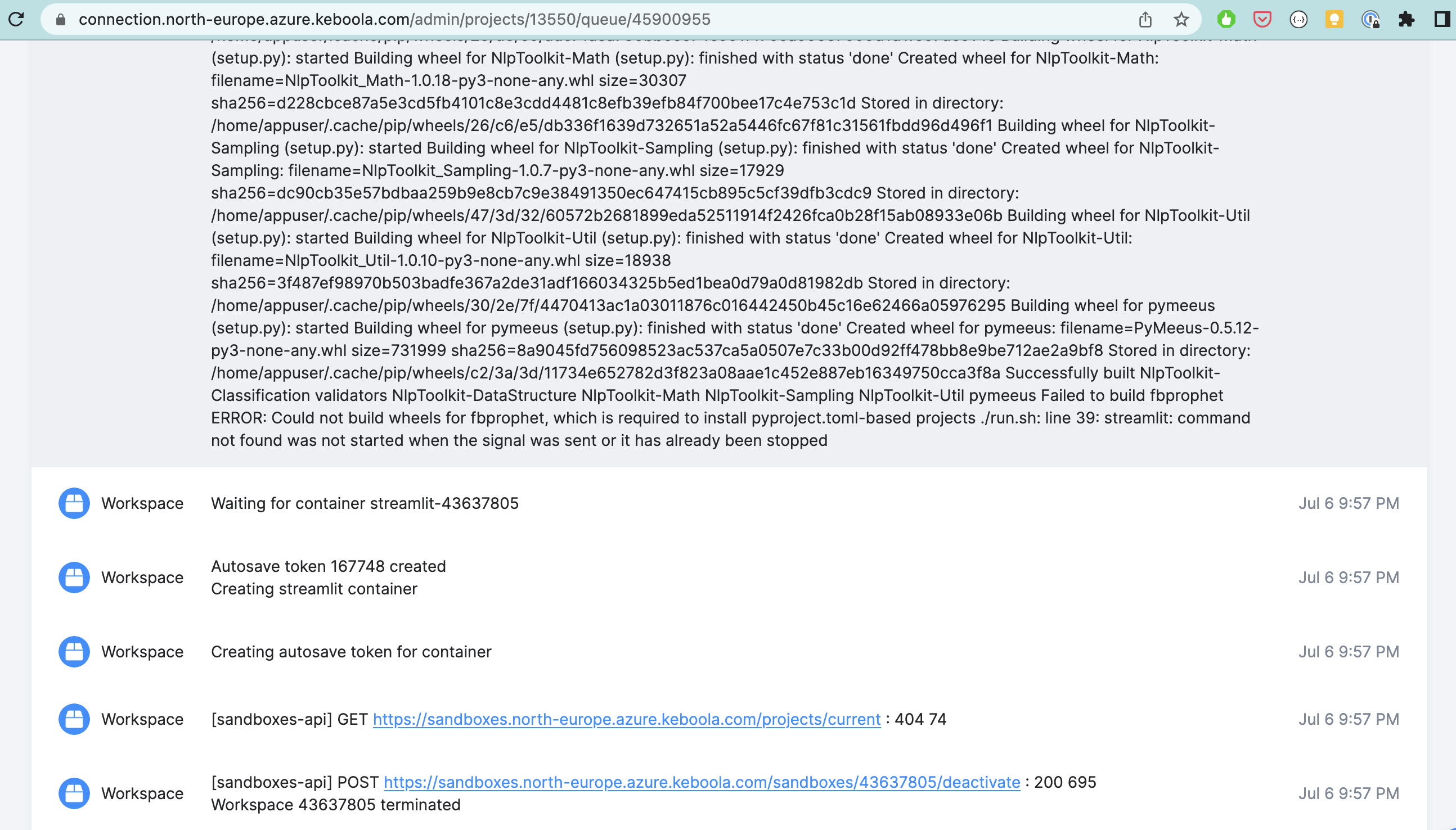
If the data app deployment job fails, you can see the logs from its container in the event log of the deployment job. For example, there may be a conflict with the specified packages:
Example Data Apps
Hello World
Simple demonstration of Streamlit code deployment.
Titanic Demo App
Interactive data exploration with visualizations and filters.
Interactive Keboola Sheets
Collaborative data editing without exporting to external tools.
eCommerce KPI Dashboard
Business metrics visualization with Slack integration.
AI SQL Bot
Natural language interface for Snowflake queries.
Online Marketing Dashboard
Multi-channel campaign cost overview.
Ready to build your first Data App? Choose your technology: