 USER DOCUMENTATION
Power BI Refresh
- Prerequisites
- Authorization
- Create New Configuration
- Finding Your Dataset ID
- Sample Configuration
- Output
- Notes
The Power BI Refresh application automatically triggers dataset refreshes in your Power BI workspace. Add it to the end of your Keboola flow so that your dashboards are updated immediately after your data pipelines complete — no manual steps, no scheduled mismatches.
Important: Each Power BI Refresh configuration can only work with a single Power BI workspace. To refresh datasets in multiple workspaces, create a separate configuration for each workspace.
Prerequisites
- OAuth2 authorization (Microsoft account with access to the target Power BI workspace)
- Dataset ID(s) from Power BI
Authorization
Create a new configuration of the Power BI Refresh application and authorize it using OAuth2. Click Authorize and sign in with the Microsoft account that has access to the Power BI workspace you want to refresh.
Create New Configuration
Once authorized, fill in the configuration parameters:
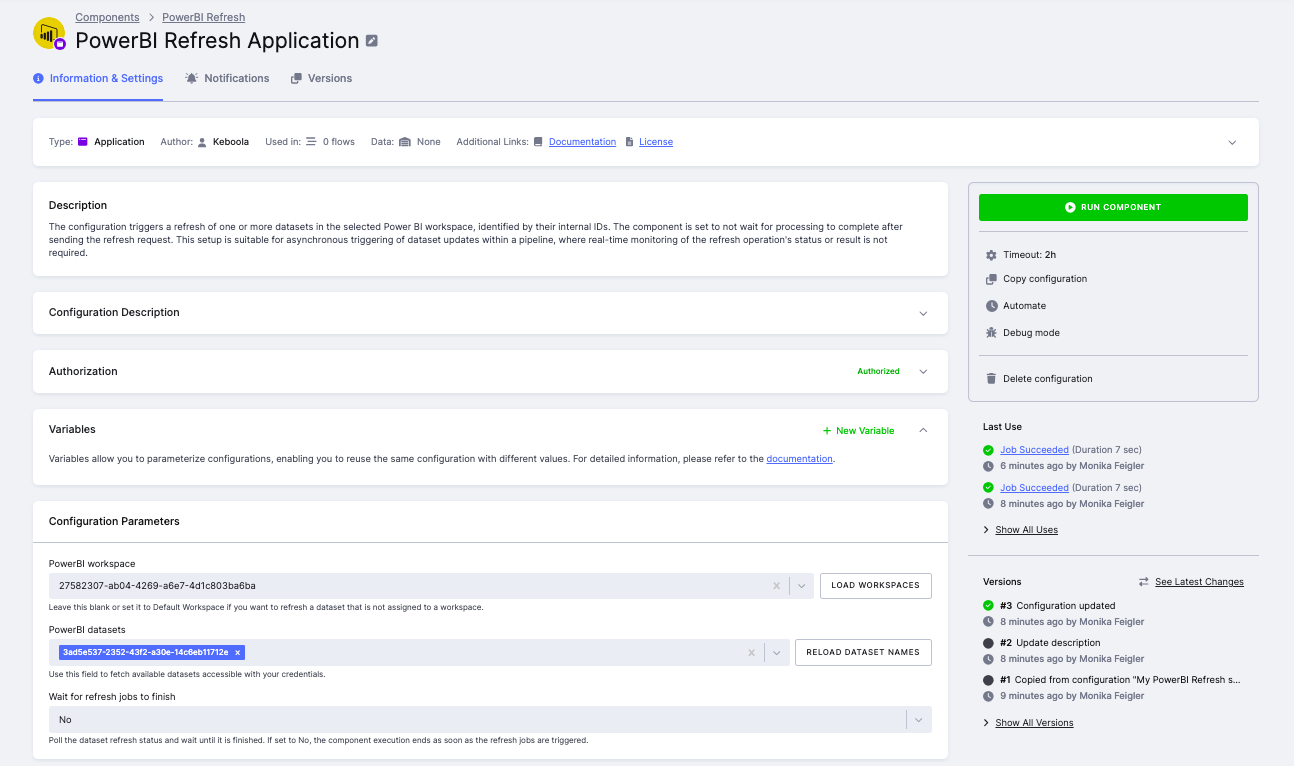
- PowerBI workspace — Enter the workspace ID (UUID) or use the Load Workspaces button to select from available workspaces. Leave blank to use the signed-in account’s default workspace.
- PowerBI datasets — Enter the dataset ID (UUID) of the dataset to refresh. Use the Reload Dataset Names button to select from datasets available in the selected workspace. You can add multiple datasets to refresh them in sequence.
- Wait for refresh jobs to finish — If set to Yes, the component polls the refresh status after sending the request and waits until all refreshes complete. If set to No (default), the component finishes as soon as the refresh requests are sent.
The following options are available when Wait for refresh jobs to finish is set to Yes:
- Fail if any dataset fails — End the job with an error if any dataset refresh fails, preventing downstream processes from running on stale data.
- Interval — How often (in seconds) to check the refresh status.
- Timeout — Maximum time (in seconds) to wait for refresh completion before the job fails.
Finding Your Dataset ID
- Open Power BI Service.
- Navigate to your workspace and open the dataset settings.
- The dataset ID is the UUID in the browser URL:
app.powerbi.com/groups/{workspace-id}/datasets/{dataset-id}/details.
Alternatively, use the Reload Dataset Names button in the configuration — this lists all datasets accessible with your credentials so you can select the correct one.
Sample Configuration
{
  "parameters": {
    "workspace": "27582307-ab04-4269-a6e7-4d1c803ba6ba",
    "datasets": [
      {
        "dataset_input": "3ad5e537-2352-43f2-a30e-14c6eb11712a"
      }
    ],
    "wait": true,
    "alldatasets": false,
    "interval": 30,
    "timeout": 3600
  }
}
Output
The component produces log output showing when each dataset refresh was triggered and whether it succeeded. Detailed refresh history is also available directly in Power BI under Semantic Model > Refresh history.
Notes
- Dataset credentials set in Power BI Desktop are not transferred when you publish a report to Power BI Online. You must re-enter them in Power BI Service under Semantic Model > File > Settings > Data source credentials.
- The component communicates with Power BI via the Microsoft Power BI REST API using OAuth2.